
Create an offer
Create an offer to send one or several artworks to a contact and record the proposal within ITGallery.
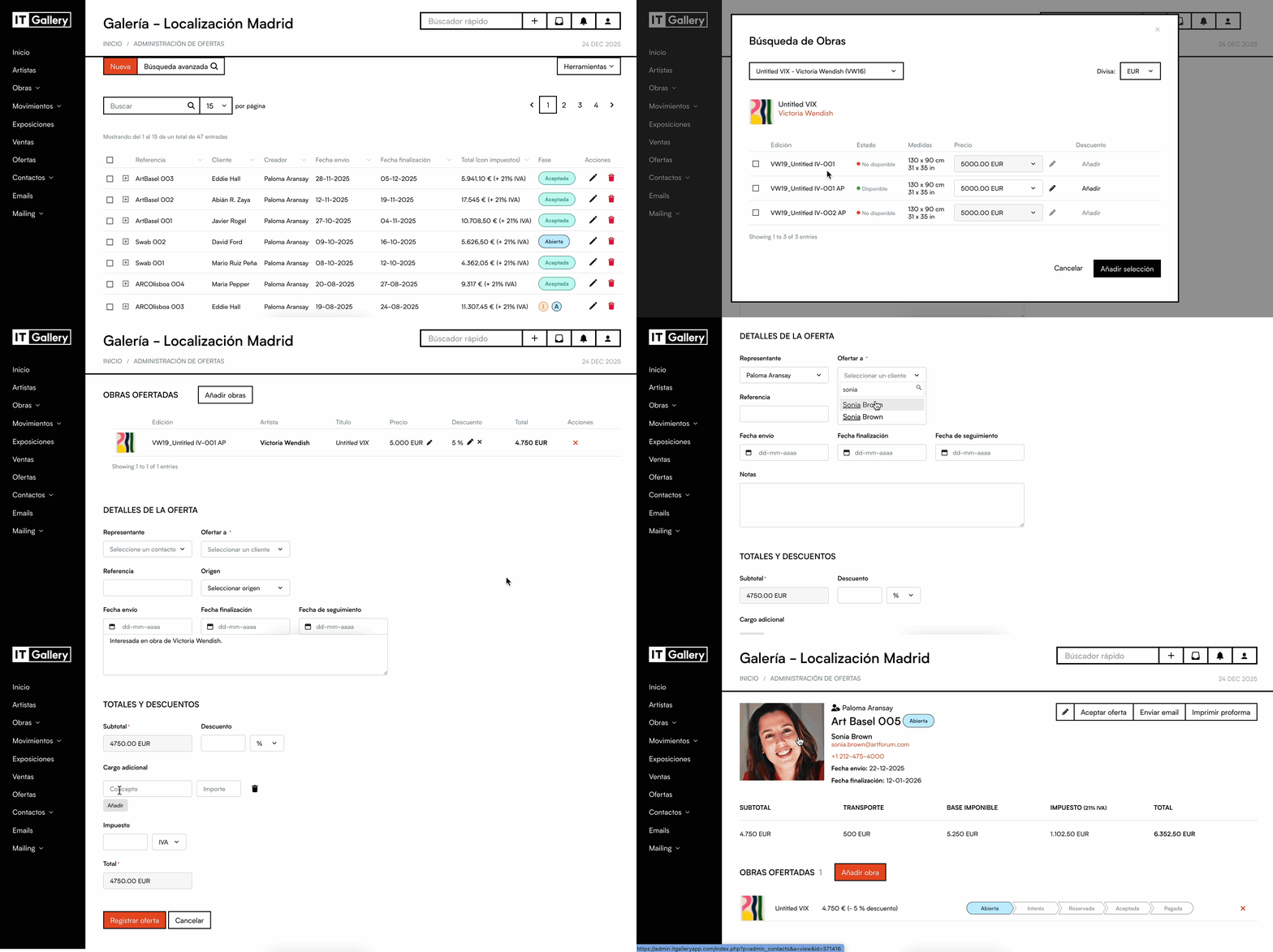
- Go to the Offers module from the side menu.
- Click New, in the upper left corner.
- In the Works offered block, click Add artworks.
- Select the currency of the offer.
- Search for and select the artwork you want to add.
- Select the edition of the artwork, if applicable.
- Select the price you want to use.
- Add a discount on the artwork, if you need one.
- Click Add offer.
- Repeat the process if you want to add more artworks to the same offer.
- Fill in the Offer details.
- Select the contact in the Offer to field.
- Add any internal information you need, such as representative, reference, source, sending date, follow-up date or notes.
- Review the Totals and discounts.
- Set the offer.
Once created, the offer will appear in the Offer list. By default, new offers are recorded with the status New.
Tip
To create an offer, the contact you are going to send it to must already exist in ITGallery.
Difference between artwork discount and offer discount
An offer can include one or several artworks. That is why you can apply discounts in two different ways.
Artwork discount
The artwork discount applies to one specific artwork only, before adding it to the offer.
Use this discount if you want to adjust the price of a specific artwork without changing the rest of the artworks included in the offer.
Offer discount
The offer discount applies to the total of the offer.
Use this discount if you want to apply a general reduction to the whole set of artworks offered.
Tip
The offer discount is independent from the discounts applied earlier to individual artworks.