Export to Excel
The Export to Excel function lets you export your artwork information to an Excel file, so you can consult, share or work with the data outside the platform.

How to export a selection of artworks to Excel
- Go to Artworks > List.
- Select the artworks you want to export by ticking the relevant box.
- Click Export to Excel.
- The file will be generated automatically for download.
Select columns when exporting
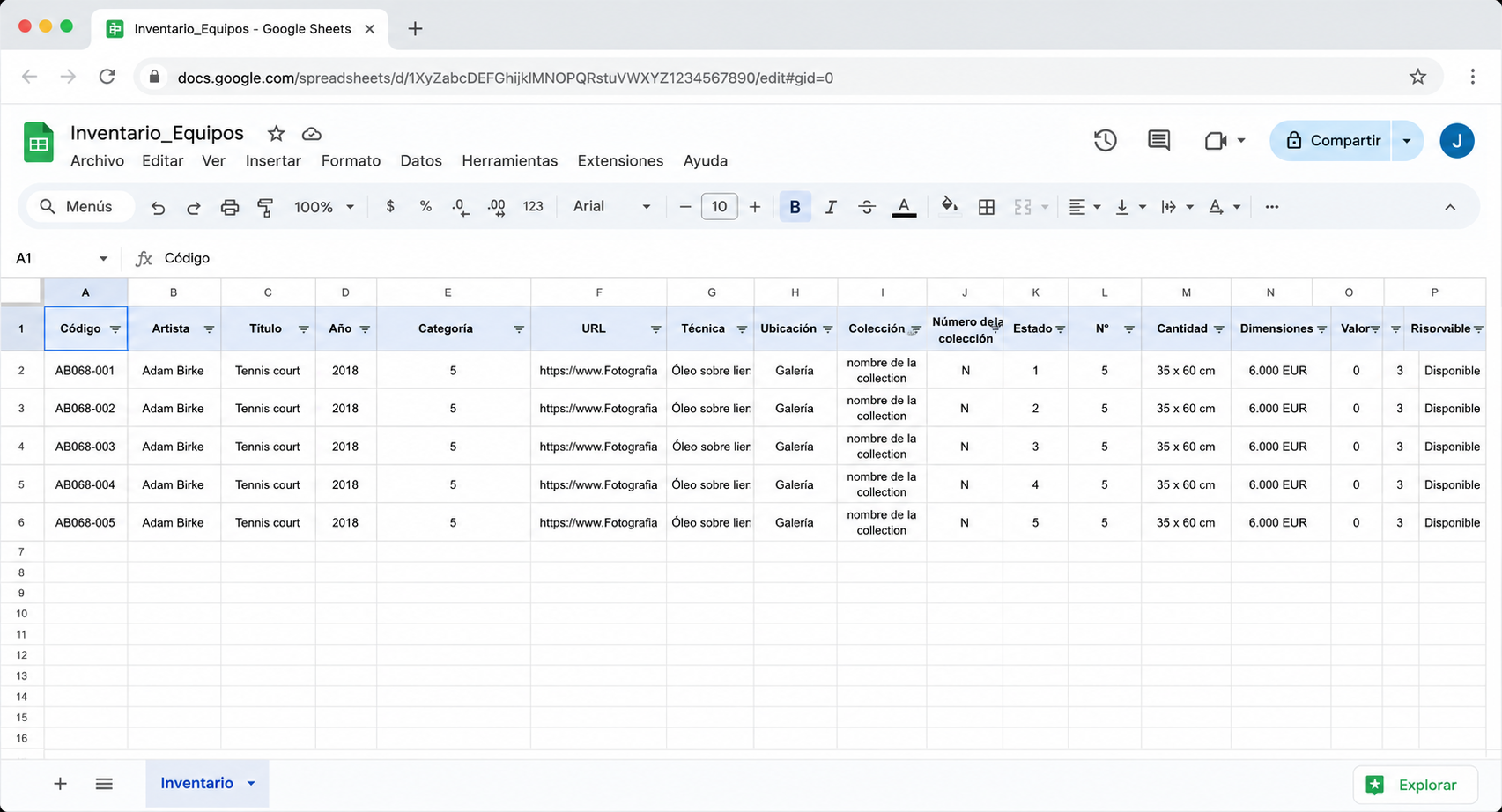
Before confirming the export, you can choose which fields to include in the Excel file.

- Open the Excel export option.
- Tick the columns you want to export.
- Untick the columns you do not need.
- Confirm the export.
Tip
If you want to export all the artworks in your inventory, use the Export all to Excel option. The export will then include every artwork visible in the list.
Export artworks or export editions
When exporting to Excel you can choose between Artworks and Editions.
Artworks
The Artworks option generates a single row for each artwork.
If an artwork has several editions, they appear grouped in the same row. For example, an artwork with an edition of 5 will be shown as a single record with the general information about the artwork.
Editions
The Editions option generates a separate row for each edition or copy.
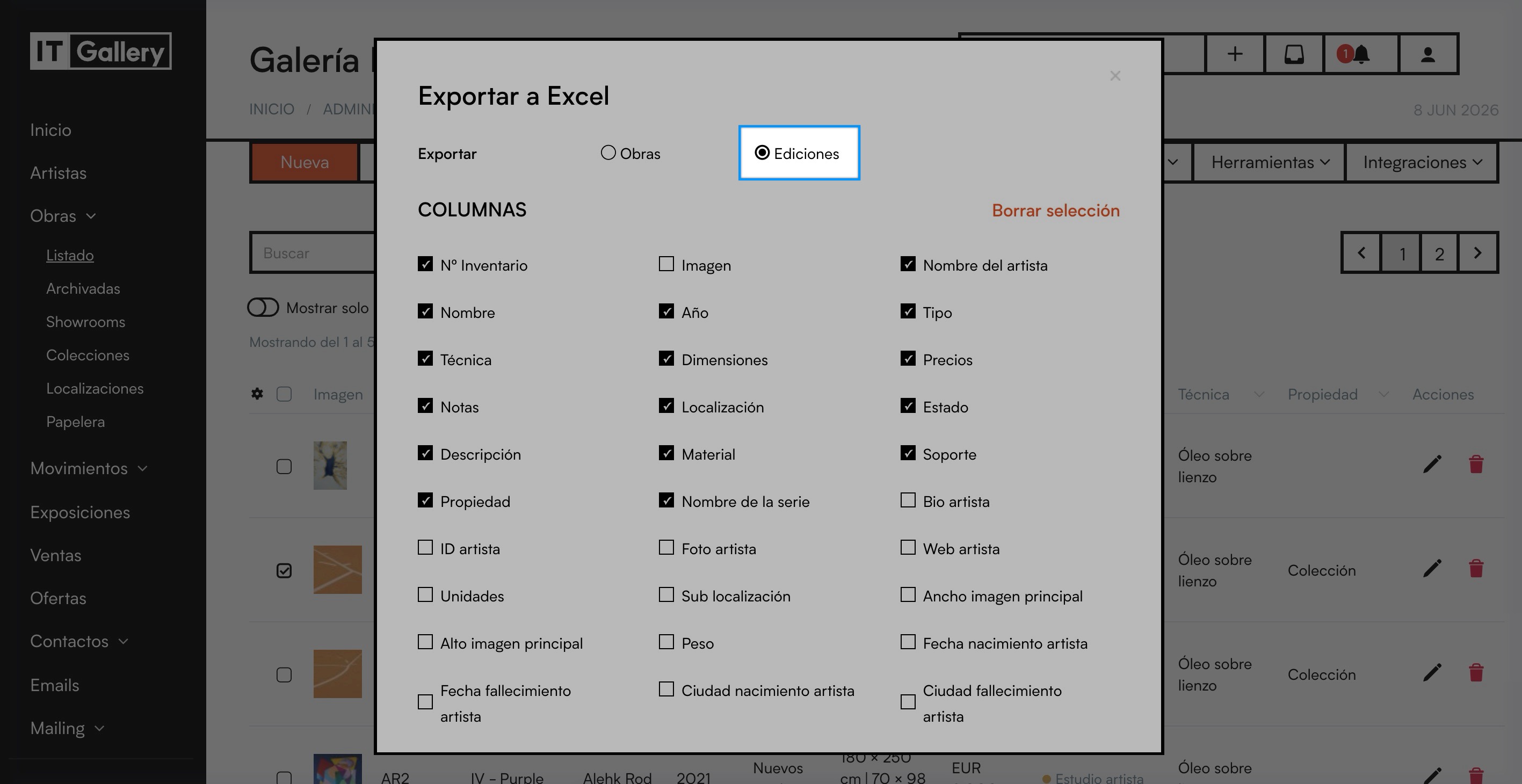
For example, an artwork with an edition of 5 will be exported as 5 different rows:
- AB068-001
- AB068-002
- AB068-003
- AB068-004
- AB068-005
Each row will include the information about the artwork and the specific data of that edition.