
Add installation images to a showroom
You can add context images to a showroom to complement how the artworks are presented.
These images are shown in the header of the showroom as a carousel (slider) and, optionally, can also be viewed from a separate tab called Exhibition photos.
How to add installation images
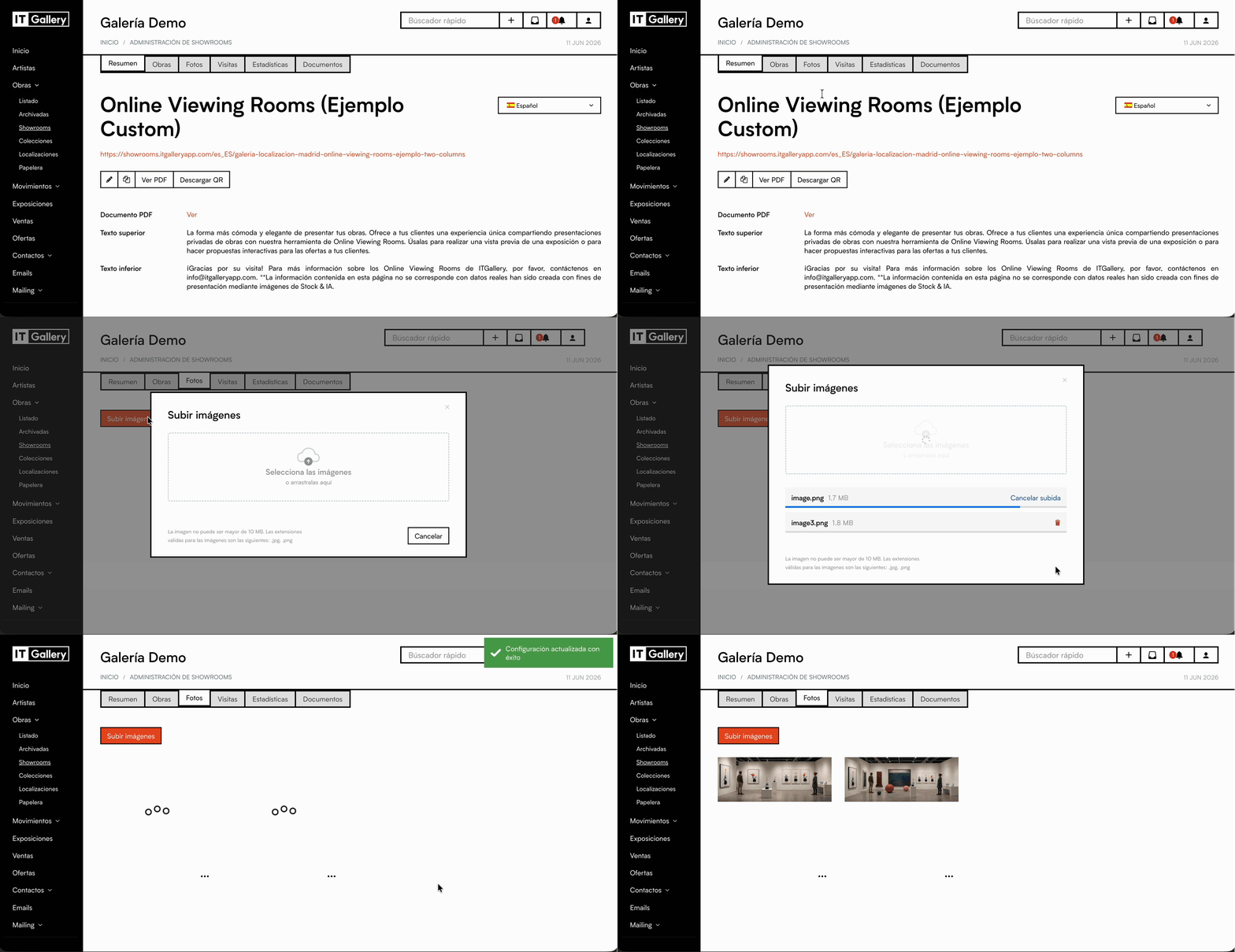
- Go to the Showrooms module.
- Select the showroom you want to edit.
- Go to the Images tab.
- Click Add images.
- Select the photographs you want to show.
- Save your changes.
The images are added to the showroom automatically.
How the images are shown
By default, the images you add appear at the top of the showroom, within the header carousel.
These images can be used to show:
- installation views
- hangs
- photographs of the space
- context images
- installation details
Show the Exhibition photos tab
As well as appearing in the top carousel, you can let visitors reach these images from a separate tab.
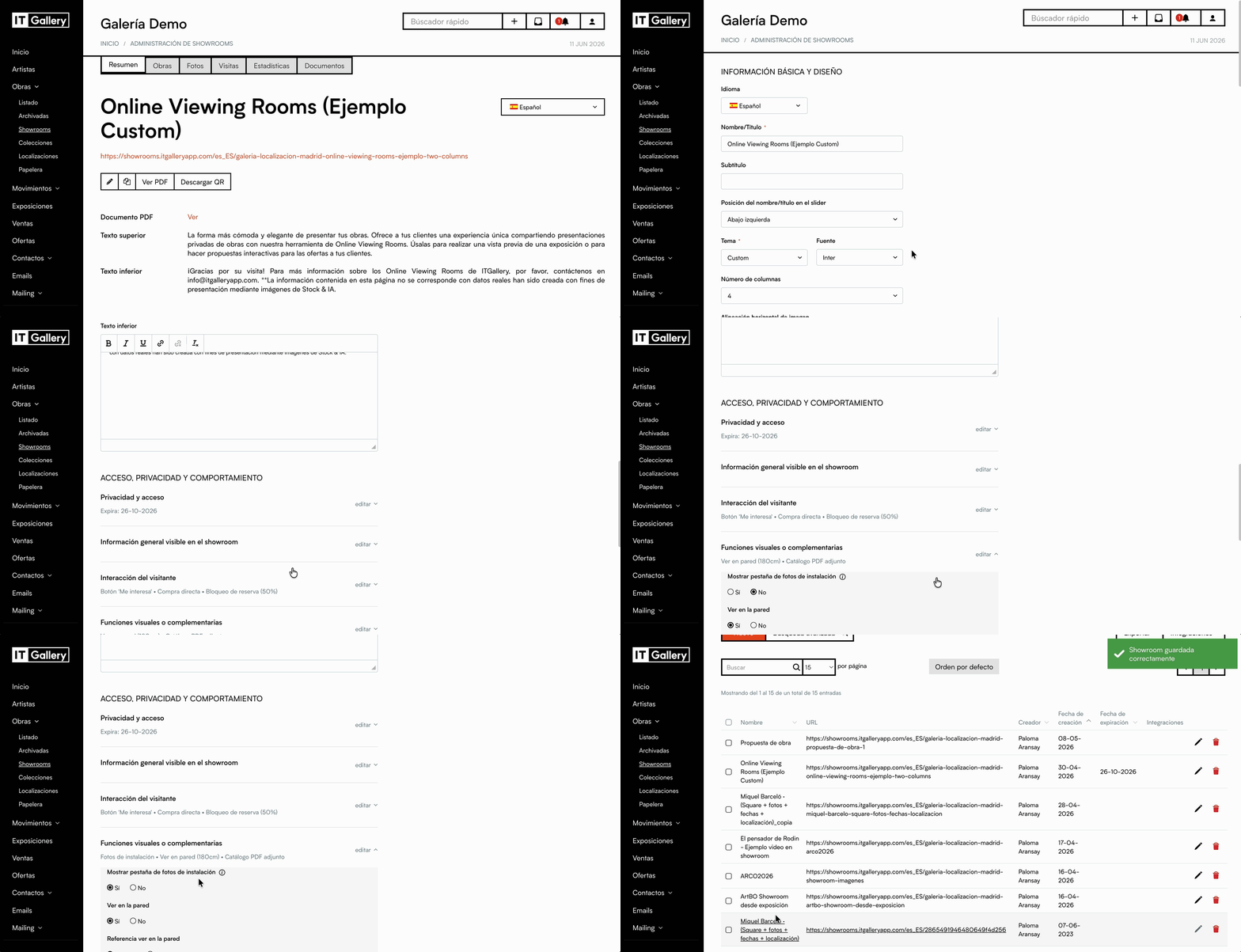
To do this:
- Go to Edit showroom.
- Find the Show installation photos tab option.
- Select Yes.
- Save your changes.
When this option is on, the showroom shows two tabs:
- Artworks
- Exhibition photos
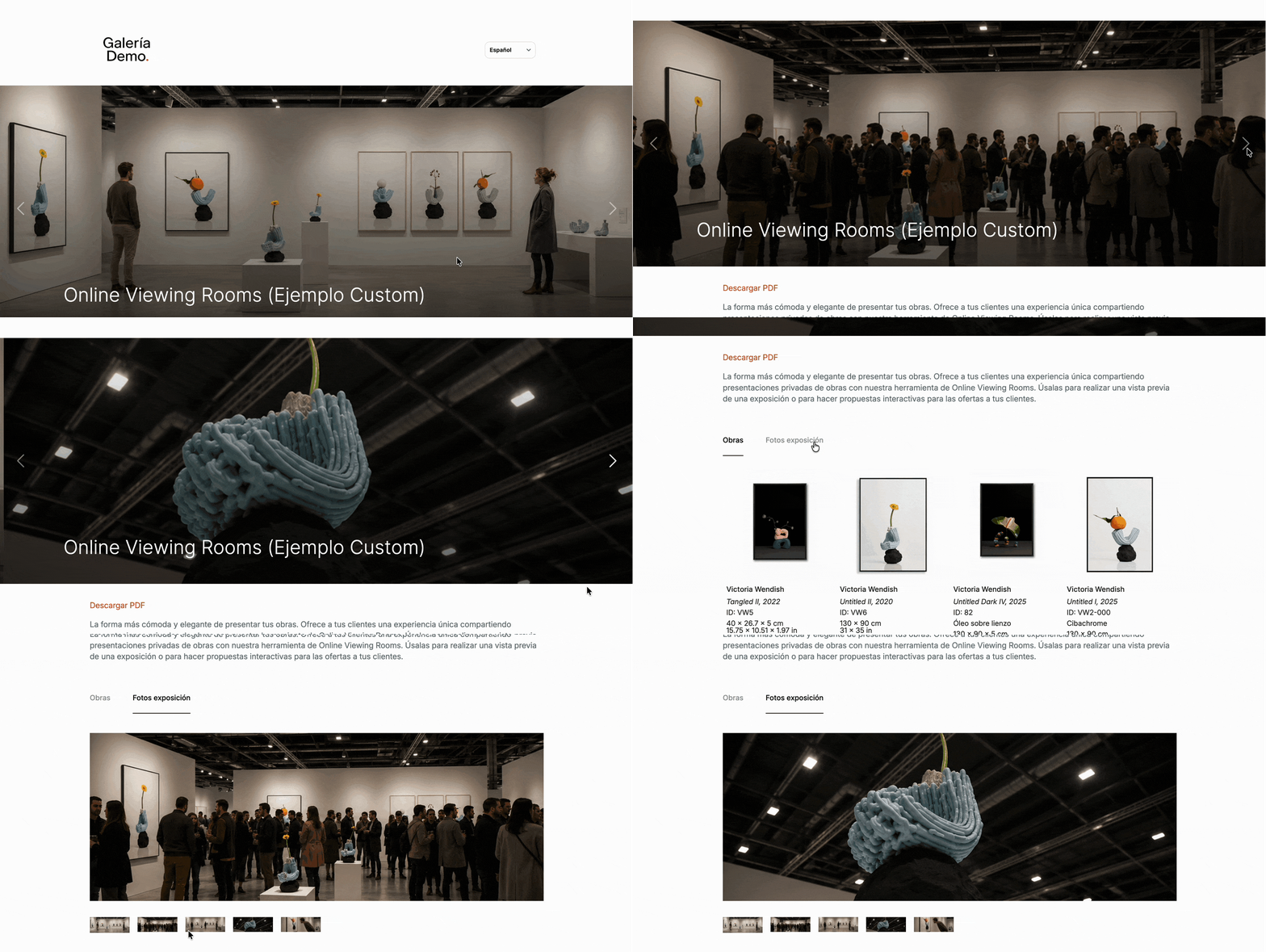
Visitors can move between the two to view the artworks or the installation images.
Set the position of the title
When the showroom contains installation images, you can choose where to show the title over the image carousel.
Options available:
- Top left
- Top centre
- Bottom left
- Bottom centre
- Centred
This is set from the Slider title position field within the showroom settings.