
Manage invoices and pro forma invoices for a sale
From a sale you can generate, print, download or email an invoice or a pro forma invoice.
When you record a sale, the system generates an invoice linked to it. You can also specify that the invoice should be issued in the name of a contact other than the buyer.
In this article:
Print or download an invoice

- Go to the Sales module.
- Open the sale by clicking its invoice number.
- Go to the Sale details tab.
- Click Print.
- Select the bank account and the language if you need to change them.
- Click Print.
- Download the invoice to your computer, if you need to send it from your own email client.
You can also print an invoice from the sales list:
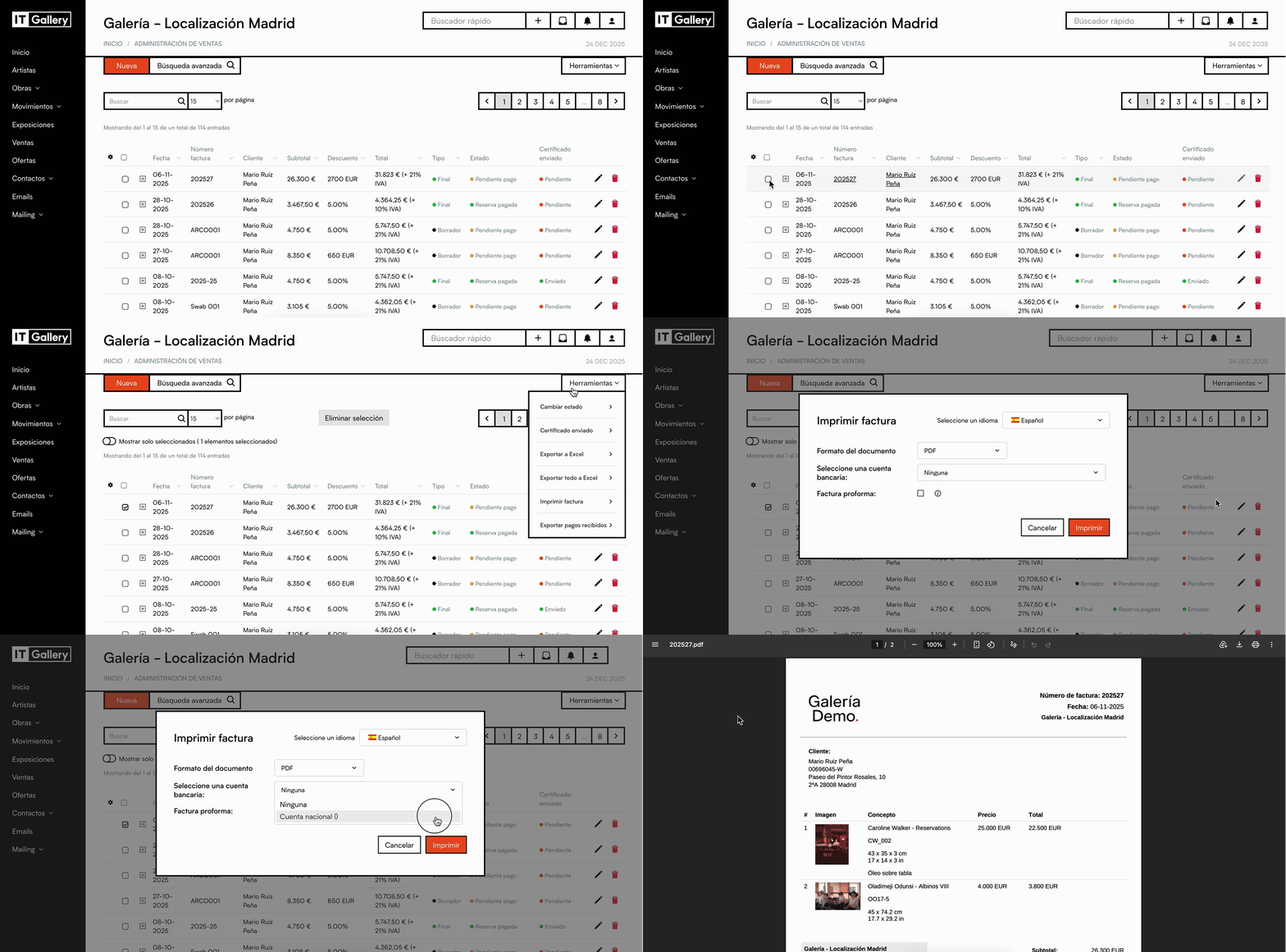
- Go to the Sales module.
- Tick the box of the sale you want to print.
- Click Tools.
- Select Print invoice.
- Fill in the fields.
- Click Print.
Important:
You can only select one invoice per export.
Invoice numbering
Every invoice has an invoice number.
ITGallery can assign this number automatically according to your gallery's autonumbering settings.
You can review this setting from:
My Gallery > Configuration > Autonumbering > Invoice
From there you can set the structure of the numbering, such as letters and number.
You can also ignore the automatic suggestion and enter a number manually.
Generate a pro forma invoice
ITGallery lets you generate a pro forma invoice linked to a sale you have already recorded.
A pro forma invoice can be used to send information about the sale before issuing the final invoice.
- Go to the Sales module.
- Open the sale by clicking its invoice number.
- Click Print invoice.
- Tick the Proforma invoice option.
- Click Print.
Invoice a contact other than the buyer
You can record a sale in the name of one buyer and issue the invoice in the name of another contact or company.
The buyer is the contact the purchase stays linked to. The invoice is issued in the name of the contact selected in Bill to.

- Go to the Sales module.
- Create a new sale.
- Add the artwork or artworks for the sale.
- Fill in the general details of the sale.
- Select the contact in the Buyer field.
- Click Bill to.
- Select the contact or company you want to issue the invoice to.
- Check the Fiscal ID and Address fields.
- Fill those details in if they are not linked to the contact.
- Click Save sale.
Tip
Use this option when the purchase is linked to a person, but the invoice needs to be issued in the name of a company or another legal entity.
Send an invoice by email from ITGallery
You can send an invoice by email directly from the sale record.
When you send it from ITGallery, the invoice is attached to the email automatically.

- Go to the Sales module.
- Open the sale by clicking its invoice number.
- Click Send.
- Choose the recipient of the email.
- Select a contact, if you want to send it to a recorded contact.
- Review the subject of the email.
- Personalise the body of the message.
- Select a template, if relevant.
- Click Send.
The email is sent with the invoice attached.
Use tags in the invoice email
The body of the email includes a template tag.
The {{ contact_name }} tag is automatically replaced by the full name of the recipient when you select a contact instead of an email address.
Add a payment link to the email
If you have your Stripe account set up and connected to ITGallery, you can add a payment link to the invoice email.

- Tick the Add payment link option before sending the email.
- Select a link you created earlier
- Or add a new one by selecting Generate payment link.
- Click the Add button to include it in the body of the email.
- The client receives the email with the invoice attached and the link to make the payment in the body of the email.