
Set up the sender of your campaigns
Every campaign goes out with a sender name and a sender address: it is what your contacts see in their inbox before they even open the email. Here you decide the defaults so you do not have to type them into every campaign.
There is one important detail: the from email has to be verified. It is a requirement of the service that does the sending (Amazon), to make sure the address really is yours. It takes a minute and you only do it once.
Where it is set up
The sender settings live in your gallery's profile, not in the Mailing menu.
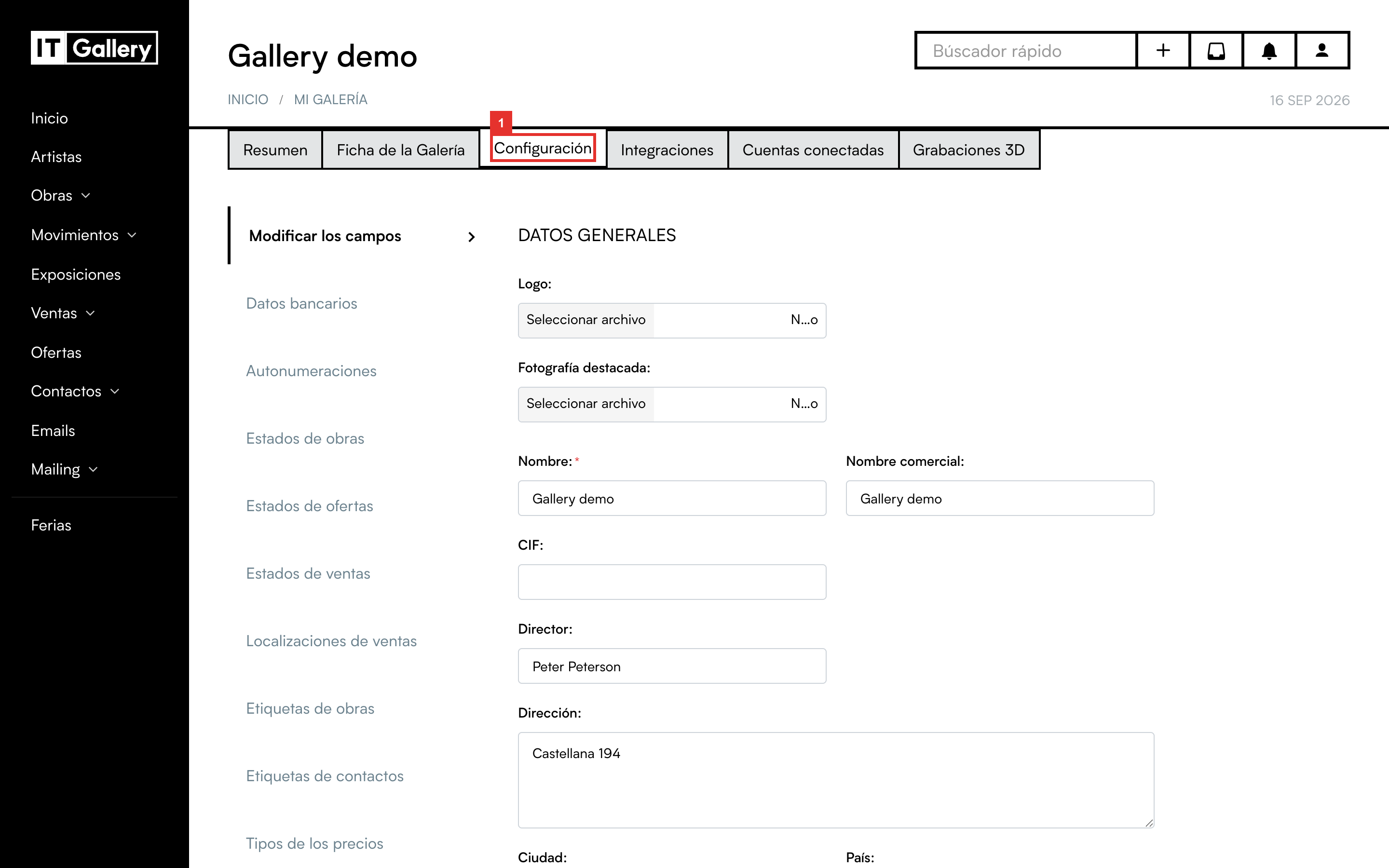
- Click the person icon at the top right and open My Gallery.
- Go to the Settings tab.
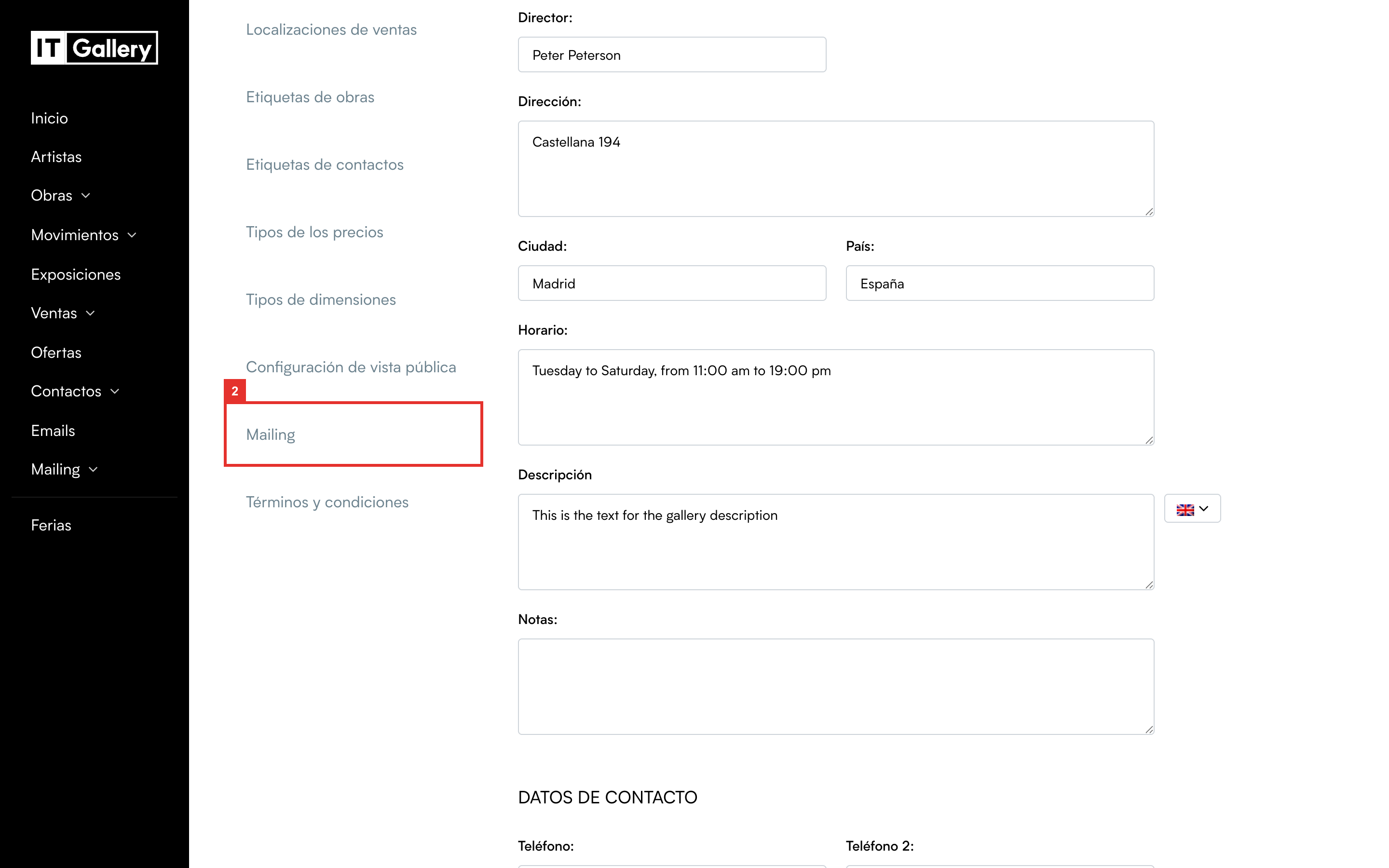
- In the menu on the left, scroll down to Mailing.
What to fill in
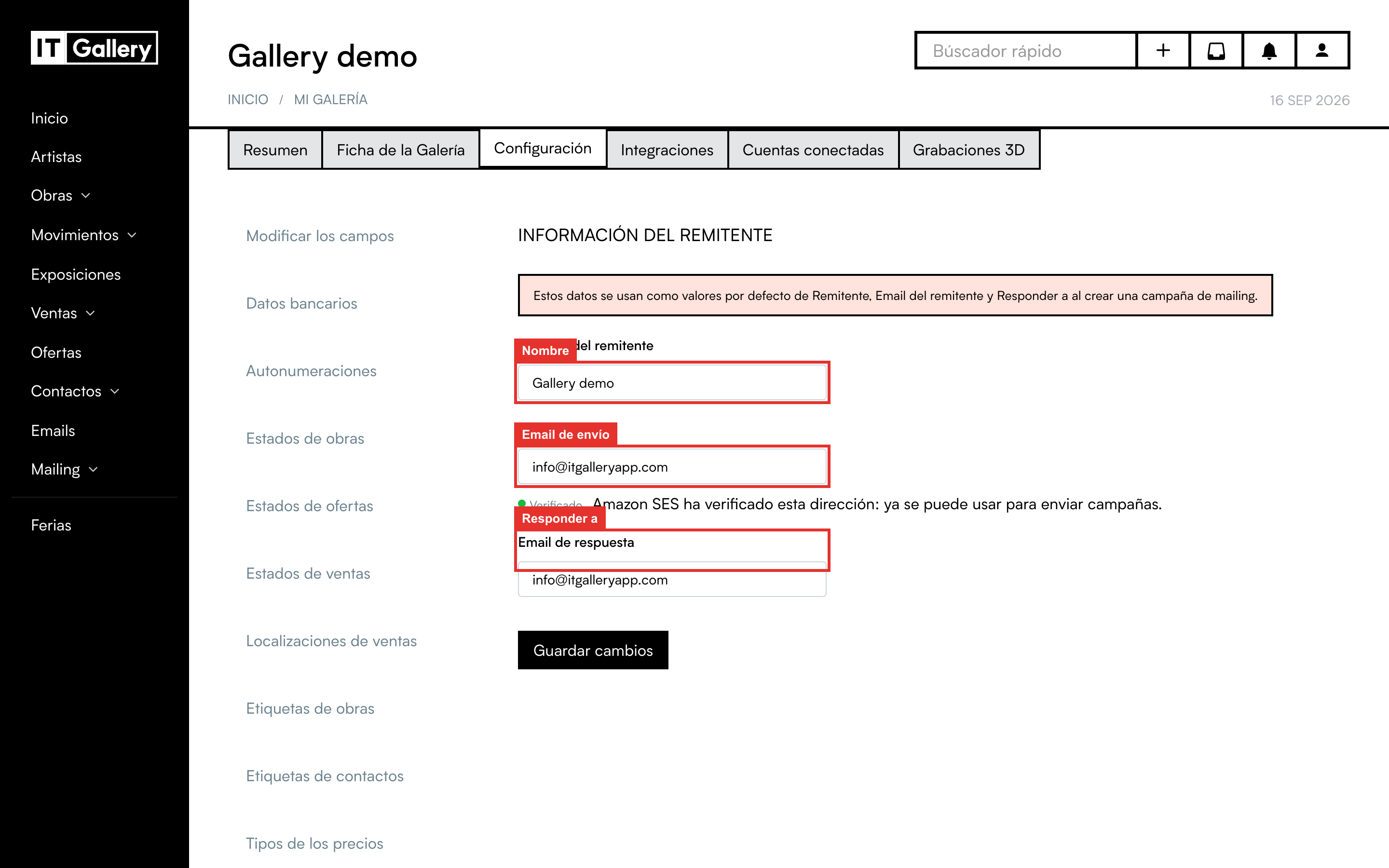
You will see a short form with three fields:
- Sender name: what shows up as “who is sending”. Usually the name of the gallery, for example “Gallery Demo”.
- From email: the address the emails go out from. This is the one that has to be verified.
- Reply email: if someone replies to your newsletter, the reply lands here. It can be the same as the from email or, for example, the address of the person who looks after clients.
When you are done, click Save changes. These details will come pre-filled every time you create a campaign, although you can change them for a particular send if you need to.
Verify the from email
When you save, ITGallery automatically checks whether the from email is verified and shows you the result right under the field.
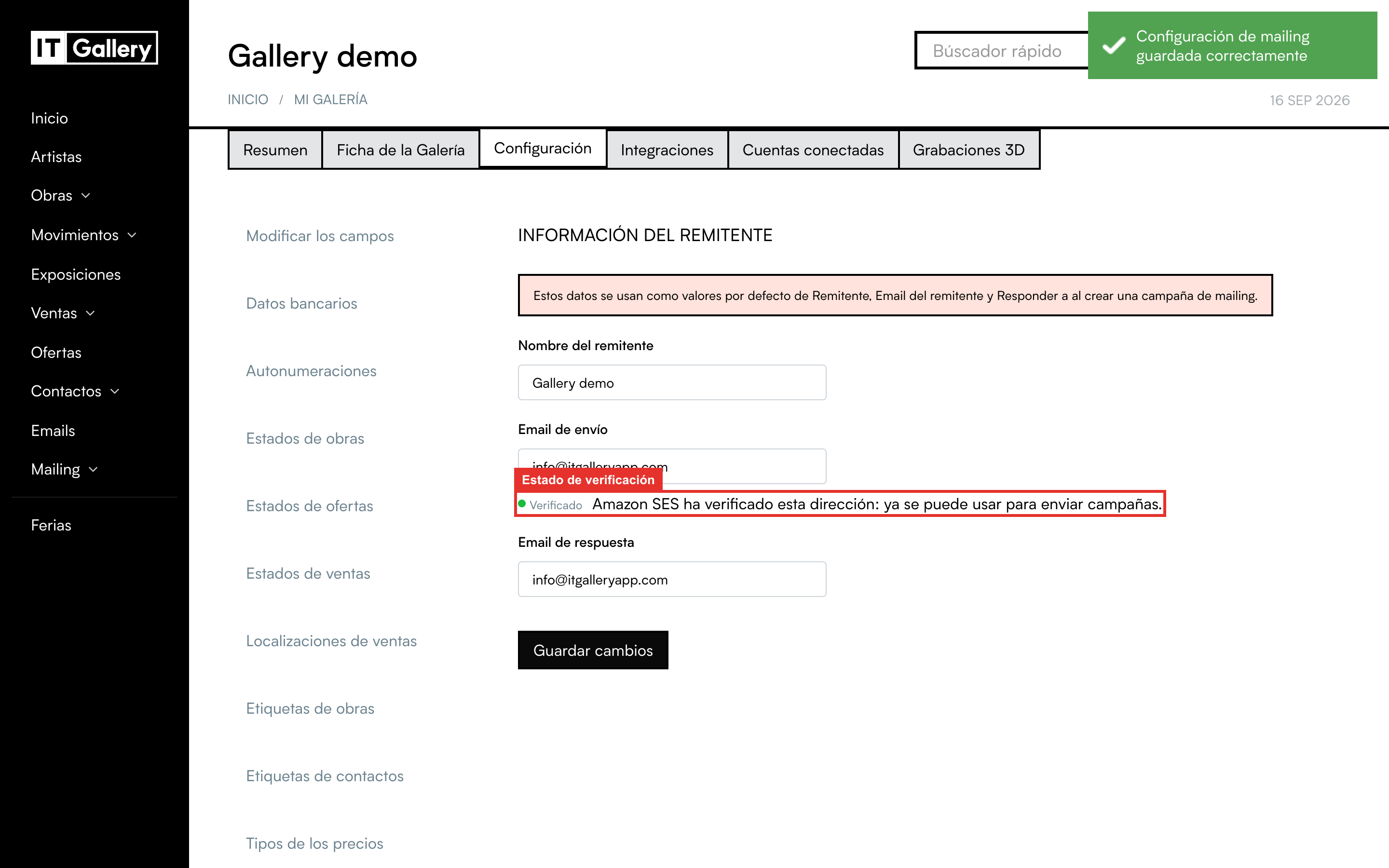
If the address is not verified yet, this is what happens:
- On saving, a verification email is sent to that address. It comes from Amazon Web Services and the subject is something like “Amazon Web Services – Email Address Verification Request”.
- Open that email and click the link inside. That verifies the address.
- Come back to ITGallery and click Check status. You should now see the green Verified notice.
Tip
If the verification email does not arrive, check your spam folder. And if you deleted it by mistake, click Send verification to get another one.
Heads up
Until the address is verified, the campaign wizard will not let you get past the first step. If you are in a hurry to send, verify first.
What each status means
| Status | What it means | What to do |
|---|---|---|
| Verified | All good. You can send campaigns from that address. | Nothing. |
| Verification pending | The verification email has been sent, but you have not clicked the link yet. | Find the email from Amazon and click the link. Then Check status. |
| Not verified | Verification has not been requested for that address yet. | Save the form or click Send verification. |
| Verification failed | Amazon could not verify the address (for example, the link expired). | Click Send verification to request a new email. |
If your gallery has its own email domain (say, everything ending in @yourgallery.com) and you want to use several different addresses, write to support: the whole domain can be verified in one go, so any address on that domain works with no further steps.