
Manage the subscribers of a list
Over time, a list needs looking after: people who unsubscribe, addresses that no longer exist, people you want to move to another list… All of that is done from the list's Subscribers tab, in Mailing > Lists.
In this article:
The subscriber table and its statuses
Select several people and use the Tools
Change the status (unsubscribe or reactivate)
The subscriber table and its statuses
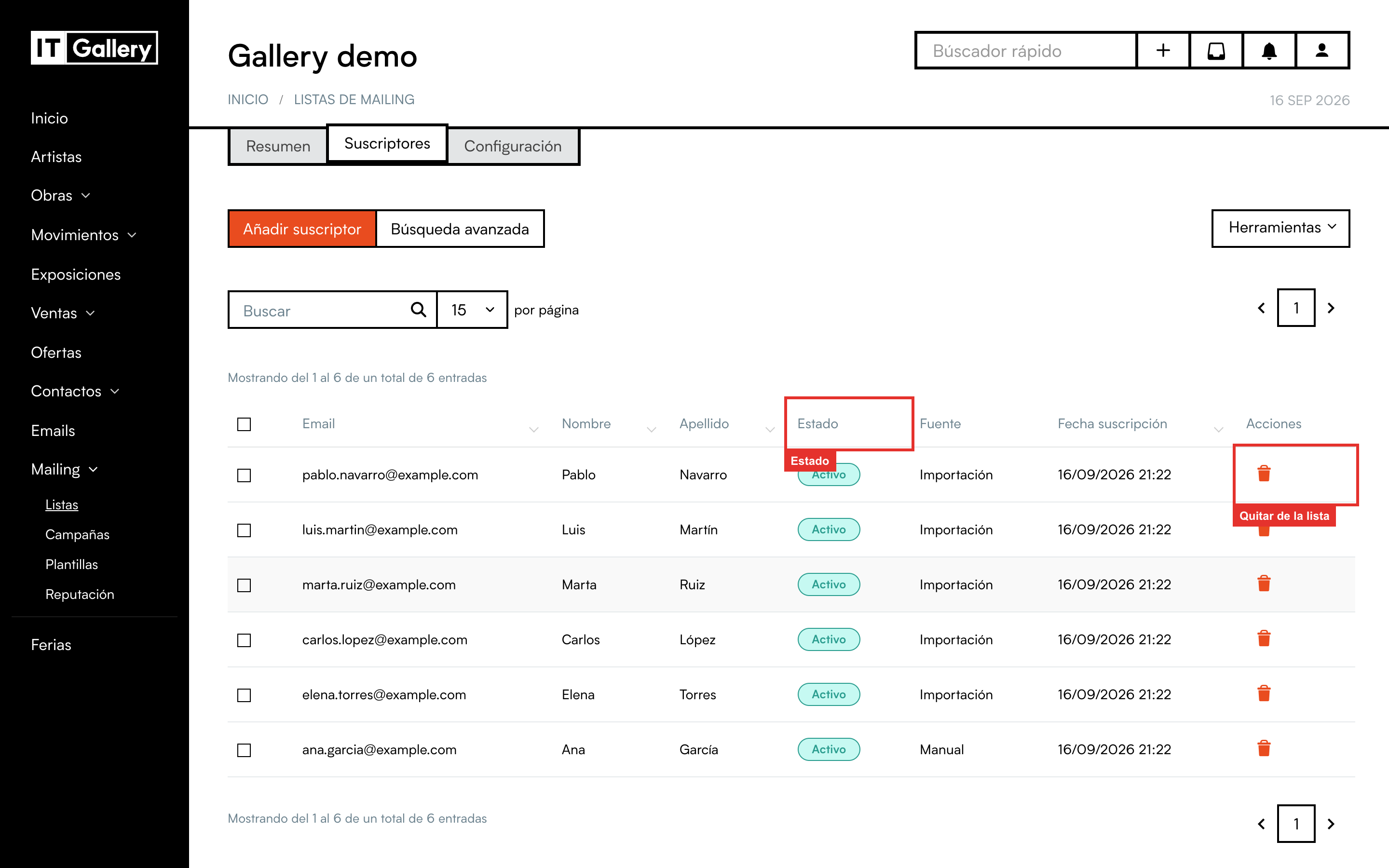
Each row is a person. Besides the email, first name and last name, there are three columns worth understanding:
- Status: Active (receives your campaigns), Unsubscribed (they unsubscribed, or you did it for them; they get nothing) or Bounced (the address does not exist or rejects emails; they get nothing either).
- Source: how they got onto the list: Manual (you added them from the list), Import (they came in a file), Contact sync (from the Contacts module) or form (they signed up from your website).
- Subscription date: when they joined this list.
The bin on the right removes that person from the list (details further down).
Find someone
The search box above the table searches by email, first name or last name. If you need to narrow it down further, click Advanced search:
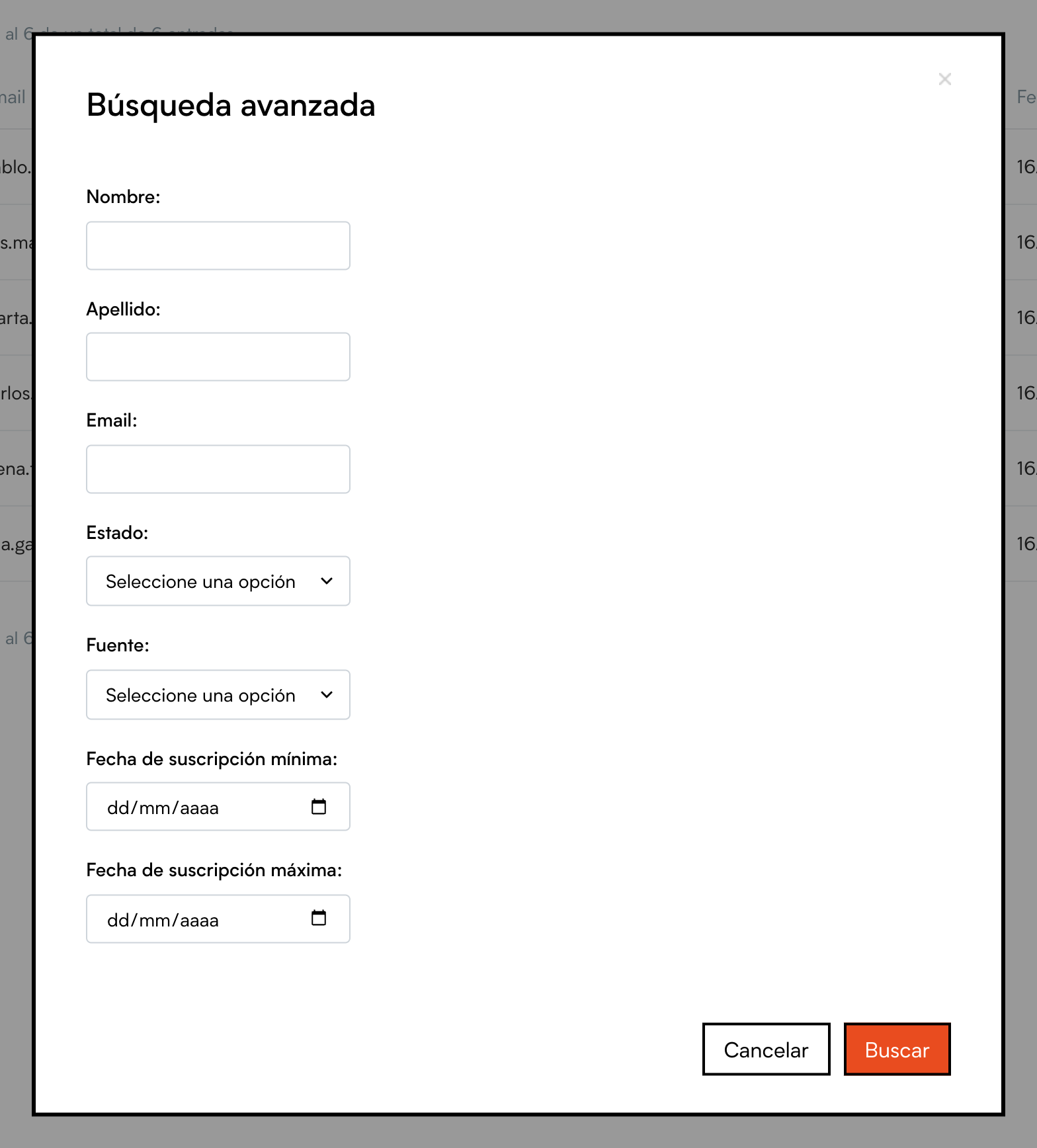
You can combine first name, last name, email, status, source and a range of subscription dates. For example: “everyone who signed up from the form in the last three months”. The filters you apply stay on until you click delete filters.
Select several people and use the Tools
Many actions are done on several people at once. Tick the box on the left of each row (or the one in the header to tick the whole page) and open the Tools menu:
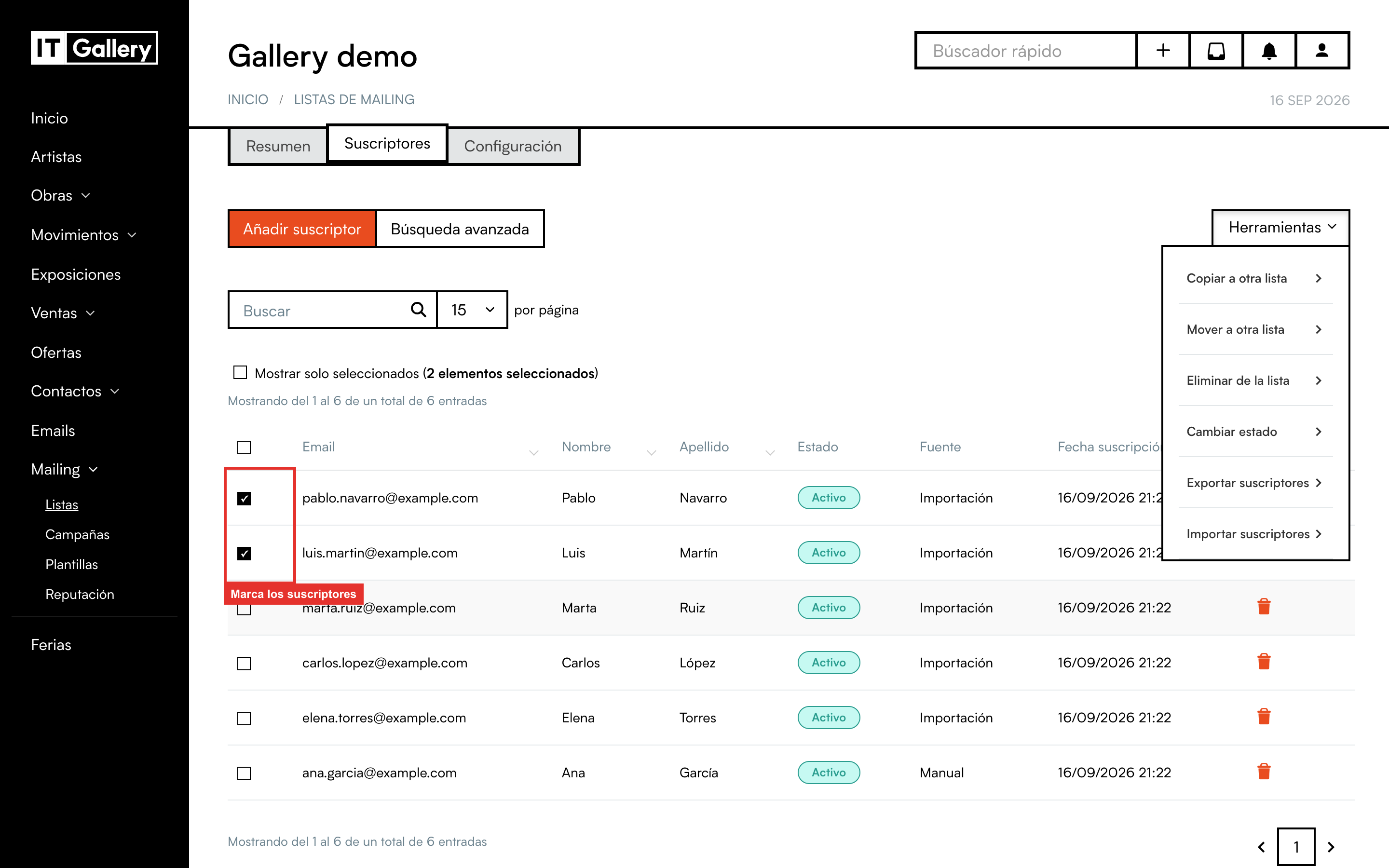
The first four options act on the selected people; the last two (export and import) on the whole list. When you have people ticked, a count appears above the table together with a Show only selected link, which helps you double-check the selection before doing anything. The selection is kept even if you change page.
Copy or move to another list
With several people ticked, in Tools choose Copy to another list or Move to another list. A window opens to pick the destination list.
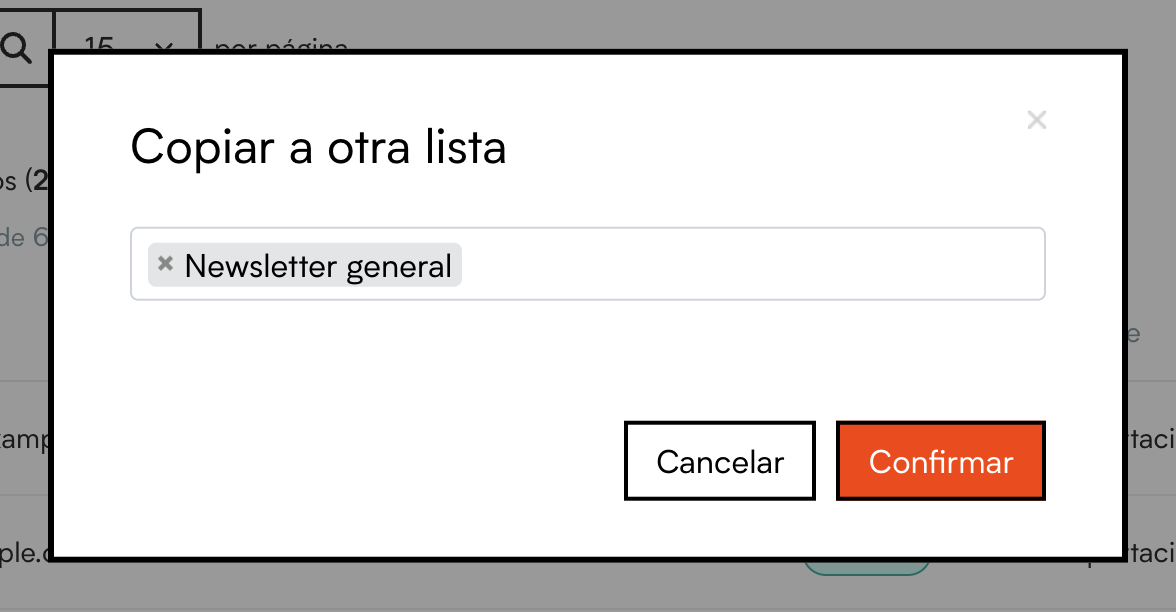
- Copy adds them to the other list without removing them from this one. You can pick several destination lists at once.
- Move adds them to the other list and removes them from this one.
Change the status (unsubscribe or reactivate)
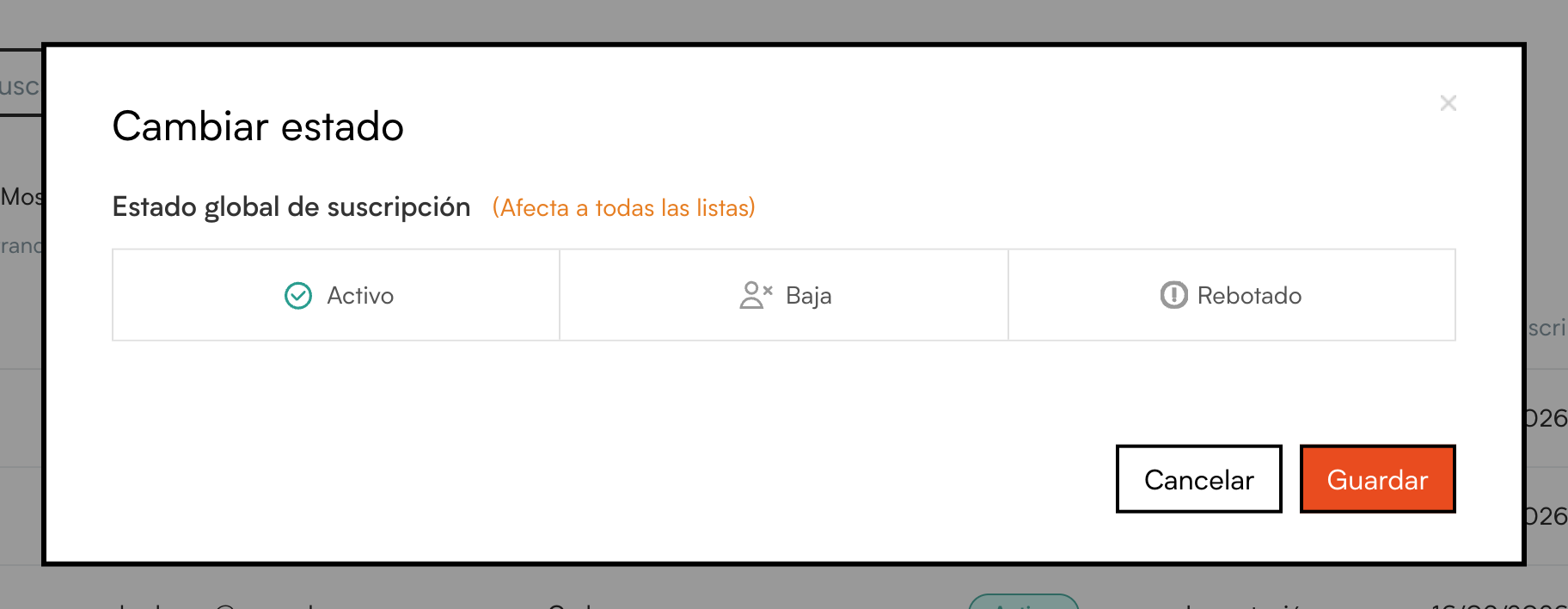
With people ticked, choose Tools > Change status. You can set them to Active, Unsubscribed or Bounced.
Heads up
This status change is global: it affects that person on all your lists, not just this one. If you only want them to stop getting the emails of this list, use Remove from list.
A typical case: someone tells you in person they do not want any more emails. You find them, tick them and set them to Unsubscribed. Or the other way round: someone who unsubscribed by mistake and asks to come back; you set them to Active.
Remove subscribers from the list
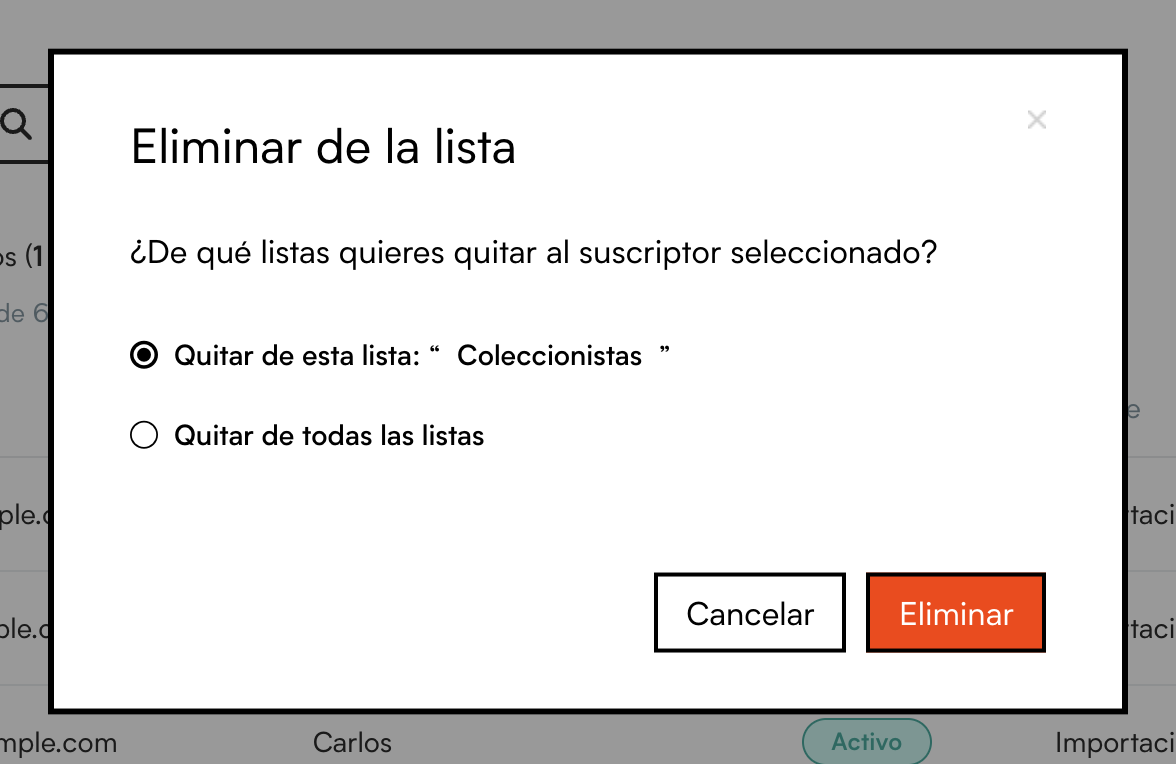
You can remove one person with the bin on their row, or several by ticking them and using Tools > Remove from list. In both cases it asks how far you want to go:
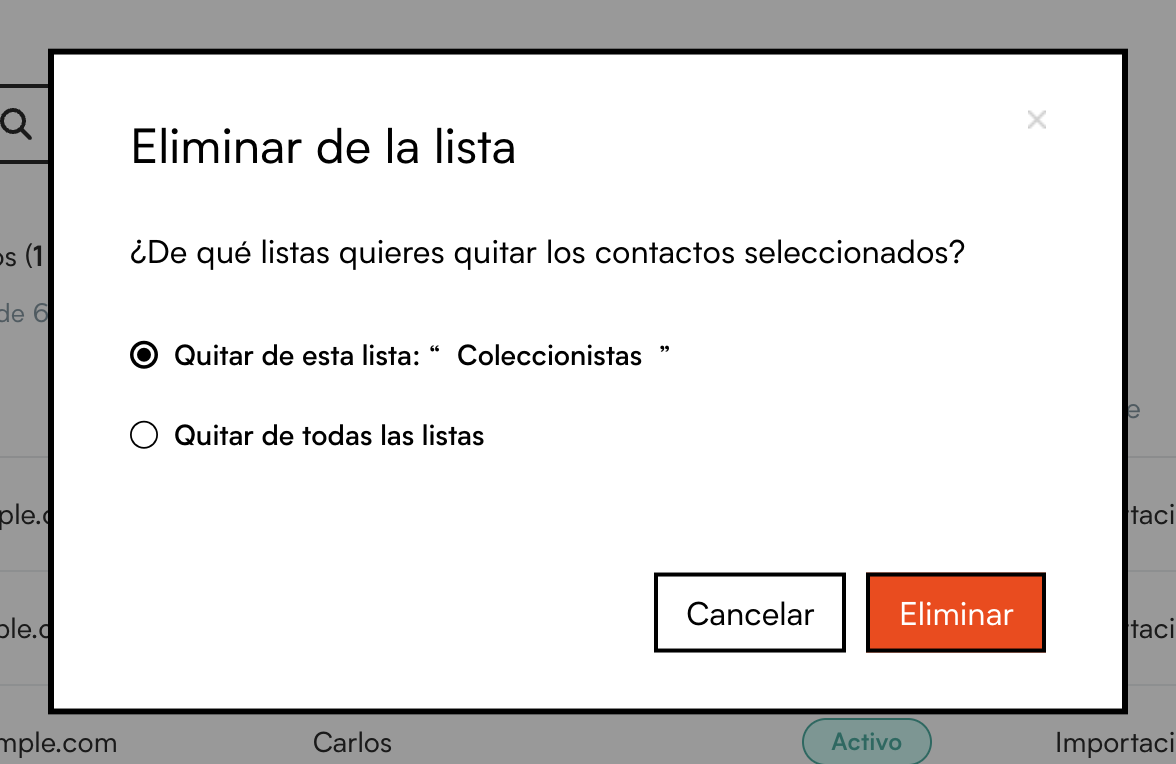
- Remove from this list: they leave this list, but stay on any others they were on.
- Remove from all lists: they disappear from all your lists in one go.
Export the list to a file
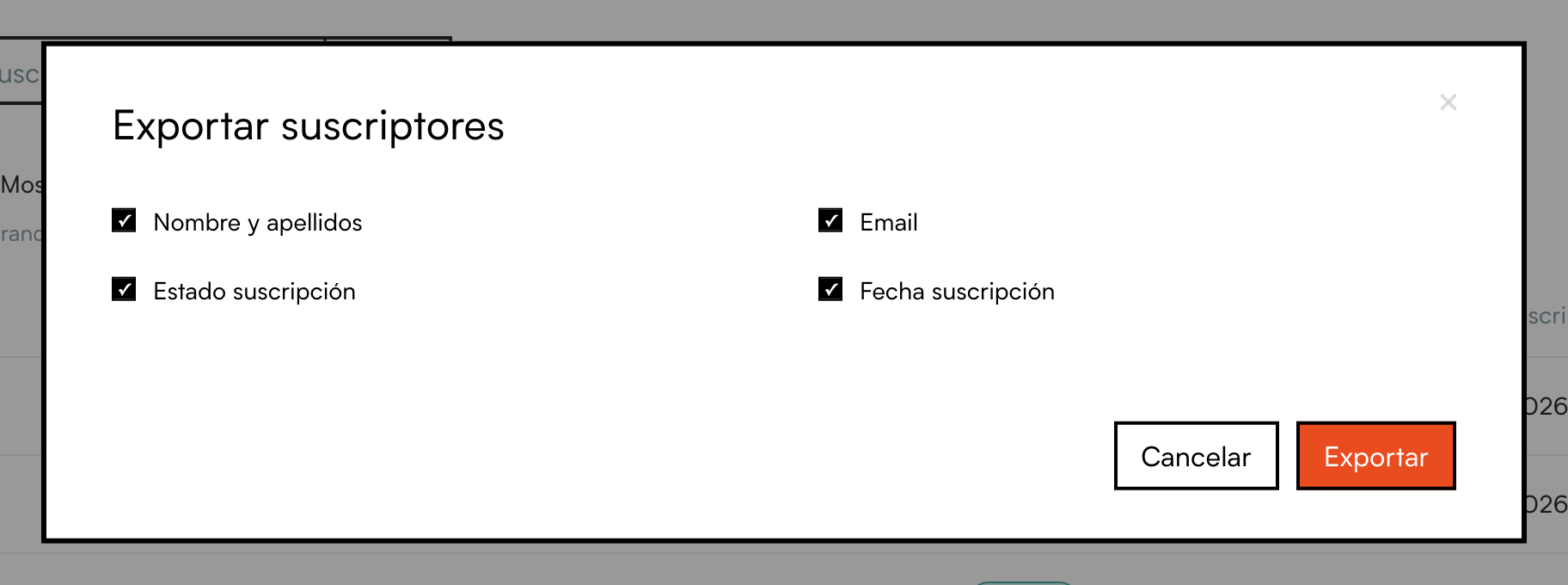
Tools > Export subscribers downloads the whole list as a CSV file, which you can open with Excel. Choose which columns to take with you:
Tip
Export the list before a big clean-up or before deleting it. It is your backup.
Clean inactive subscribers
Over time, every list has people who never open anything. Sending to those addresses adds nothing and, in the long run, hurts your sending reputation. The Clean list button appears on the Subscribers tab when the list has inactive subscribers.
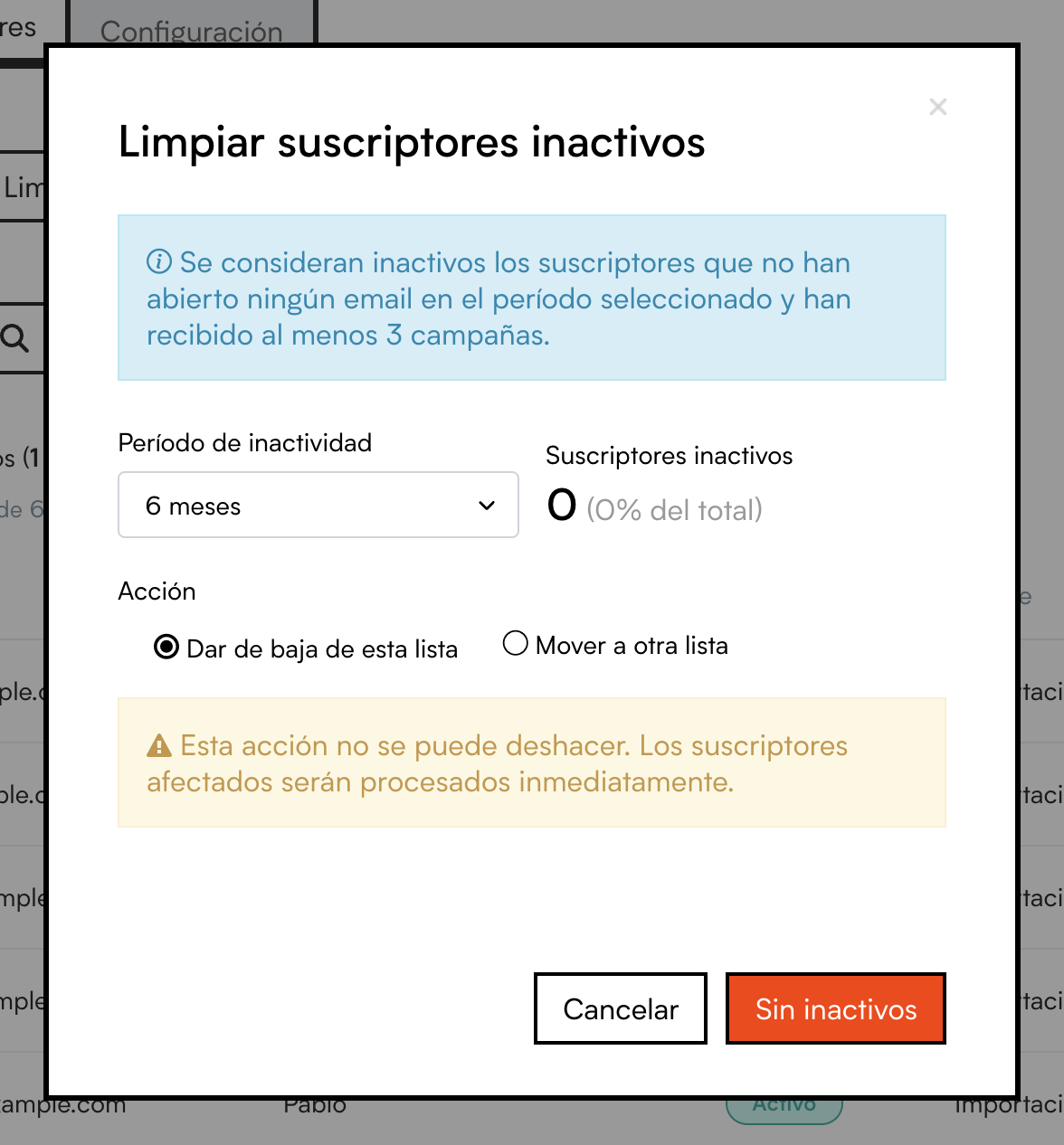
- Choose the Inactivity period: 3, 6 or 12 months. Inactive means people who have not opened any email in that time and have received at least 3 campaigns (so newcomers are not counted).
- The window tells you how many there are and what percentage of the list they represent.
- Choose what to do with them: Unsubscribe from this list or Move to another list (for example, a “Dormant” list to send a re-engagement campaign to).
- Click the button at the bottom to confirm.
Heads up
The clean-up cannot be undone. If in doubt, move the inactive subscribers to another list first instead of unsubscribing them: that way you lose nobody and can decide later.