
Set up a list: sign-up, unsubscribe and subscription form
Every list has its own settings. This is where you decide how people sign up, which automatic emails they get when they join or leave, and where to get the form for your website. It is all on the list's Settings tab (Mailing > Lists, open the list and click the tab).
If you have just created the list and are only going to import people or add them by hand, you can leave these settings as they are. They matter mostly when the list is fed from the form on your website.
In this article:
Subscribe process: what happens when someone signs up
General: name and description
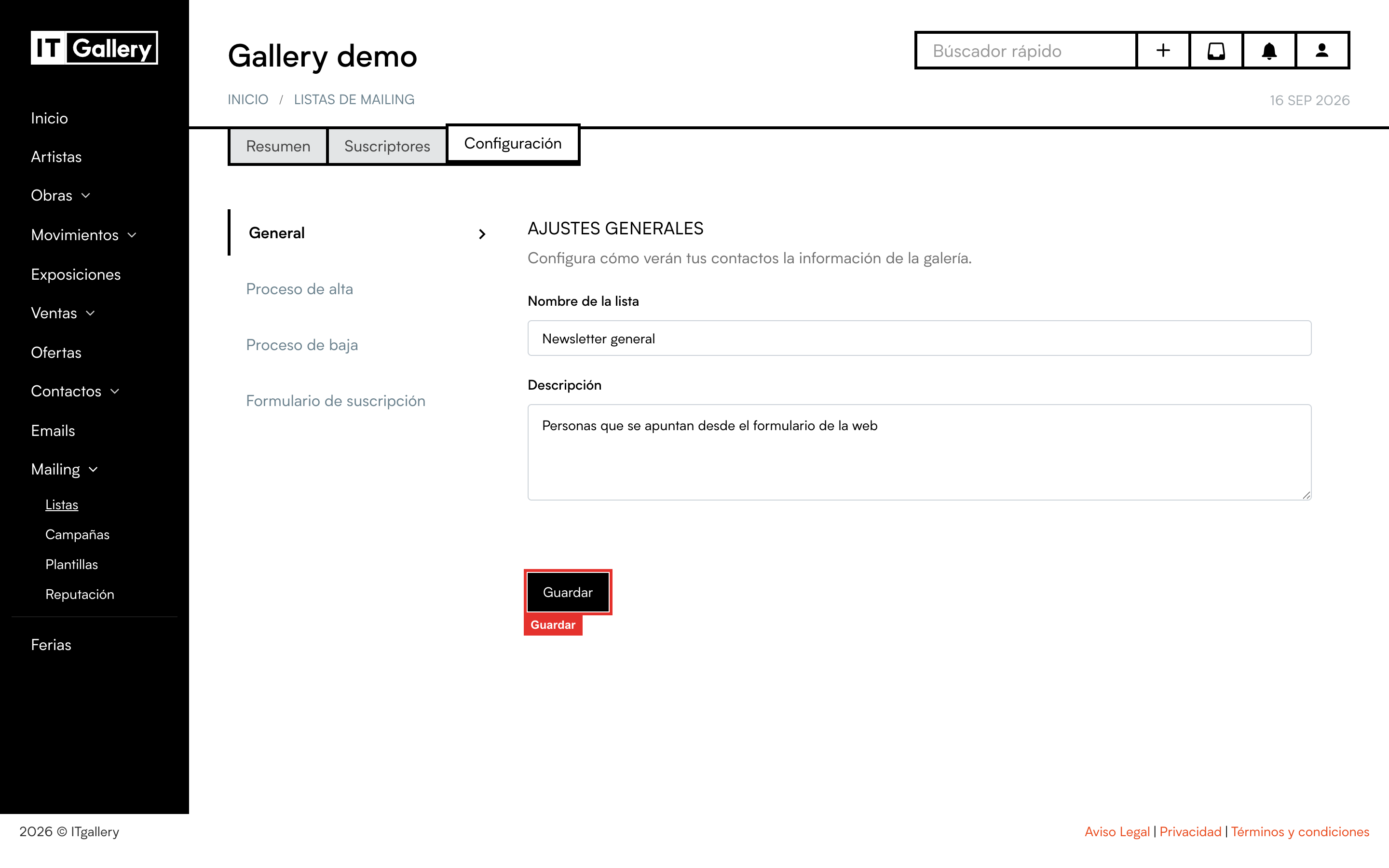
The same as when you created the list: the List name and its Description. Change them whenever you like and click Save.
Subscribe process: what happens when someone signs up
This section controls what happens when someone signs up on their own from the subscription form.
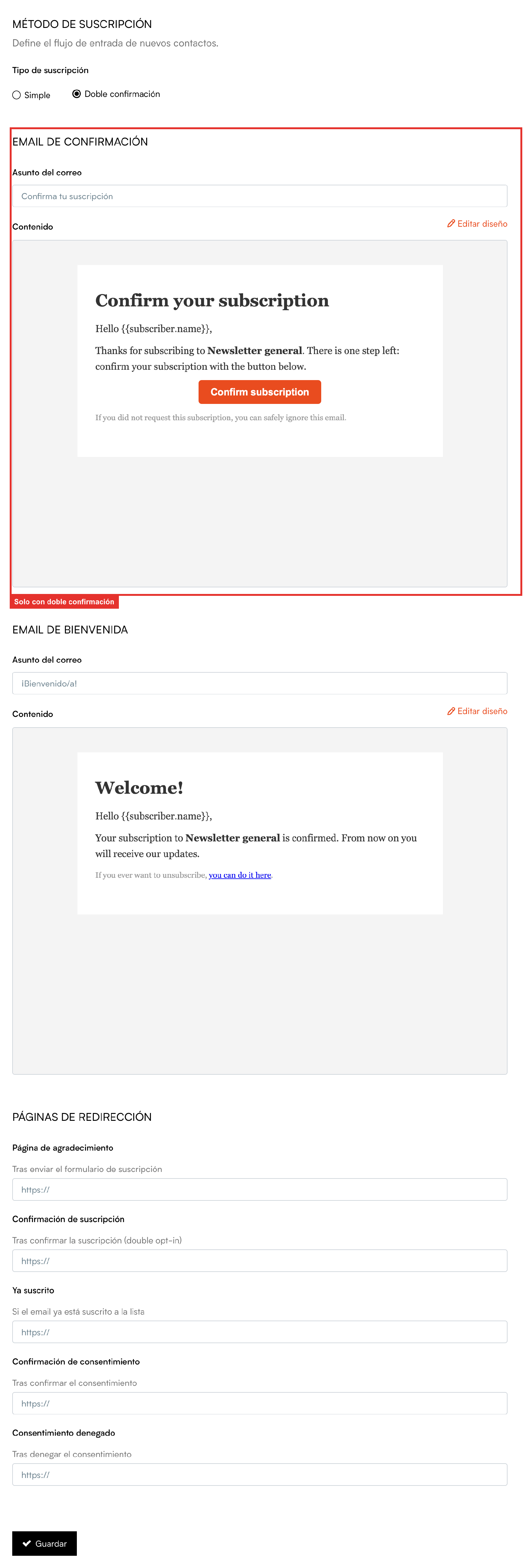
Subscription method. Choose between:
- Simple: whoever fills in the form is on the list straight away.
- Double opt-in: whoever fills in the form gets an email with a button to confirm. Until they click it, they are not on the list and get no campaigns. It is the recommended option for public forms: it avoids fake addresses and guarantees the person genuinely wants your emails.
Confirmation email. Only shown with double opt-in. It is the email that asks them to confirm the subscription. You can change the Email subject and, with Edit design, the whole content in the template editor. It comes with sample text in English, so adapt it to your gallery before sharing the form.
Welcome email. The email the person gets once they are on the list (on signing up if it is simple, or on confirming if it is double opt-in). It is always sent, so it is worth giving it a once-over: subject and design can be edited just like the previous one.
Redirect pages. Optional. These are the pages on your website the person is taken to after each step: on submitting the form (Thank you page), on confirming (Subscription confirmed), if they were already on the list (Already subscribed) and the two consent ones. If you leave them blank, a standard message is shown. They have to be full addresses, starting with http:// or https://.
When you are done, click Save at the end of the section.
Tip
Switching from simple to double opt-in does not affect anyone already on the list: only people who sign up from the form from that moment on.
Unsubscribe process: what happens when someone leaves
What happens when someone clicks the unsubscribe link in one of your emails.
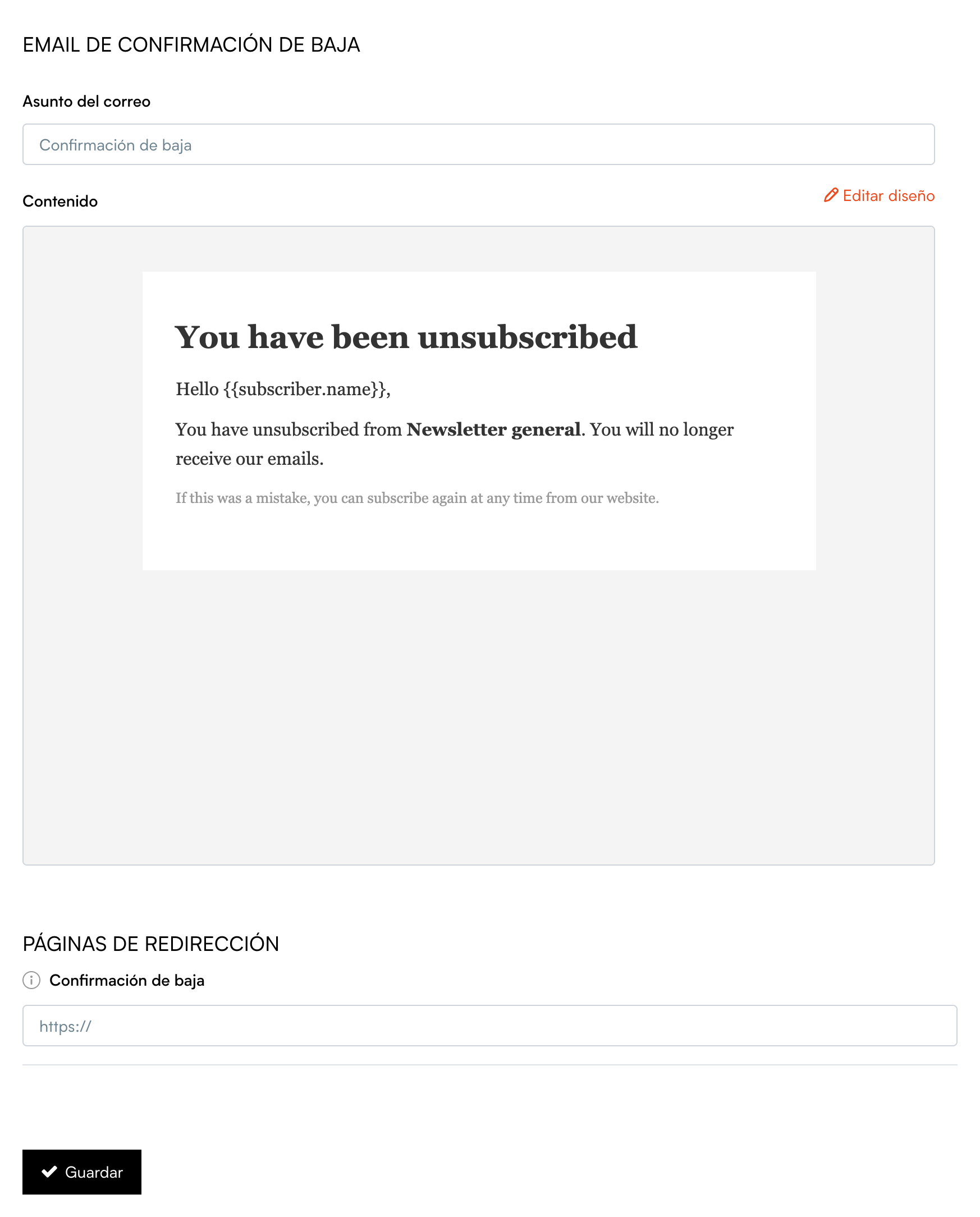
- Unsubscribe confirmation email: the email the person gets confirming they will no longer receive your emails. Subject and design can be edited, just like the sign-up ones.
- Unsubscribe confirmed (redirect page): optional; the page on your website shown on unsubscribing. Blank means the standard page is shown.
Unsubscribing is immediate and needs no confirmation: as soon as the person clicks the link, they stop receiving campaigns from all your lists, not just the one the email came from. That is what the rules require and it protects your sending reputation. If they want to come back later, you can reactivate them from the list with Change status.
Heads up
The unsubscribe link has to be in every email you send. When you create a campaign, the Add unsubscribe link option comes switched on; do not switch it off unless your template already includes it in the footer.
Subscription form for your website
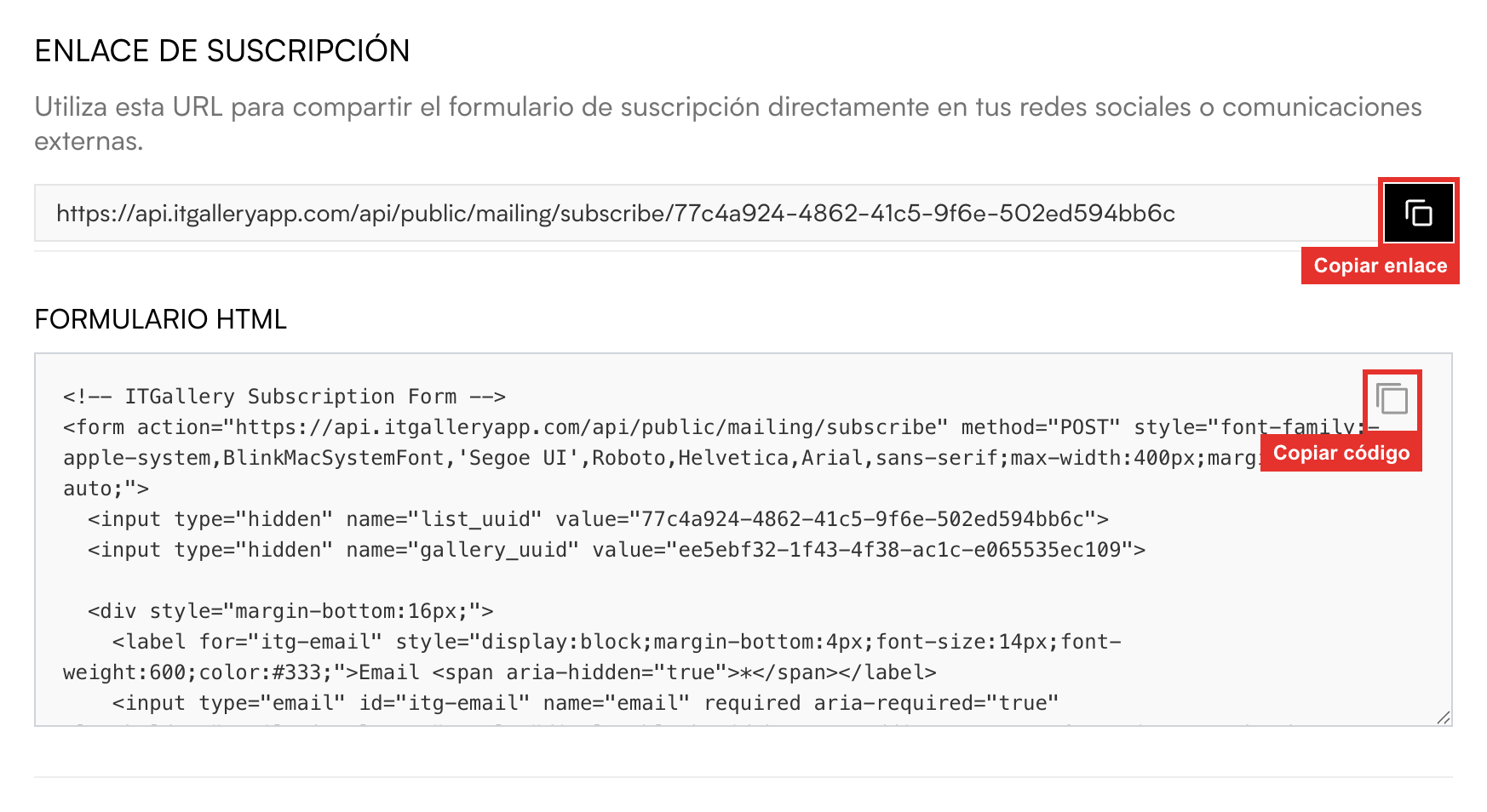
- Subscription link: a web address with a form that is already built and working. Click the copy icon and paste it on your social networks, in your email signature or in a QR code for the gallery.
- HTML form: the code to embed the form in your own website, with the email, first name and last name fields. Copy it with the icon and pass it on to whoever looks after your site. The look can be adapted without any problem; the only things not to touch are the hidden fields with the identifiers of the list and the gallery.
Every list has its own link and its own form. If you want people to choose between several lists, you will need one form per list.