
Schedule, cancel and duplicate campaigns
You do not always want to send right now. Here is how to leave a campaign scheduled, how to stop it if you change your mind, and how to get the most out of earlier campaigns by duplicating them. All from Mailing > Campaigns.
In this article:
Schedule a campaign for later
It is done in the last step of the wizard, Summary and send, in the Send schedule block.
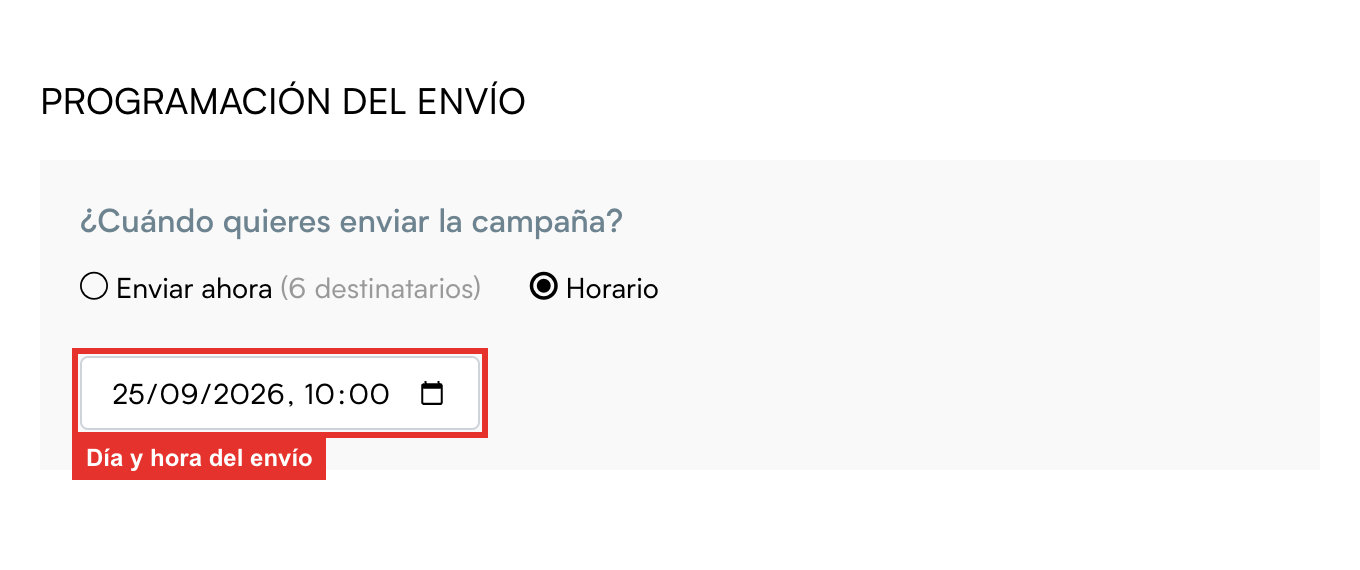
- Tick the Schedule option.
- Pick the day and the time in the selector that appears. You cannot pick a moment that has already passed.
- Notice that the orange button at the bottom changes from Send now to Schedule, with the number of subscribers in brackets.
- Click Schedule. The campaign is saved and you go back to the list, where it shows with the status Scheduled and the planned date.

Tip
The time is your computer's time. If you schedule a send from a country in a different time zone, bear that in mind.
When the moment comes, the campaign goes out on its own: you do not need to have ITGallery open. It will go through Queued and Sending until it ends up as Sent.
Cancel a scheduled campaign
While a campaign is Scheduled and has not started sending, you can stop it:
- In the list, with the Cancel schedule icon on its row.
- Or by opening the campaign, in the Tools > Cancel schedule menu.
It will ask you to confirm and the campaign will move to the Cancelled status. A cancelled campaign cannot be edited or rescheduled directly: if you want to send it later, duplicate it (see below), check the copy and schedule it again.
Heads up
Once the campaign is Sending it can no longer be cancelled: the emails are going out. That is why it pays to check the summary carefully and send yourself a test before scheduling.
The statuses of a campaign
In the list, the Status column tells you where each campaign is, and the actions available on the right depend on that status:
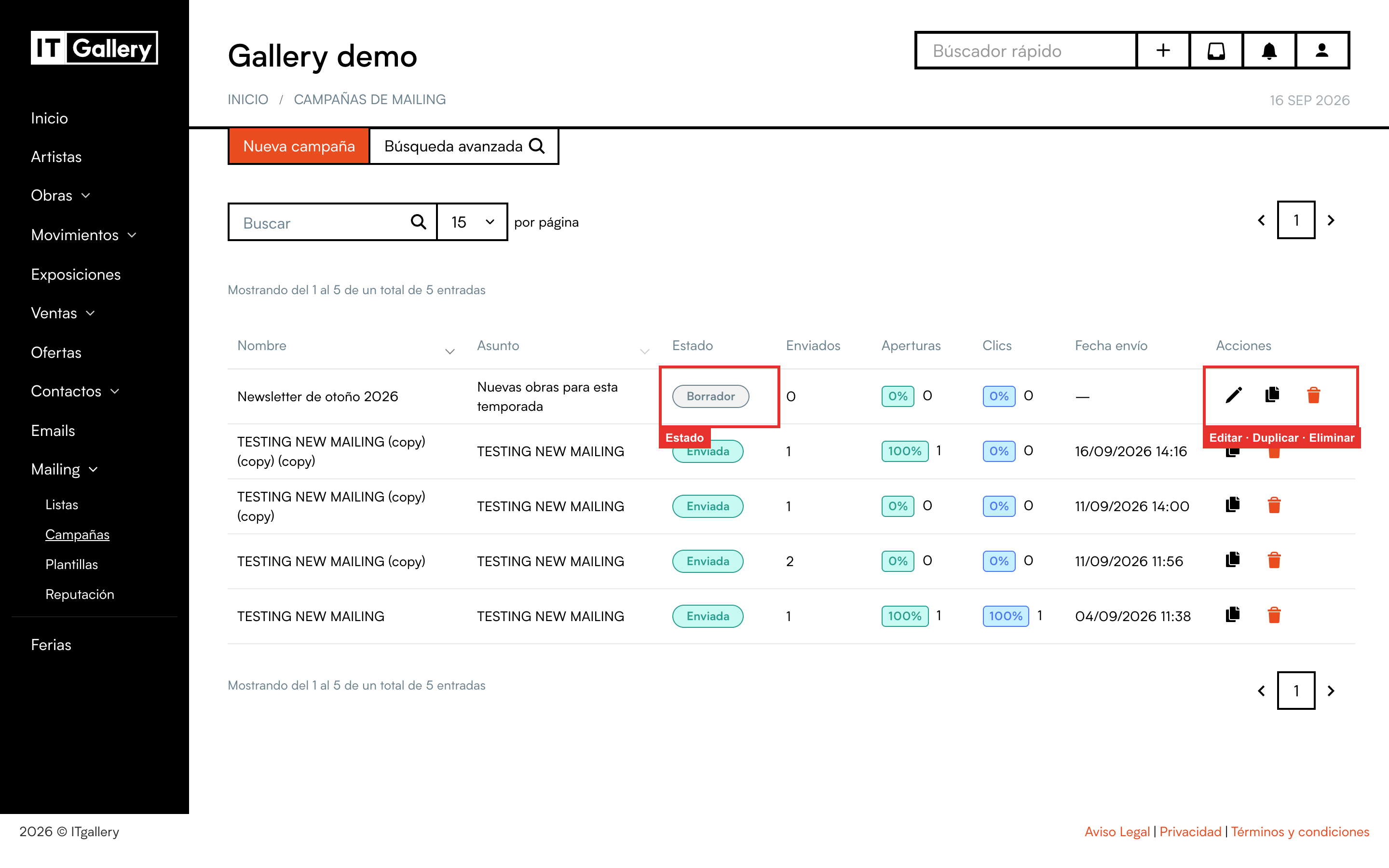
| Status | What it means | What you can do |
|---|---|---|
| Draft | Half done, or saved without sending. | Edit, Duplicate, Delete. |
| Scheduled | It has a send date and time and is waiting. | Cancel schedule, Duplicate. |
| Queued / Sending | The send is under way. | Wait. You can open it to watch the metrics come in. |
| Sent | It has been sent to all the recipients. | See results, Duplicate, Delete. |
| Cancelled | You stopped it before it went out. | Duplicate, Delete. |
| Paused | The send has been stopped temporarily. | Contact support if you see this status. |
| Failed | The send could not be completed. | Delete. If it happens again, contact support. |
To open a campaign, click its name. If it is a draft, the wizard opens so you can carry on editing; in every other case its details open with the results.
Duplicate a campaign
Duplicating creates a new campaign in Draft status with everything copied: sender, subject, options, lists, design and attachments. Only the name changes, with a copy marker so you can tell them apart. It is the quickest way to prepare this month's newsletter from last month's, or to resend a campaign after fixing something.
- From the list: the Duplicate icon on the row. It works for drafts, scheduled, sent and cancelled campaigns.
- From a campaign's details: Tools > Duplicate campaign.
Then open the copy, rename it and change whatever is needed, and send or schedule it like any other.
Tip
Another way to reuse: when creating a new campaign, the first step has Use a previous campaign, which copies the details of the one you pick right inside the wizard. Same result, starting from scratch.
Delete a campaign
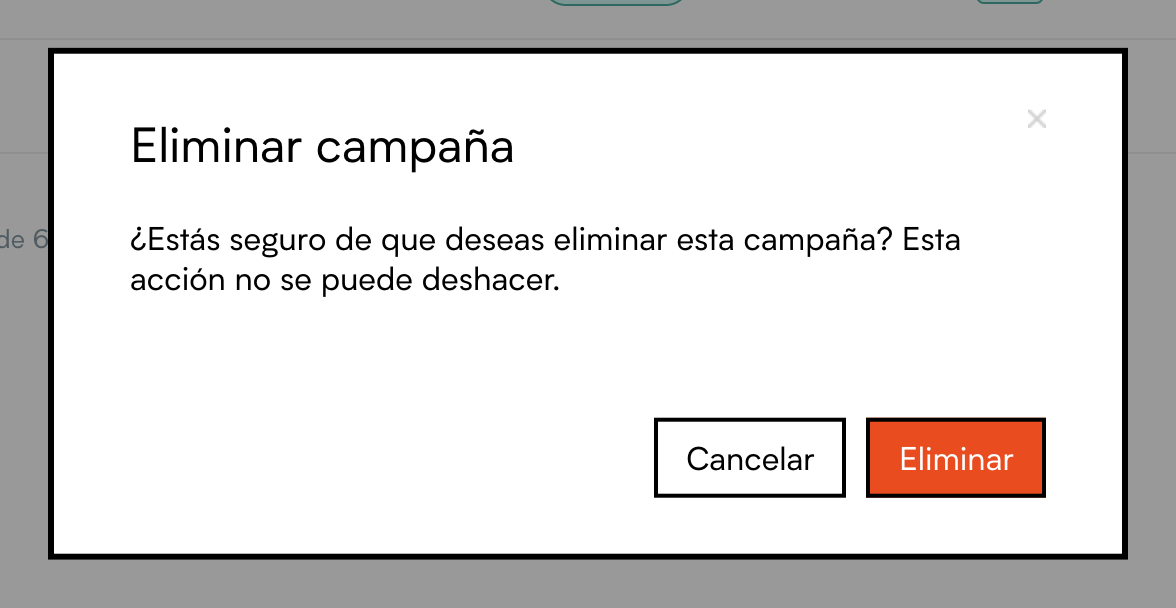
The bin icon in the list (or Tools > Delete campaign from the details) deletes the campaign after asking you to confirm.
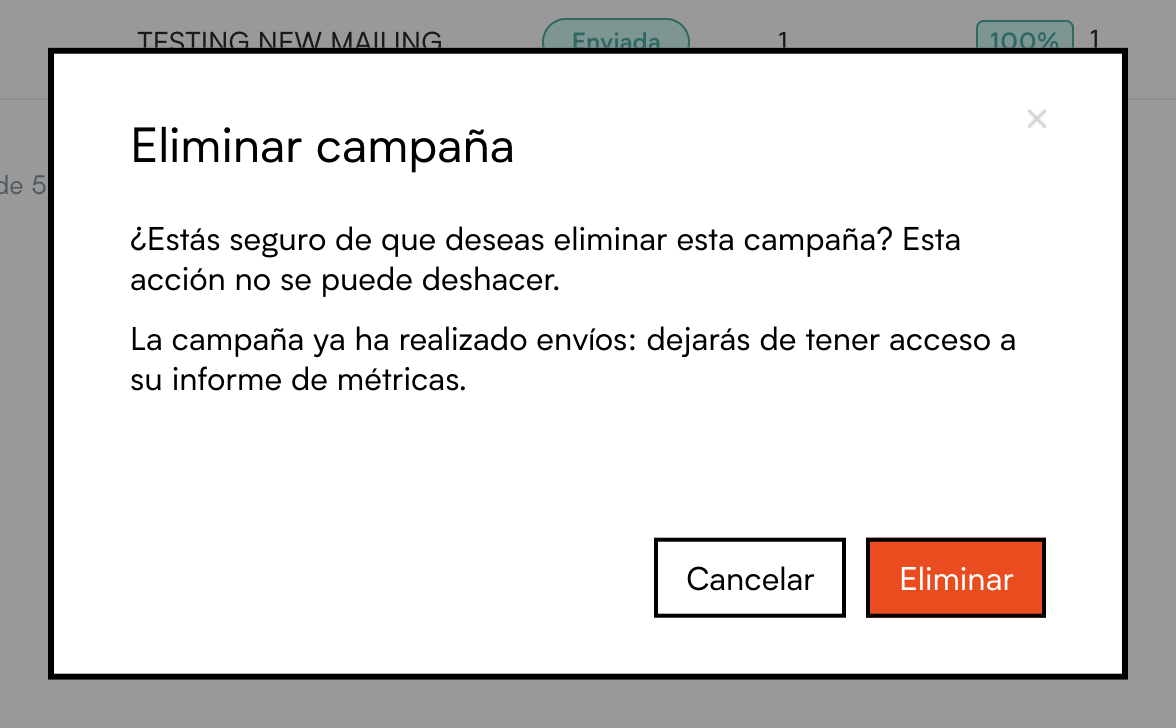
If the campaign has already been sent, the warning is more serious: deleting it also loses its report of opens, clicks and so on. The emails that already went out obviously cannot be undone.
Tip
You do not need to delete sent campaigns to keep the list tidy: the search box and the status filter help you find what you are after, and keeping the history lets you compare results between sends.
Find campaigns by status
The search box above the table searches by name or subject. With Advanced search you can filter by status, for example to see only pending drafts or only what is scheduled:
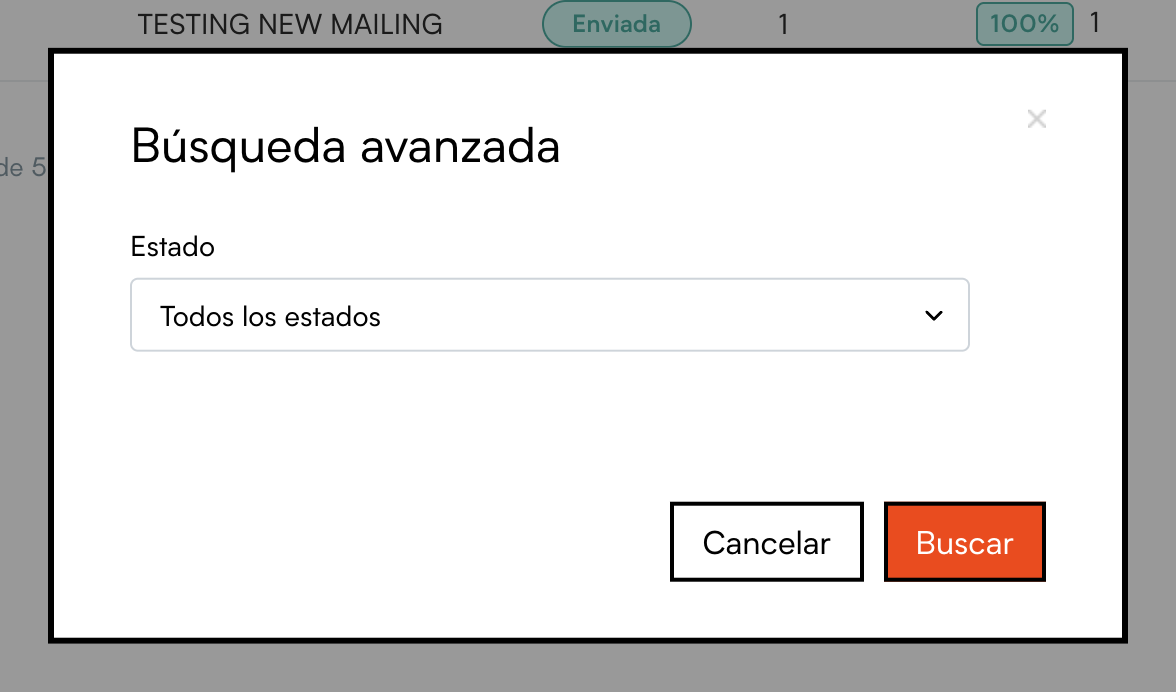
The filter stays on until you click delete filters.