
Give or remove access to AI assistants
This article is for gallery administrators in ITGallery. It explains how to decide which users can connect AI assistants (Claude, ChatGPT…) to the inventory, what each of them sees and what the “Access not available” messages mean.
To connect an assistant, step by step: Connect ITGallery to AI assistants (Claude, ChatGPT…).
In this article:
Before you start
- The gallery needs the “AI assistants” add-on. If it does not have it, write to us.
- The permission is granted by the gallery's administrator users: only they can see the My licence tab.
- Nobody has the permission by default, not even administrators: an administrator who wants to use an assistant has to grant it to themselves.
Give the permission to a user
- In the user name menu at the top right, open My Gallery.
- Open the My licence tab and, in the menu on the left, My users.
- On the user's row, click Edit.
- In the Permissions section, in the Unassigned actions list, type “MCP” in Search actions.... The action is listed as MCP_ACCESS, followed by a short description.
- Click it to select it and then click Move to allowed.
- Click Save.
From then on, that user can connect an assistant.
Tip
If MCP_ACCESS does not appear in the list, the gallery does not have the “AI assistants” add-on. Write to us and we will look into it.
Remove the permission
- As above, click Edit on the user.
- In the Allowed actions list, select MCP_ACCESS and click Move to unassigned.
- Click Save.
Access is cut off on the assistant's next query, even if the user still has it connected. If you give the permission back later, the assistant works again without reconnecting; to remove it completely, the user also has to disconnect it from My User (see Disconnect an assistant).
What each user sees
The assistant respects the permissions each user already has in ITGallery. With the permission to connect AI assistants, any user sees the artworks and editions: records, dimensions, public images and availability. Everything else depends on the user's other permissions:
| For the assistant to see… | The user needs |
|---|---|
| Prices of artworks and editions | The permission to see prices (action SHOW_PRICES) |
| Sales: when, to whom, in which status and which edition | The sales permissions SALES_MANAGEMENT and VIEW_SALE, both of them |
| Sale amounts | The sales permissions and the prices permission |
| Name of a buyer who is a private contact | VIEW_PRIVATE_CONTACTS (without it, the assistant only knows it is a private contact) |
These permissions can come from the licence, the role or the user, as everywhere else in ITGallery: if a user cannot see prices in ITGallery, they will not see them through the assistant either. To stop someone seeing prices, for example, move SHOW_PRICES to Restricted actions on that user (this also hides prices from them in ITGallery).
Internal notes and buyers' contact details never come out, with any permission. And the assistant cannot change anything.
Disconnect an assistant
Each user sees and disconnects the assistants they have connected themselves:
- In the user name menu (top right), open My User.
- In the Configuration tab, open AI assistants: the assistants connected to that account are listed there.
- Click Disconnect next to the one you want to remove. Access is cut off straight away.
Other users' assistants cannot be disconnected from here. To cut someone off, remove their permission (see Remove the permission). If another user's connection needs to be withdrawn completely, write to us.
What the “Access not available” messages mean
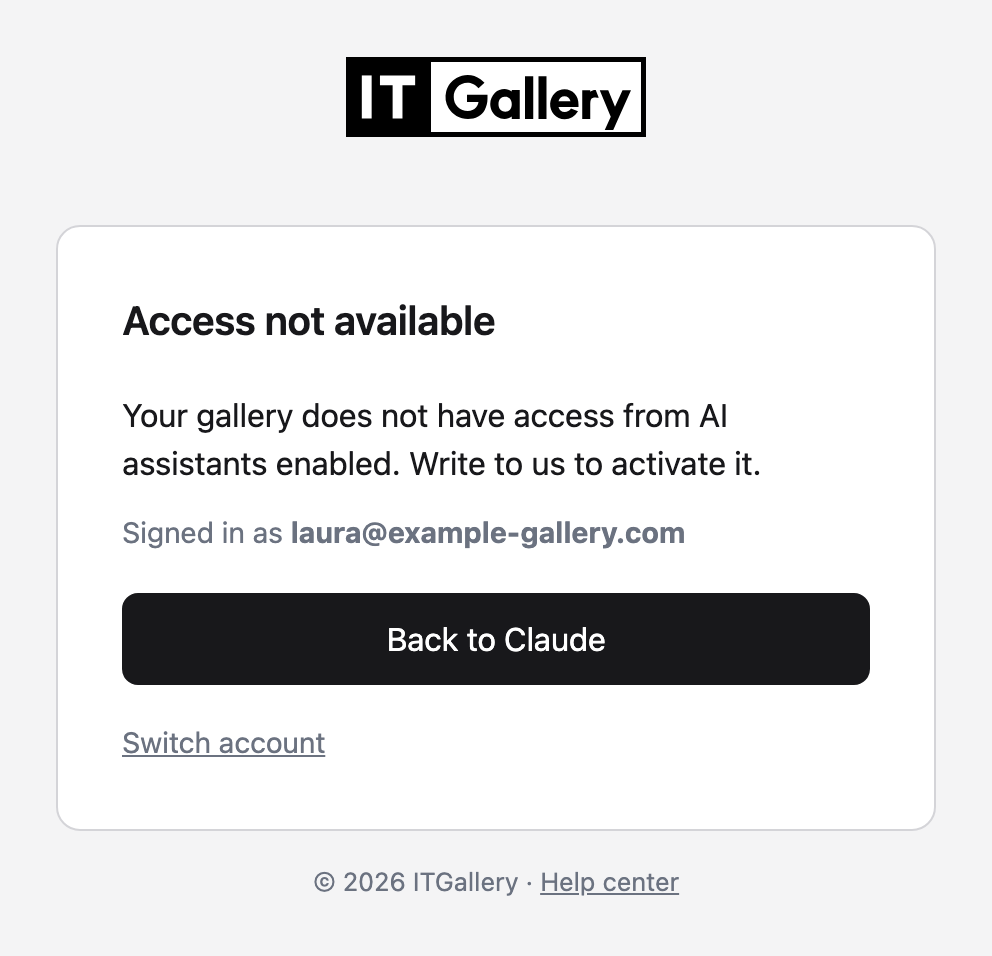
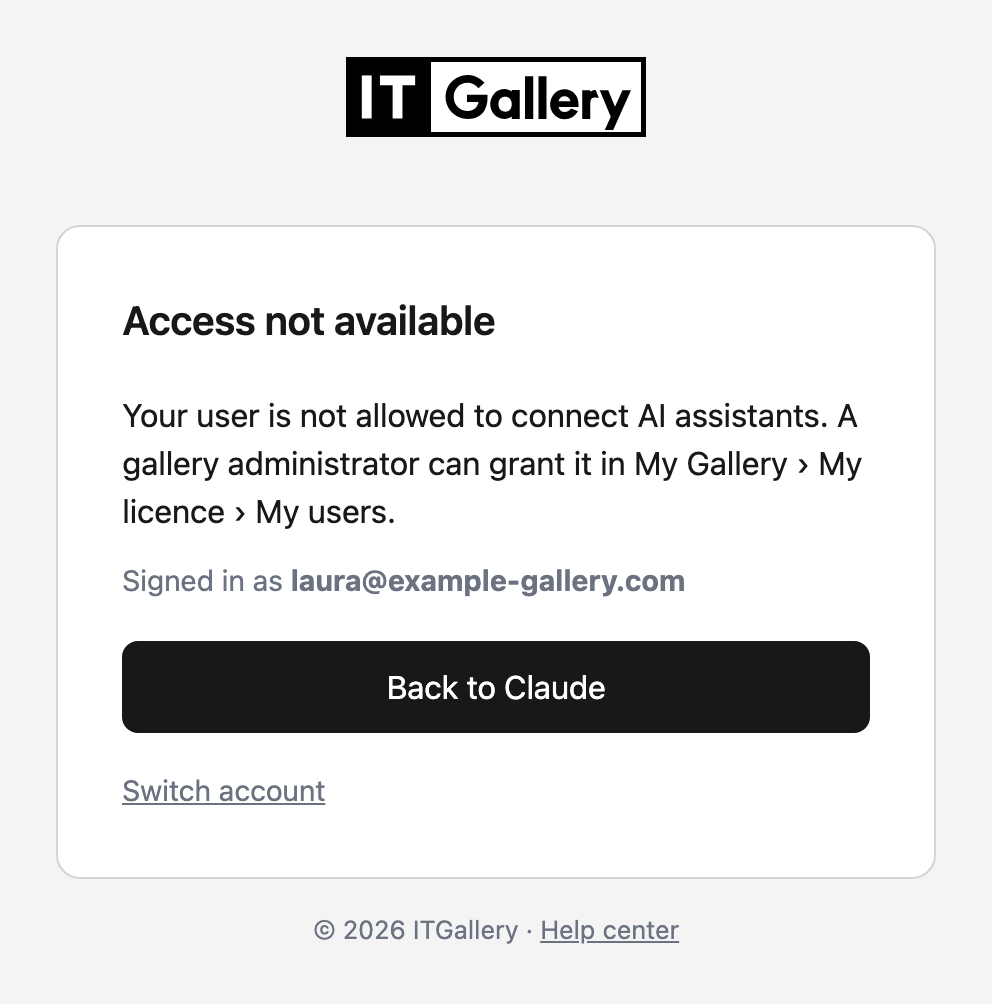
If this screen appears instead of the authorisation screen when connecting an assistant, the message says what is missing:
| Message | What is happening | What to do |
|---|---|---|
| “Your gallery does not have access from AI assistants enabled. Write to us to activate it.” | None of the user's galleries has the “AI assistants” add-on, or the gallery or its licence is not active. | Write to us to add or activate the add-on. |
| “Your user is not allowed to connect AI assistants. A gallery administrator can grant it in My Gallery › My licence › My users.” | The gallery has the add-on, but the user does not have the MCP_ACCESS permission. | A gallery administrator grants the permission in My Gallery › My licence › My users (see Give the permission to a user). |
In both cases, Back to … returns to the assistant without connecting, and Switch account lets you sign in as another user.
If the assistant was already connected and the add-on or the permission is removed later, this screen does not appear: the assistant receives the notice and explains it in the conversation.