
Add subscribers to a list
An empty list is not much use. Here is how to fill it: by hand, from your ITGallery contacts, by importing a file or with a form on your website.
In this article:
The four ways to get people onto a list
Add people one by one from the list
The four ways to get people onto a list
- One by one from the list: with the Add subscriber button. For the odd addition.
- From Contacts: by ticking Save for mailing in a contact's details, or many at once with Edit selected. The natural way if your audience is already in ITGallery.
- By importing a file: an Excel or CSV file with lots of people in one go.
- With the subscription form: a link or a piece of code for your website, so that people sign up on their own.
Add people one by one from the list
Go to Mailing > Lists, click the list and open the Subscribers tab.
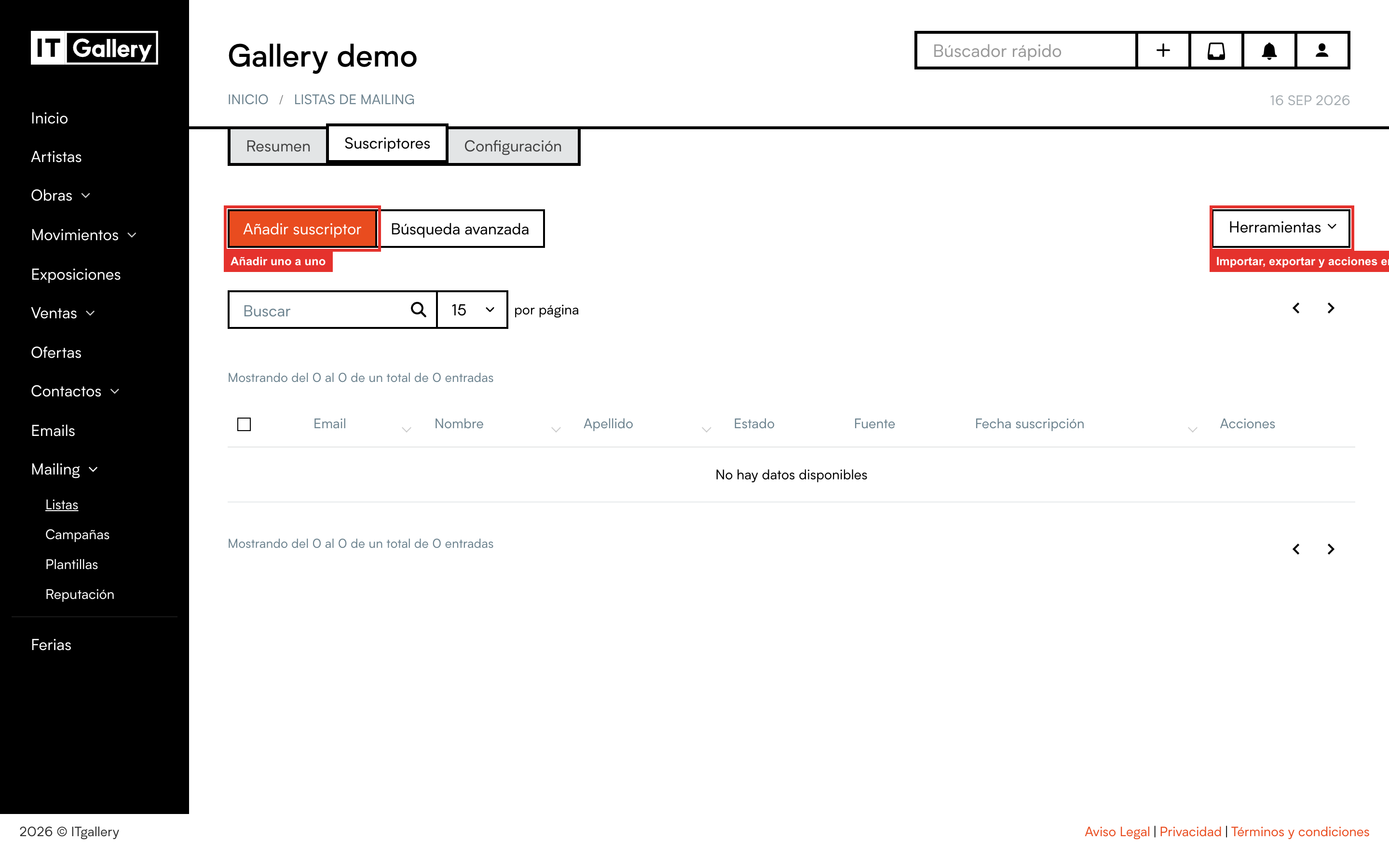
Click Add subscriber. There are two modes:
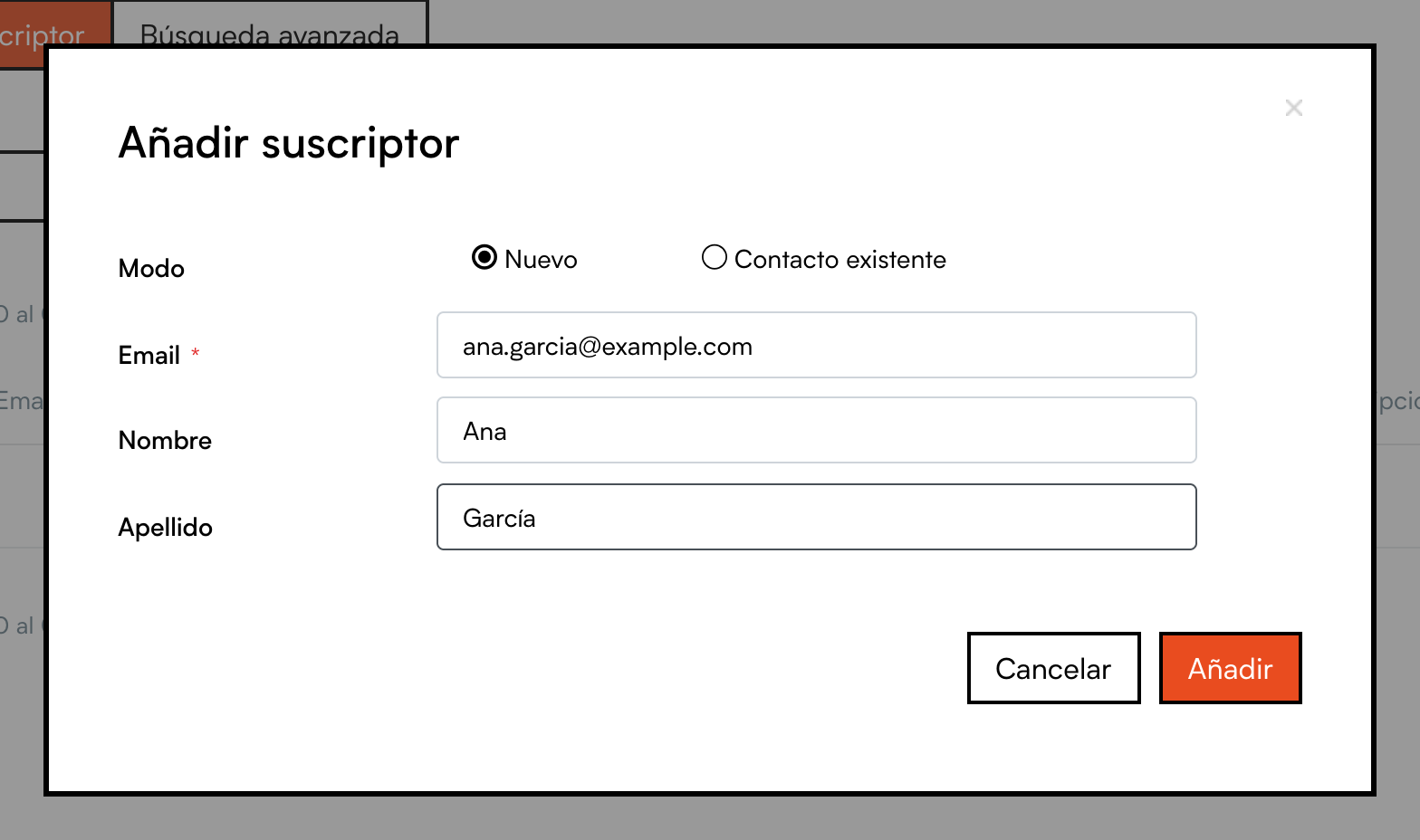
New: type the email (required), the first name and the last name, and click Add. If that address already existed on another of your lists, it is simply added to this one as well.
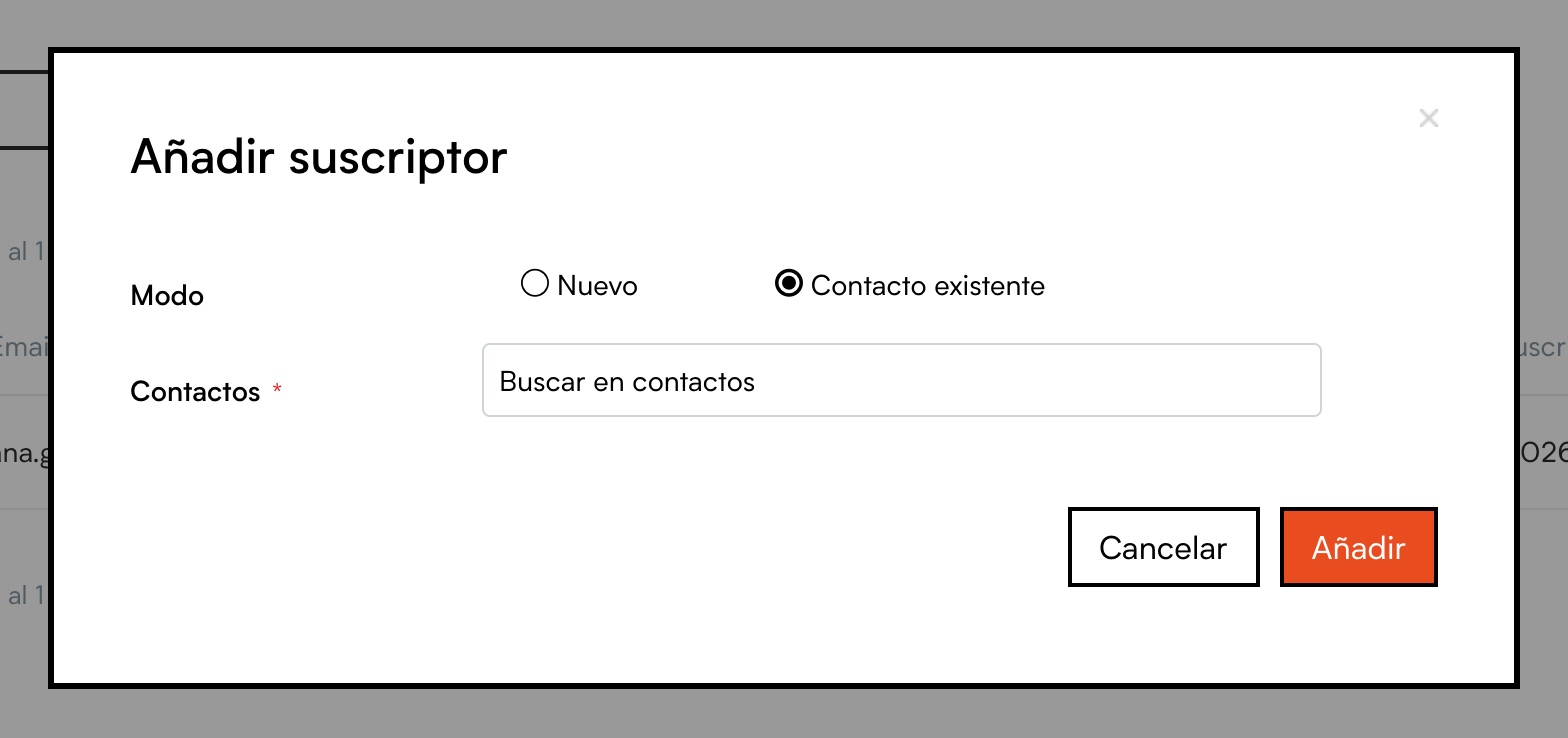
Existing contact: search your ITGallery contacts by typing part of their name, tick one or several and click Add. The email from their contact details is used.
Tip
First name and last name are optional, but they are worth filling in: later you will be able to personalise the content of your campaigns with “Hi Ana” instead of a generic greeting.
From the Contacts module
From a contact's details. When you edit a contact, next to their email there is a Save for mailing checkbox. Tick it and a selector appears to choose which lists to put them on. Save the contact and that is it.

If that person has unsubscribed or their address bounces, you will see it flagged next to the email in their details, so there are no surprises.
Many contacts at once. In the Contacts list, tick the ones you want (you can filter them first with the advanced search), open Tools and click Edit selected.
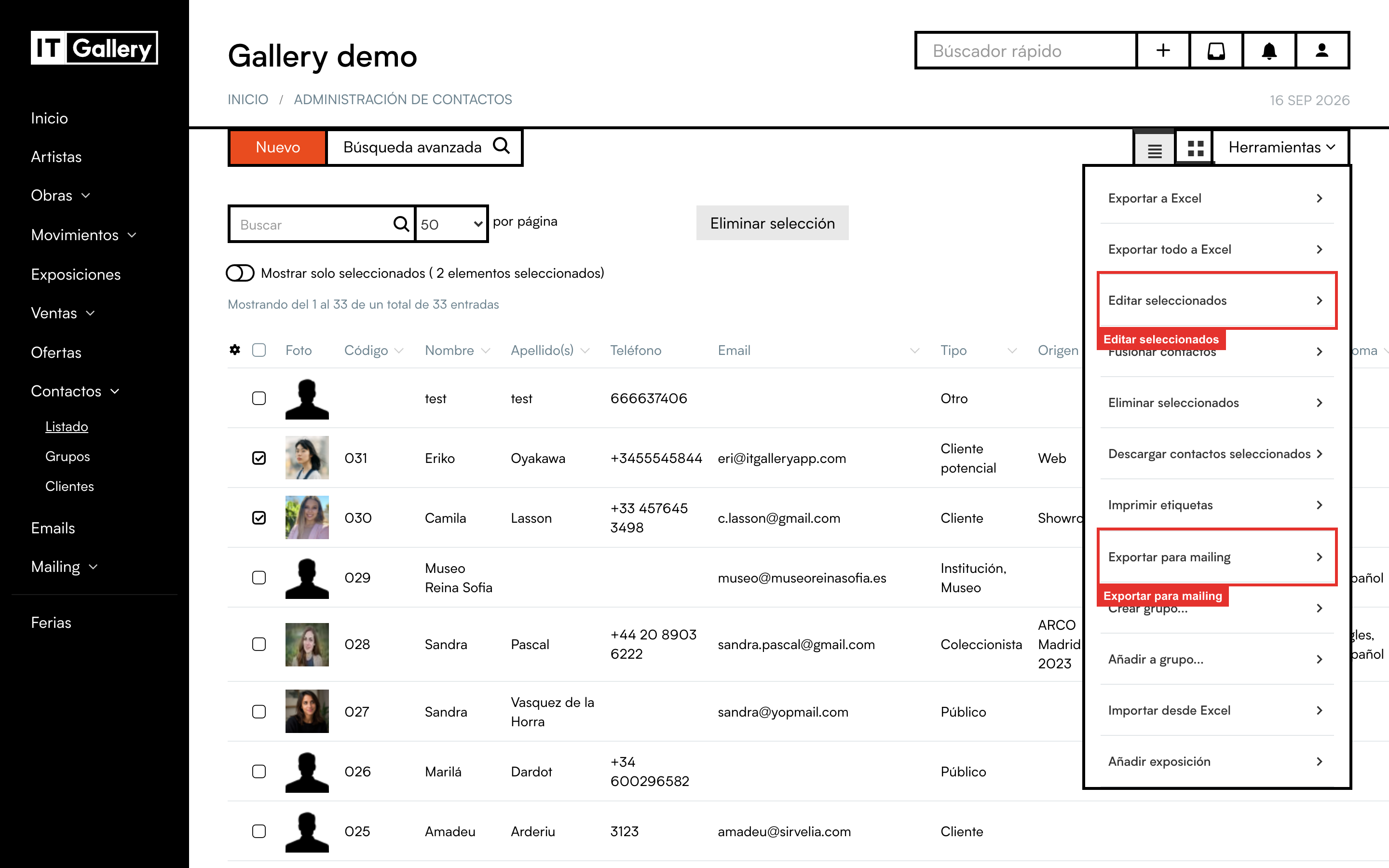
In the bulk edit window, under Save for mailing choose which email to use (normally email1) and, in the selector that appears next to it, the lists. On saving, all the ticked contacts go onto those lists.
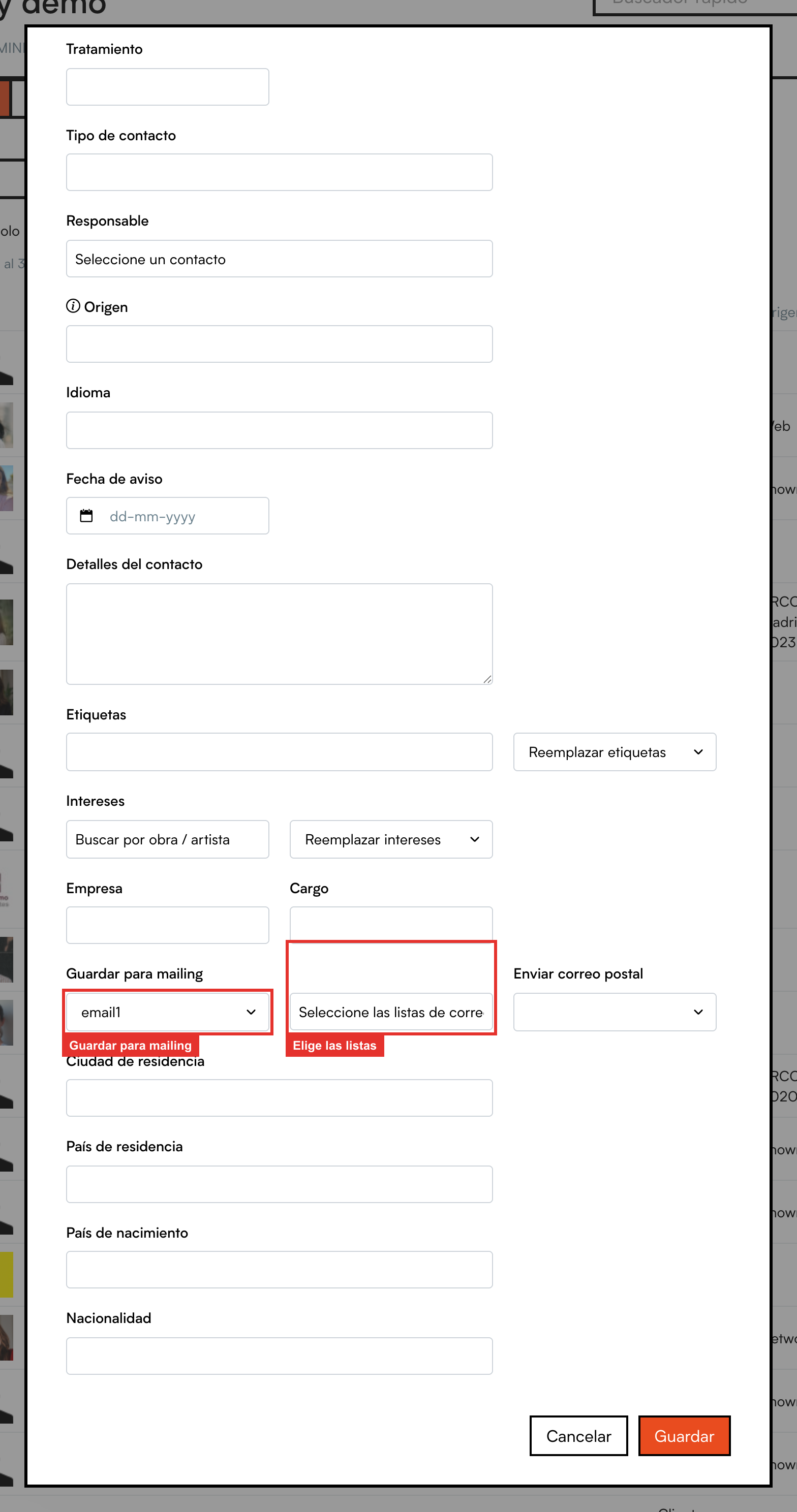
Contacts that arrive this way show up on the list with the source “Contact sync”.
Import an Excel or CSV file
If your audience is in a spreadsheet, this is the fast way. A CSV or an Excel (.xlsx) file of up to 10 MB will do.
How to prepare the file
- The first row must contain the column names, for example: Email, First name, Last name.
- The only required column is the email. The others are optional.
- One person per row. Rows with no email or with a badly written email are discarded and show up as errors at the end.
Tip
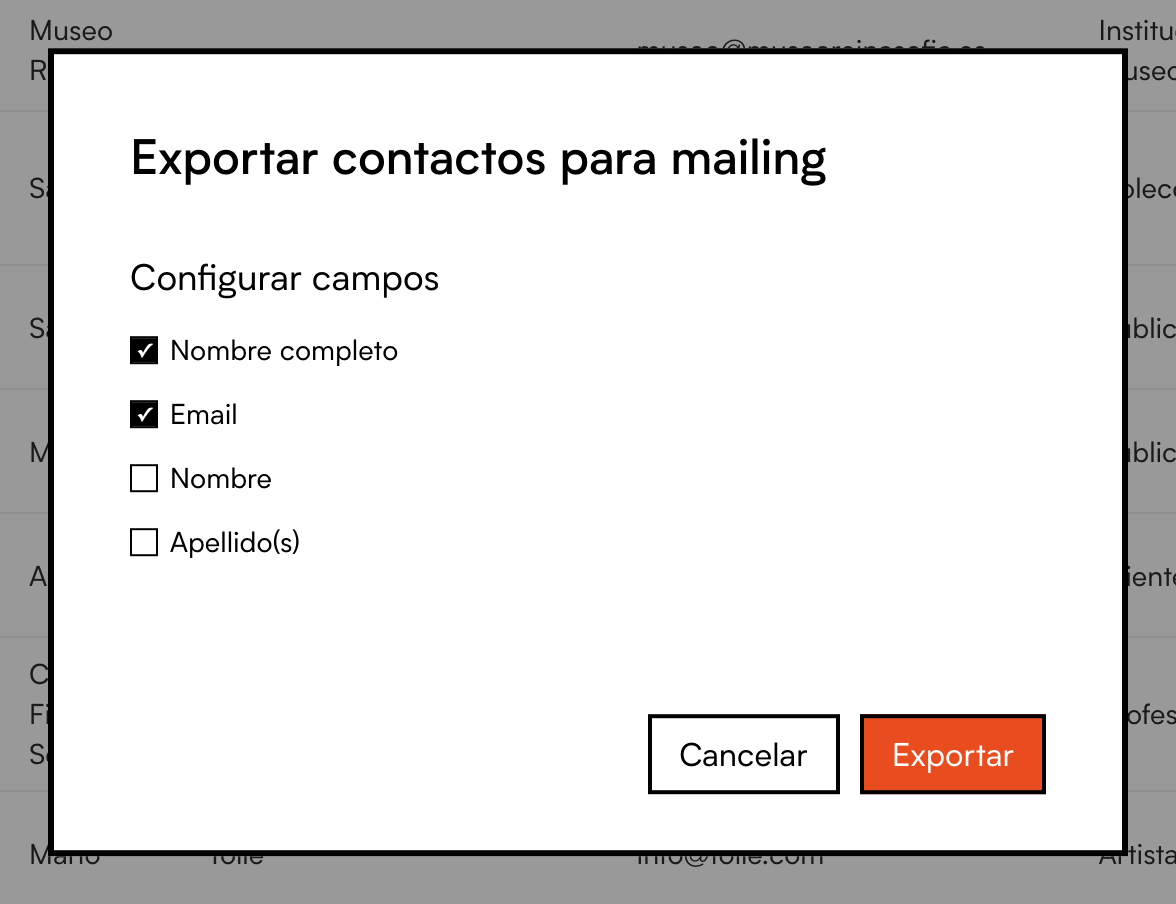
Want to take ITGallery contacts into a file? In Contacts, tick the ones you want and use Tools > Export to mailing. Choose the columns and it downloads a file ready to import here. Useful if you want to review or tidy the list in Excel before bringing it in.
The import wizard, step by step
On the list's Subscribers tab, open Tools and click Import subscribers. A four-step wizard opens.
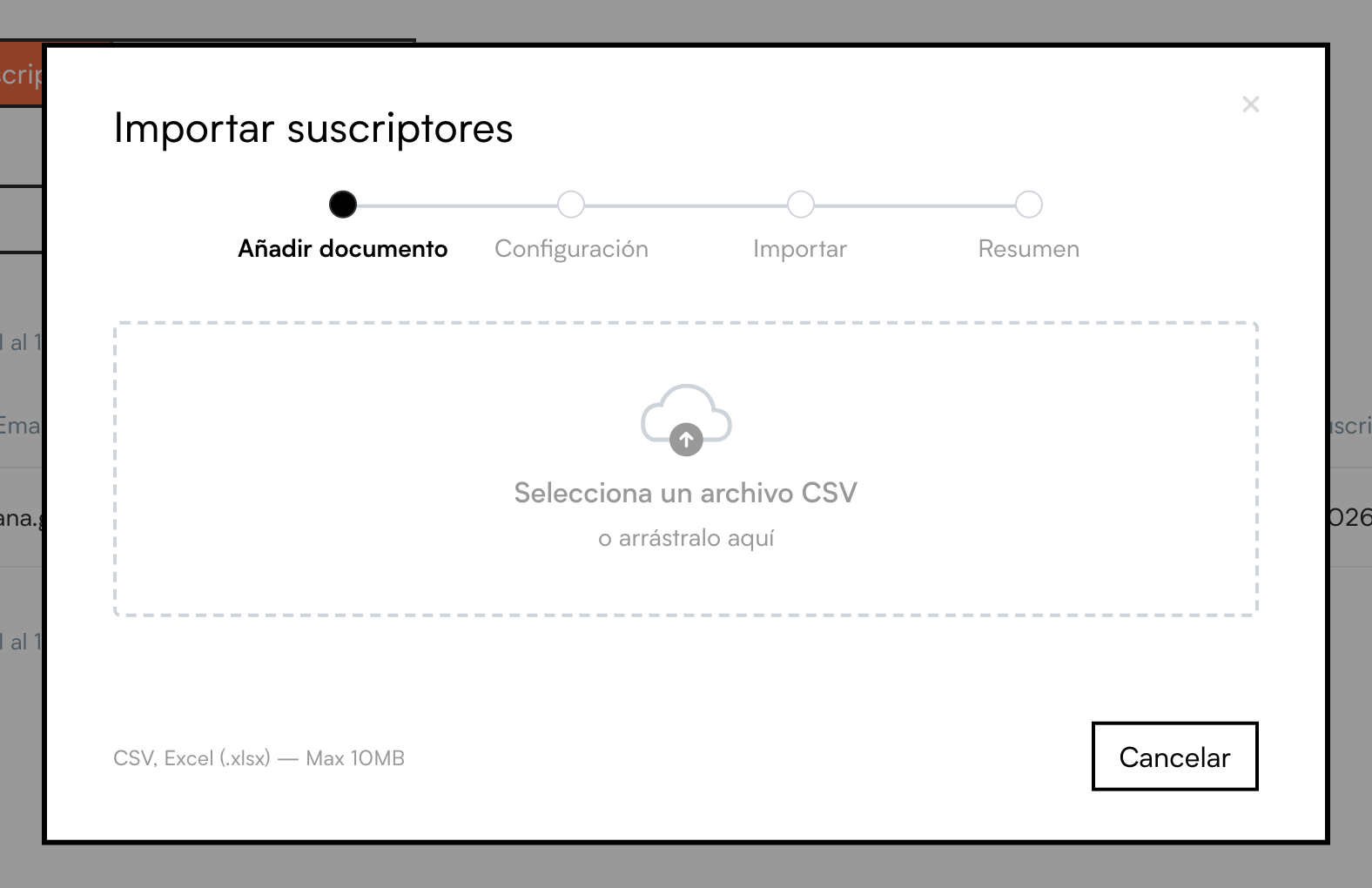
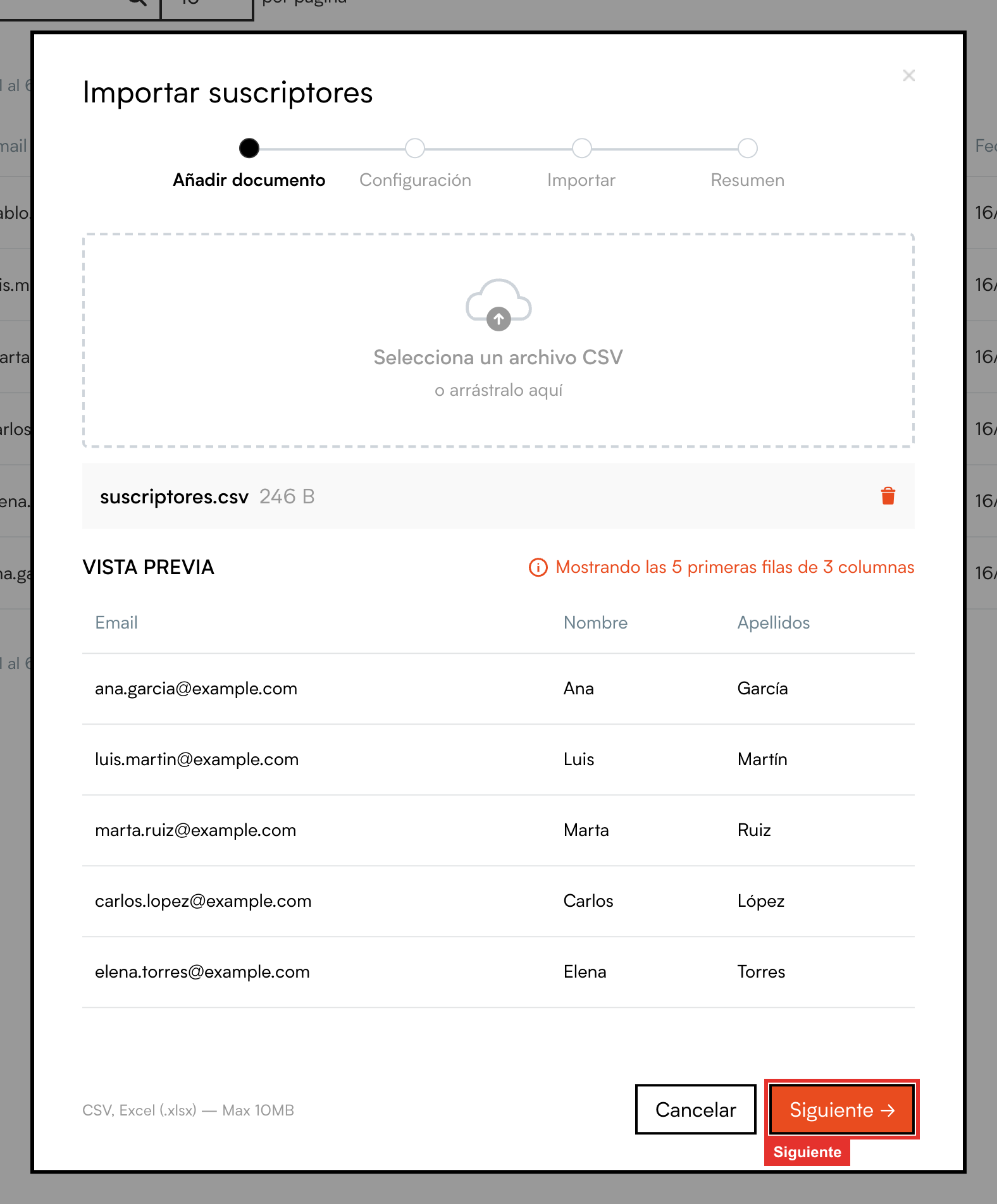
1. Add document. Click the box to choose the file or drag it in. As soon as it uploads, you will see a preview of the first rows to check it was read correctly. Click Next.
2. Settings. Here you tell ITGallery what each column of your file is. It usually guesses on its own, but check it: the email column must be marked as Email. Leave any columns you do not need on “Ignore”.
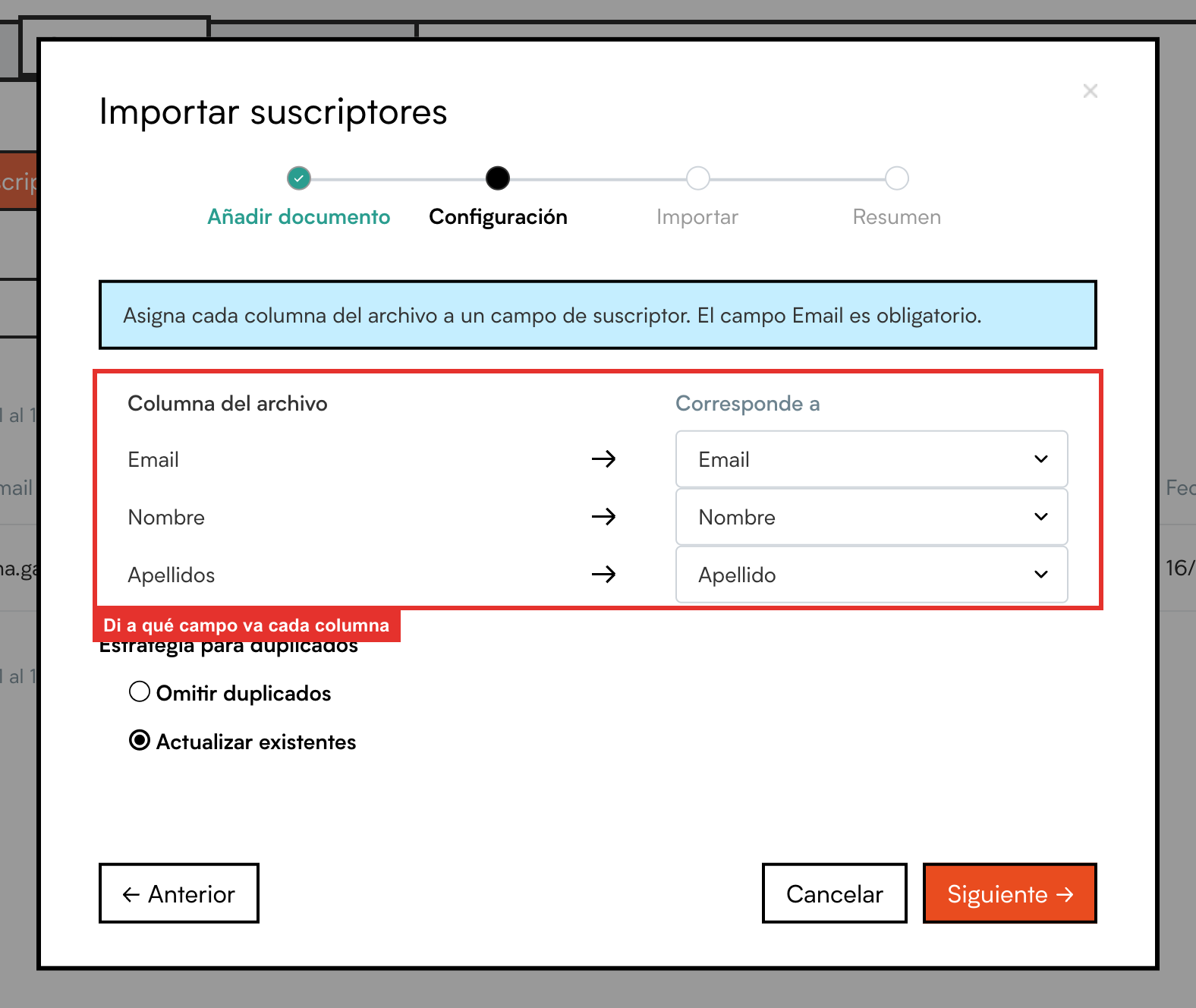
Below, choose what to do if someone in the file is already on your lists:
- Skip duplicates: leaves the details of anyone who already exists untouched. The safest option.
- Update existing: updates the first name and last name of anyone who already exists with what the file says. Useful if you have corrected details in the spreadsheet.
In both cases, if the person was already on this same list they are counted as “skipped” and not duplicated.
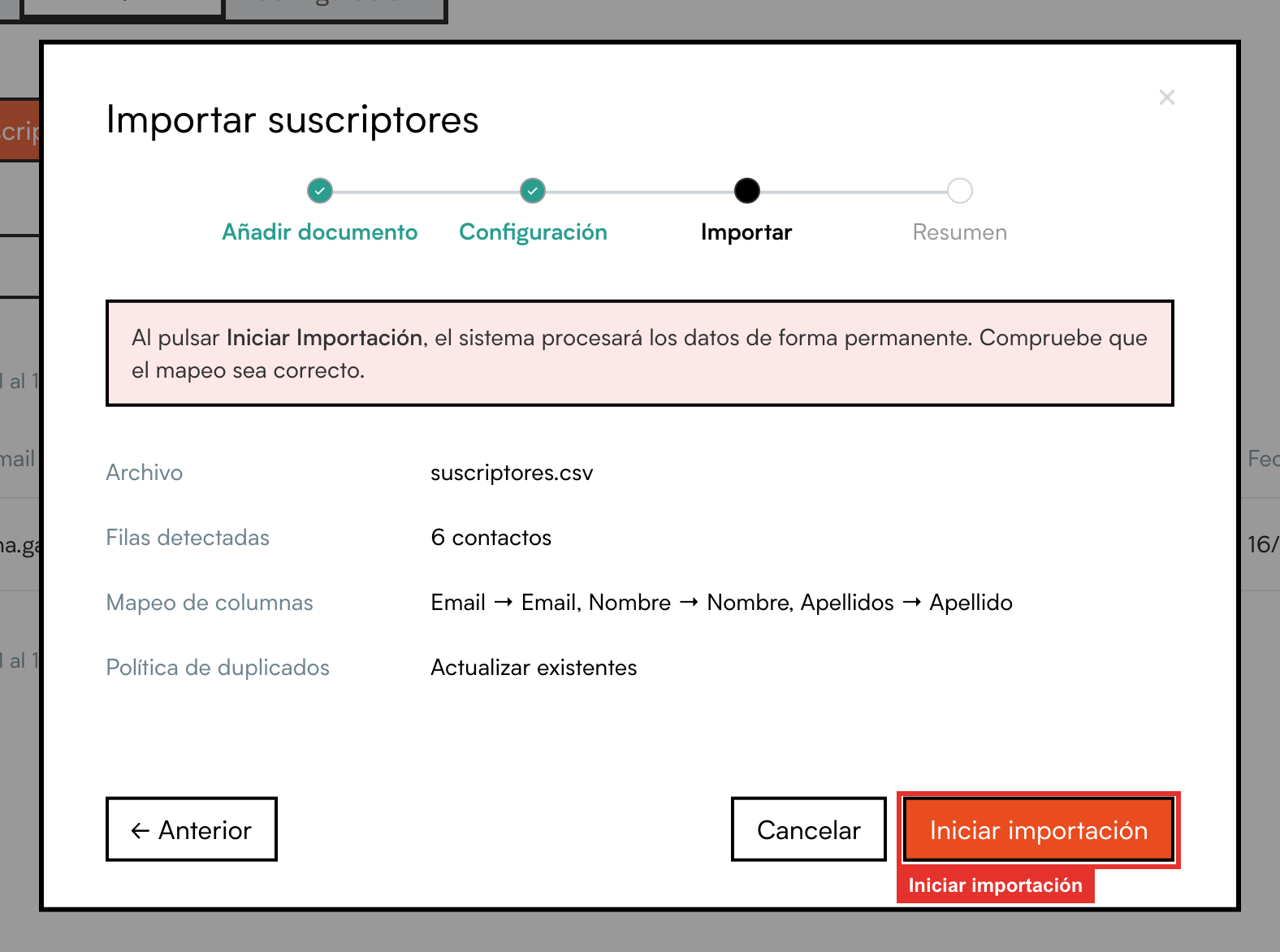
3. Import. A summary of what is about to happen: the file, how many rows there are and how the columns have been mapped. If it all looks right, click Start import. You will see a progress bar; large files can take a little while.
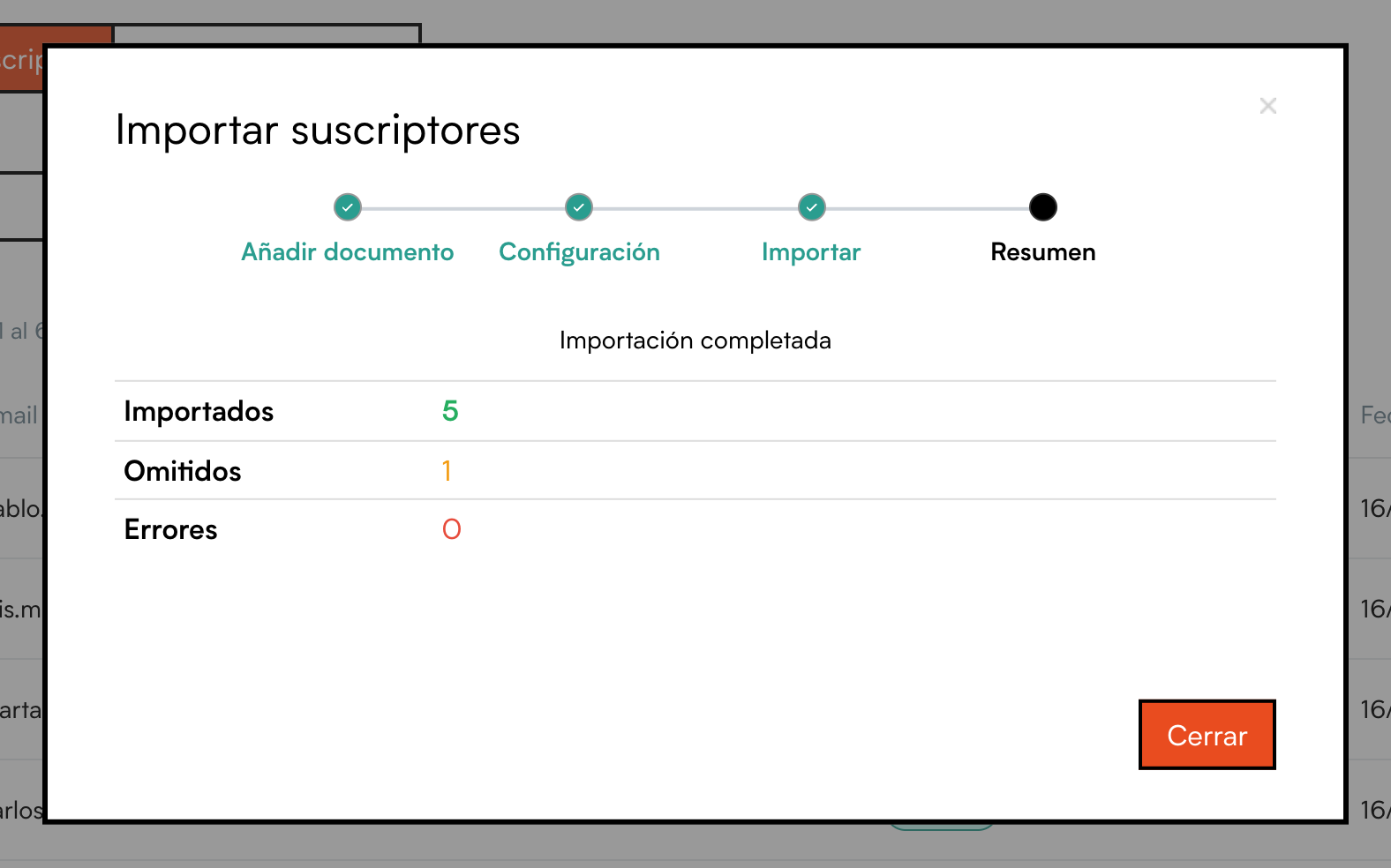
4. Summary. When it finishes, it tells you how many people were imported, how many were skipped because they were already on the list and how many gave an error. If there are errors, the row-by-row detail appears just below so you can fix them in the file and import them again.
Heads up
Imported subscribers are treated as active and do not get any confirmation email, even if the list is double opt-in. Make sure the people in the file have agreed to receive your emails: importing addresses that have not given you permission ends in complaints and bounces, and that hurts all your sends.
Let people sign up from your website
Every list has its own public form. You will find it on the list's Settings tab, under Subscription form.
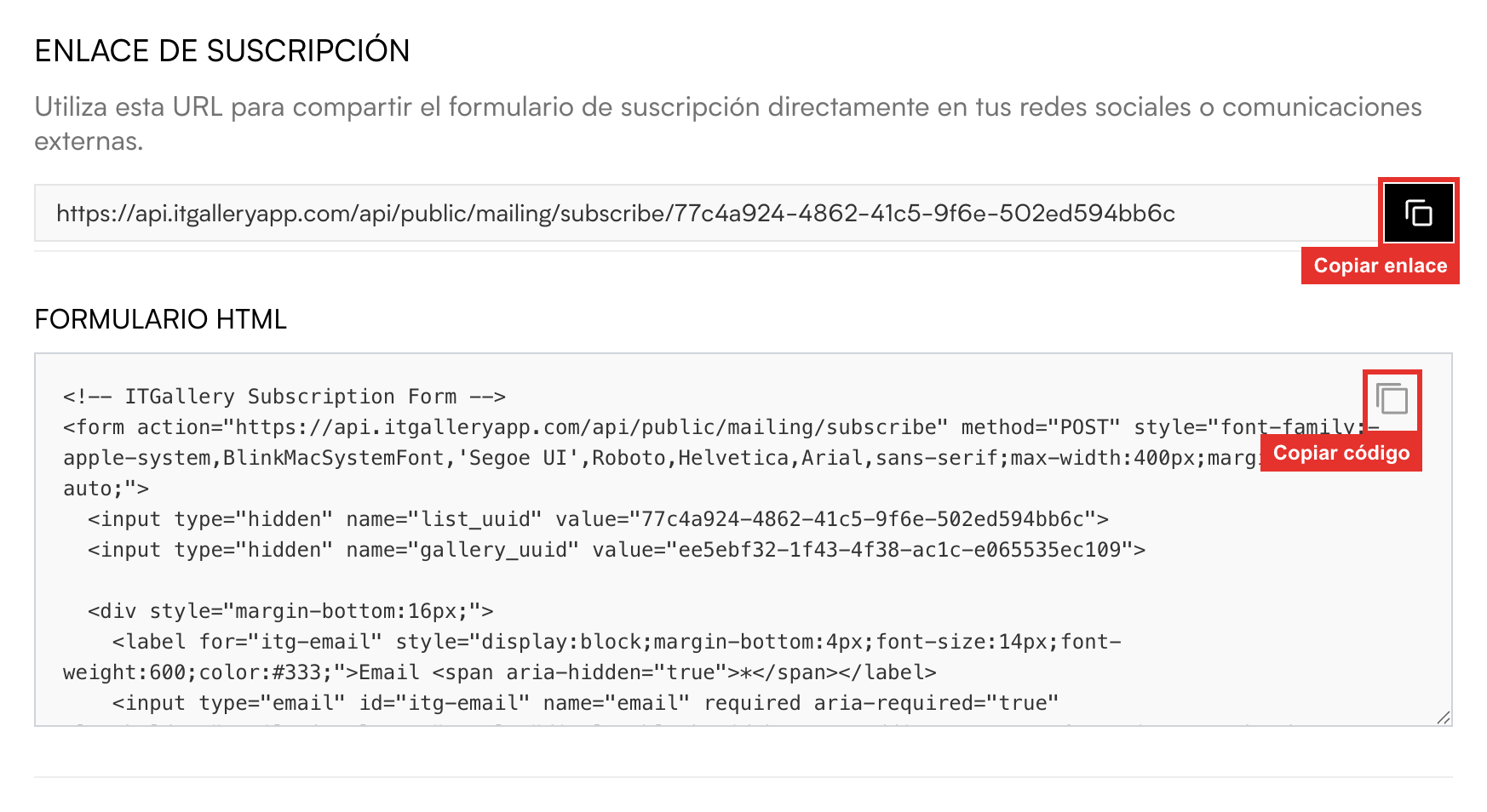
- Subscription link: a web address with a ready-made form. Copy it and put it on your social networks, in your email signature or wherever you like.
- HTML form: the code to embed the form in your own website. Pass it on to whoever looks after your site.
Anyone who signs up this way appears on the list with the source “form”. If the list is double opt-in, they first get the email to confirm and do not count as a subscriber until they do. All of that is adjusted in Set up a list: sign-up, unsubscribe and subscription form.