
Sets
Sets are a submenu within the 'Artworks' module. Sets let you group artworks together to organise your inventory better and find related artworks faster.
Tip
Use sets to create folders to organise your artworks. For example, when putting together an exhibition, create a folder and add all the artworks that could be part of it, for internal review.
How to create a set
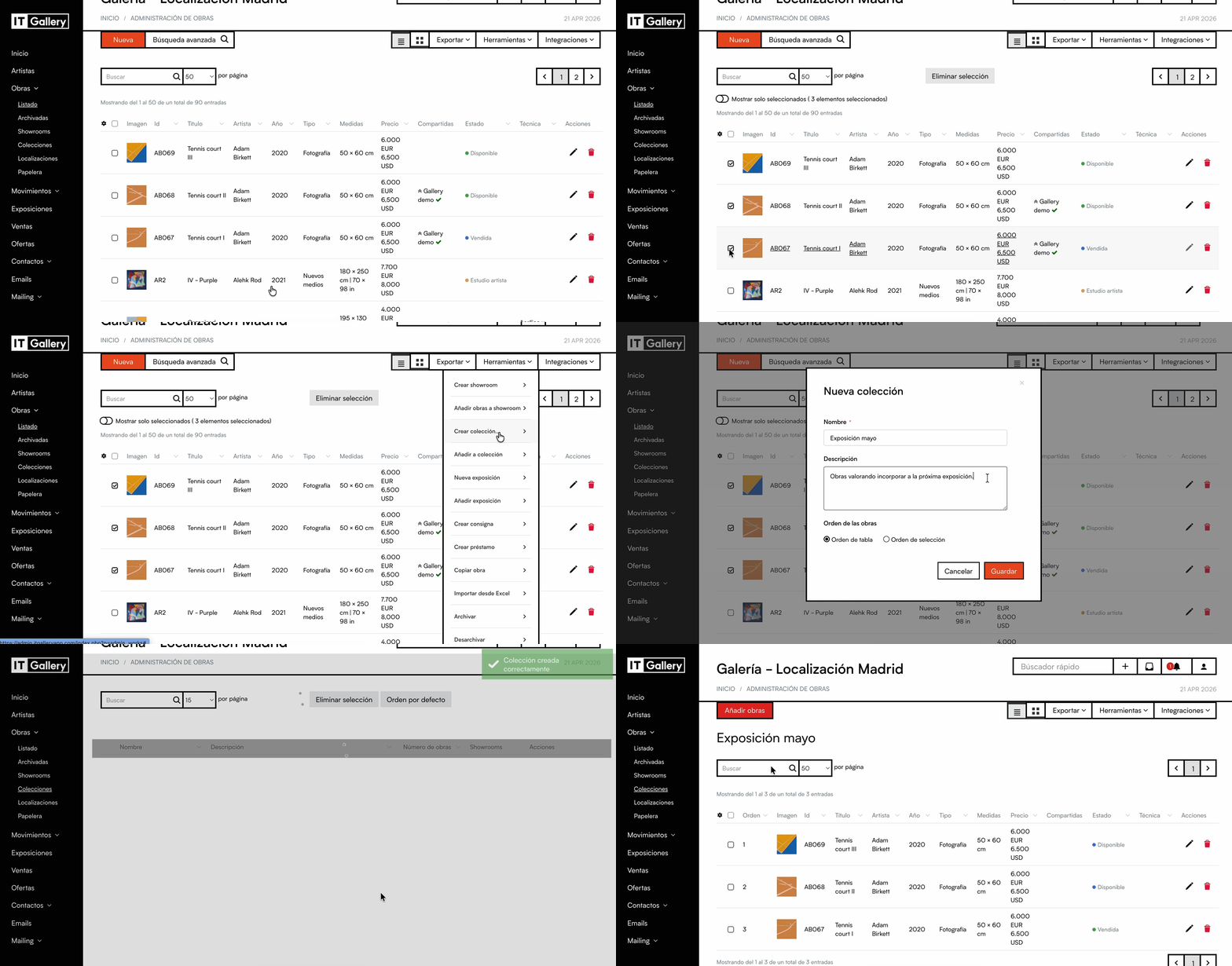
How to create a set
- Go to the Artworks module and open the List.
- Select the artworks you want to include by ticking the relevant boxes.
- Click Tools, in the top right corner.
- Select Create set.
- Fill in the information for the set:
- Enter a custom title.
- Add a description.
- Choose the order of the artworks:
- Table order: keeps the same order shown in the list.
- Selection order: follows the order in which you ticked the artworks.
- Click Save to create the set
How to add artworks to a set
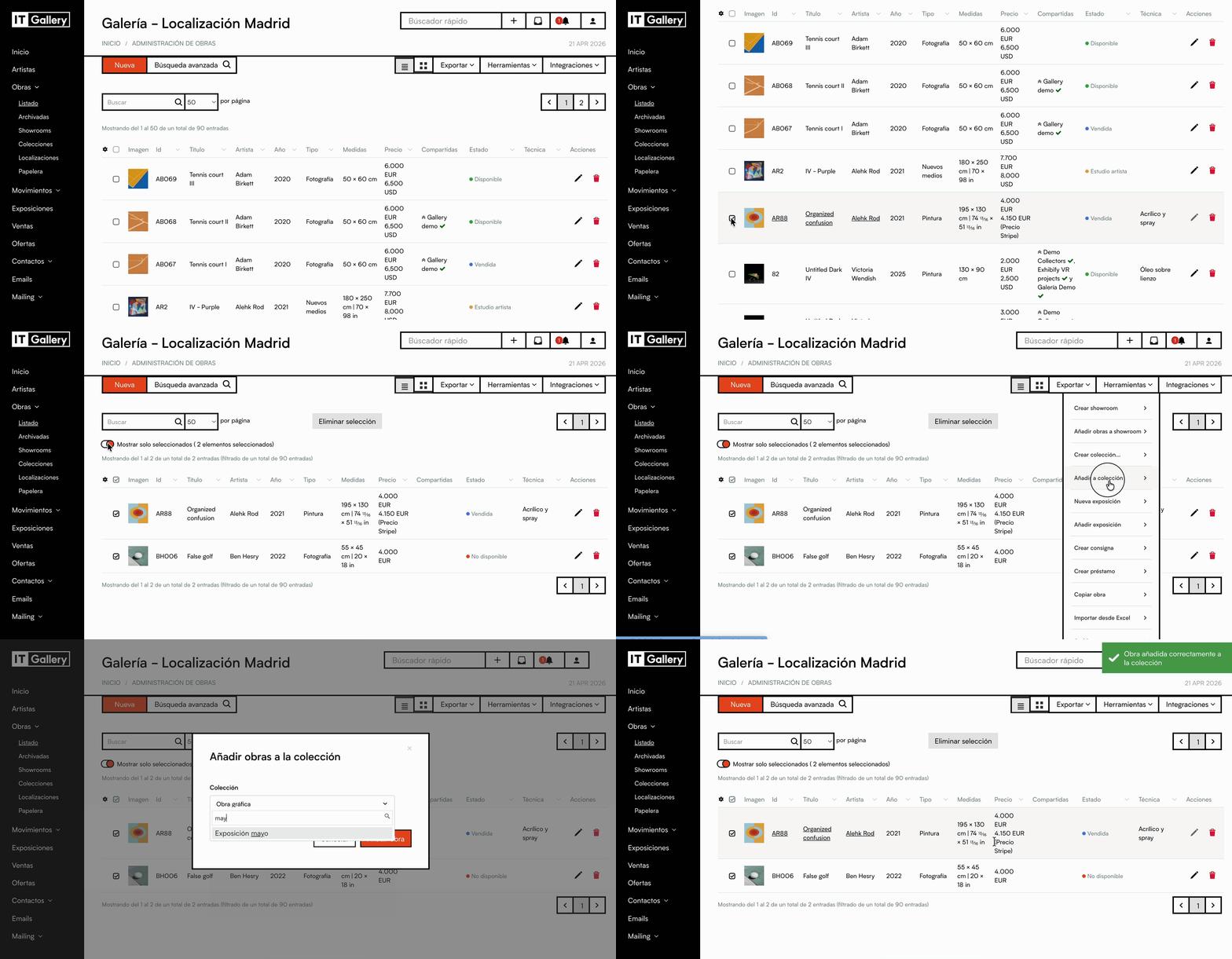
- Go to your artworks list.
- Find and select the artworks you want to add.
- Select Tools and Add to set.
- Use the search box to find the name of the set you want to add the artworks to.
- Save your changes.
How to view a set
- Go to the Sets section.
- Select the set you want to review.
- Click the name of the set to open it.
- You will see the artworks included in it.
How to share a set
Sets can be shared as:
-
Private link
Generates a showroom so you can easily share the selection with a client or a collaborator.
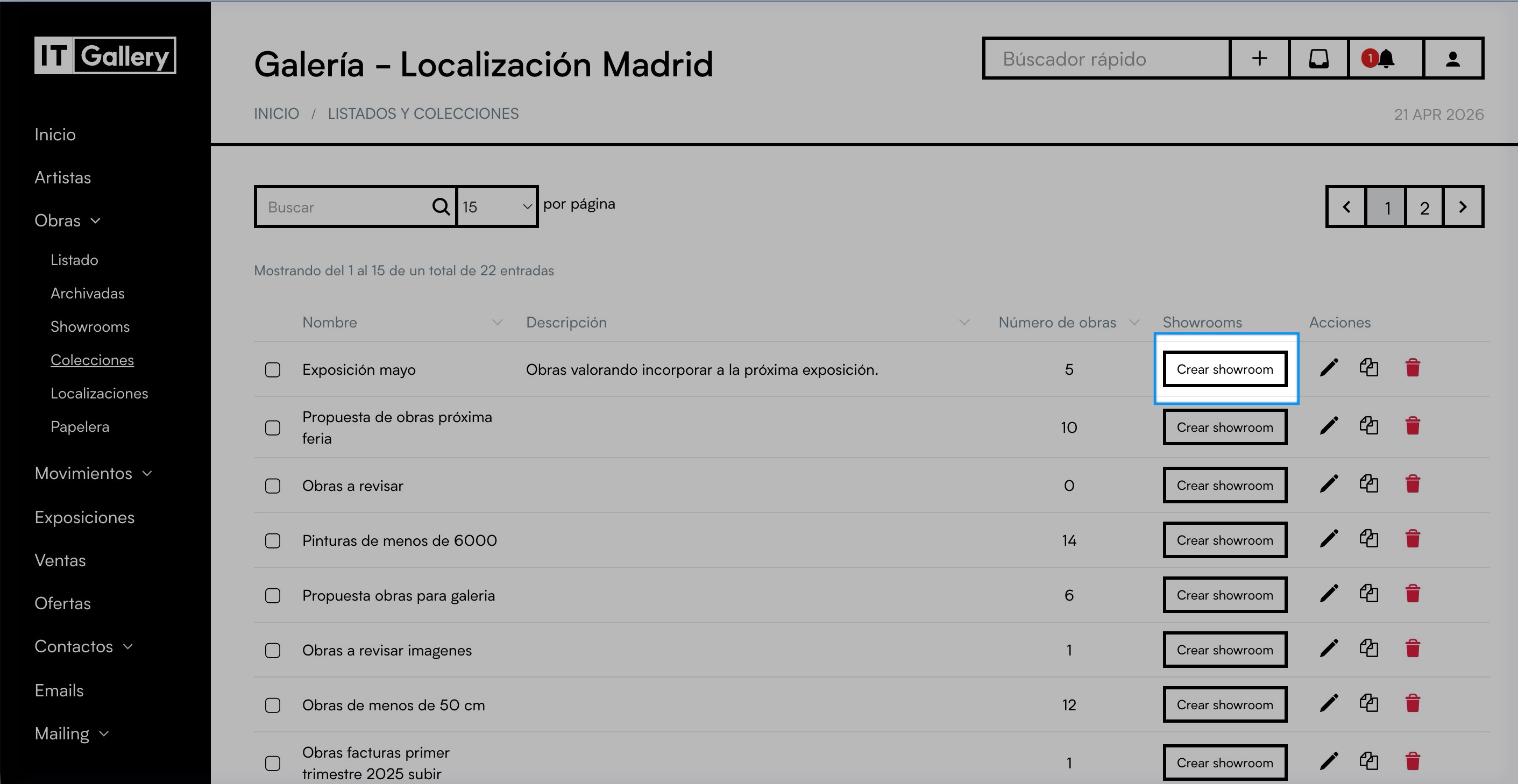
See related article.
-
Export to PDF or Word
You can export the set to PDF or Word to send it by email or print it.
Generate documents.
