
Understand your sending reputation
When you send emails, the email services (Gmail, Outlook and so on) keep track of how people react: whether the addresses exist, whether anyone marks your emails as spam… With that they decide whether your next sends go to the inbox or straight to spam. That is called reputation, and the Mailing > Reputation section shows you yours at a glance.
In this article:
What reputation is and why it matters
Two things ruin it:
- Bounces: emails that do not arrive because the address does not exist or fails. Lots of bounces in a row say “this gallery sends to addresses it has not checked”.
- Complaints: people who click “this is spam” in their email. Very few complaints are enough to do damage: they say “this gallery sends to people who did not ask for it”.
All ITGallery galleries send from the same infrastructure, so reputation is looked after collectively. That is why, if a gallery goes over certain limits, its sends are blocked temporarily: it is the way to protect the others.
The Reputation dashboard
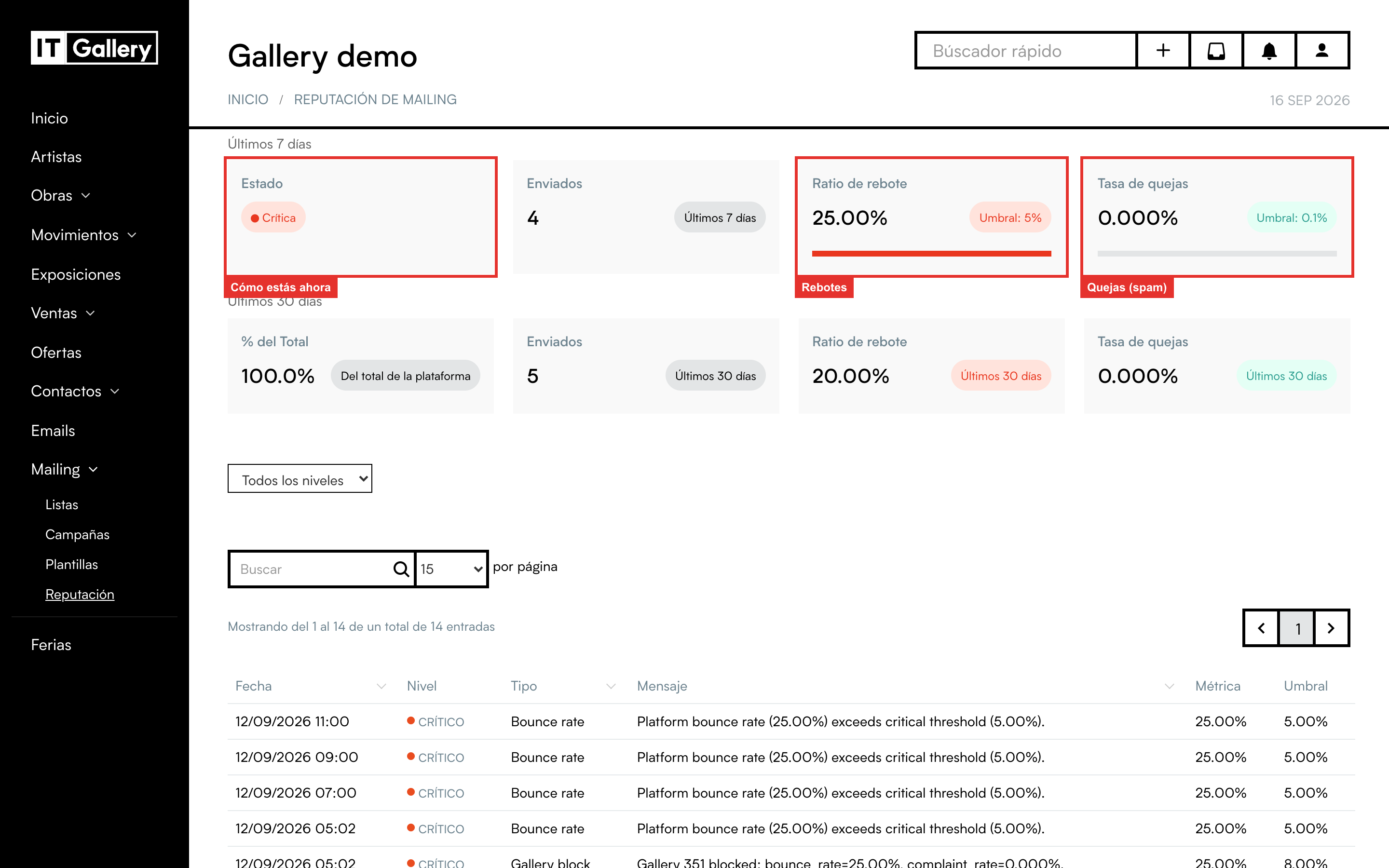
The top row is the last 7 days; the bottom one, the last 30. In each:
- Status: the overall traffic light of your gallery (see below).
- Sent: how many emails went out in that period.
- Bounce rate: the percentage of sent emails that bounced. Next to the figure you have the threshold: from 3% you get a warning and from 5% it is considered critical.
- Complaint rate: the percentage of emails marked as spam. Here the thresholds are much lower, because every complaint weighs a lot: warning from 0.05% and critical from 0.1% (one in a thousand).
- % of Total (30 days only): what share of all ITGallery sends are yours. For information only.
The coloured bar under each percentage tells you how close you are to the threshold: green, fine; orange, careful; red, you have gone over the limit. In the example image you can see a test gallery with a 25% bounce rate, far above the 5%: that is why its status is Critical.
The four possible statuses
| Status | What it means |
|---|---|
| OK | All in order. Keep it up. |
| Warning | Some figure has gone over the warning threshold. Nothing happens yet, but review your lists before the next send. |
| Critical | You have gone over the critical threshold for bounces or complaints. If it carries on, sends will be blocked. Clean the list and do not send until you have it sorted. |
| Blocked | The gallery's sends are stopped because of reputation problems. You will see a red notice at the top of the dashboard. Write to support: we will go through what happened and how to get it going again. |
The alert history
Here you only see your gallery's alerts, with the date, the level (Warning or Critical), the type, the figure that triggered it and the threshold. There are three types:
- Bounce rate: the percentage of your emails from the last 7 days that bounced. Warning above 3% and critical above 5%.
- Complaint rate: the percentage of your emails from the last 7 days that someone marked as spam. Warning above 0.05% and critical above 0.1%.
- Sending blocked: the moment the gallery's sends were stopped because of reputation problems.
Bounce and complaint alerts are calculated every night, and only if the gallery has sent at least 50 emails in the last 7 days: with fewer sends, a couple of bounces would give a percentage that means nothing. If a figure stays over the threshold, the same alert is not repeated for a week; if it gets worse and goes from Warning to Critical, a new alert appears without waiting for the week.
With the drop-down at the top you can see only one level. It helps you understand when a problem started and whether what you did afterwards has worked.
How to keep a good reputation
- Only send to people who have given you permission. No bought lists and no addresses scraped from the internet. It is the number one cause of complaints.
- Use double opt-in on the public forms of your website: you save yourself fake and mistyped addresses. See Set up a list: sign-up, unsubscribe and subscription form.
- Clean the lists from time to time. Remove anyone who has gone months without opening anything with the Clean list tool. See Manage the subscribers of a list.
- Do not keep trying with people who bounce. Addresses marked as bounced no longer get sends; do not reactivate them unless you know for sure they work again.
- Make unsubscribing easy. An unsubscribe is far better than a spam complaint. Always leave the unsubscribe link in the footer of the email.
- Make it obvious who you are. A recognisable sender, an honest subject and a design consistent with your gallery cut down on complaints.
- Before a big send, look at this dashboard. If you are on Warning or Critical, fix the list first.