
Create and manage subscriber lists
A list is a group of people you want to send emails to. Before you create any campaign you need at least one list with people on it. This article shows you how to create lists and find your way around them; to add subscribers, see Add subscribers to a list.
What a list is and what it is for
Think of lists as folders of people. You can have a general list with everyone and smaller ones by type of audience: collectors, press, people who came to the last opening… The same person can be on several lists and will only get the email once, even if they are on two lists of the same campaign.
Each list has its own settings: how people sign up, which automatic emails they get when they join or leave, and its own form for your website. We cover that in Set up a list: sign-up, unsubscribe and subscription form.
View your lists
Go to Mailing and click Lists. You will see all your lists with the number of contacts on each one and their creation date.
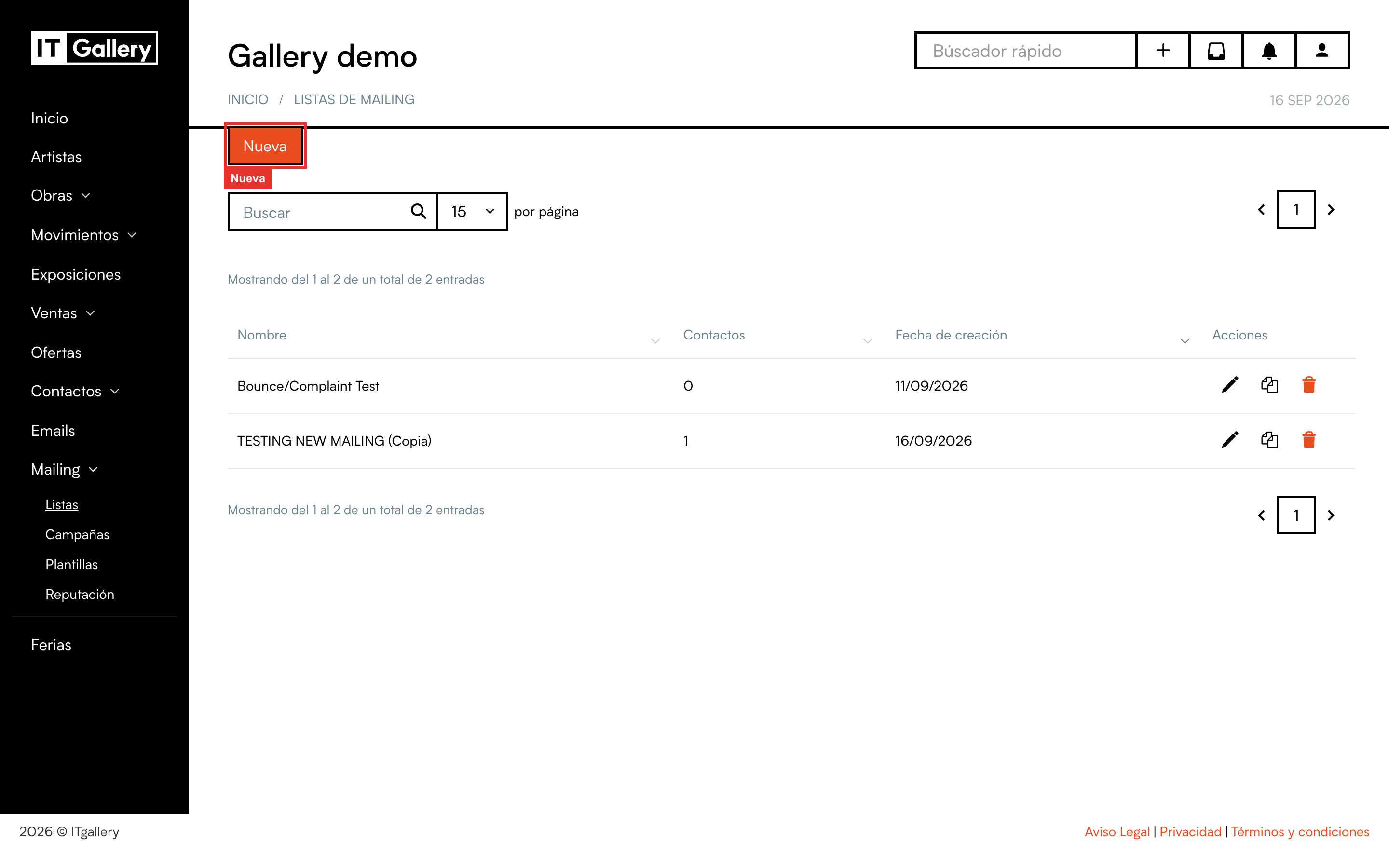
Click a list's name to open it. If you have a lot of lists, the search box at the top finds one by name.
Create a new list
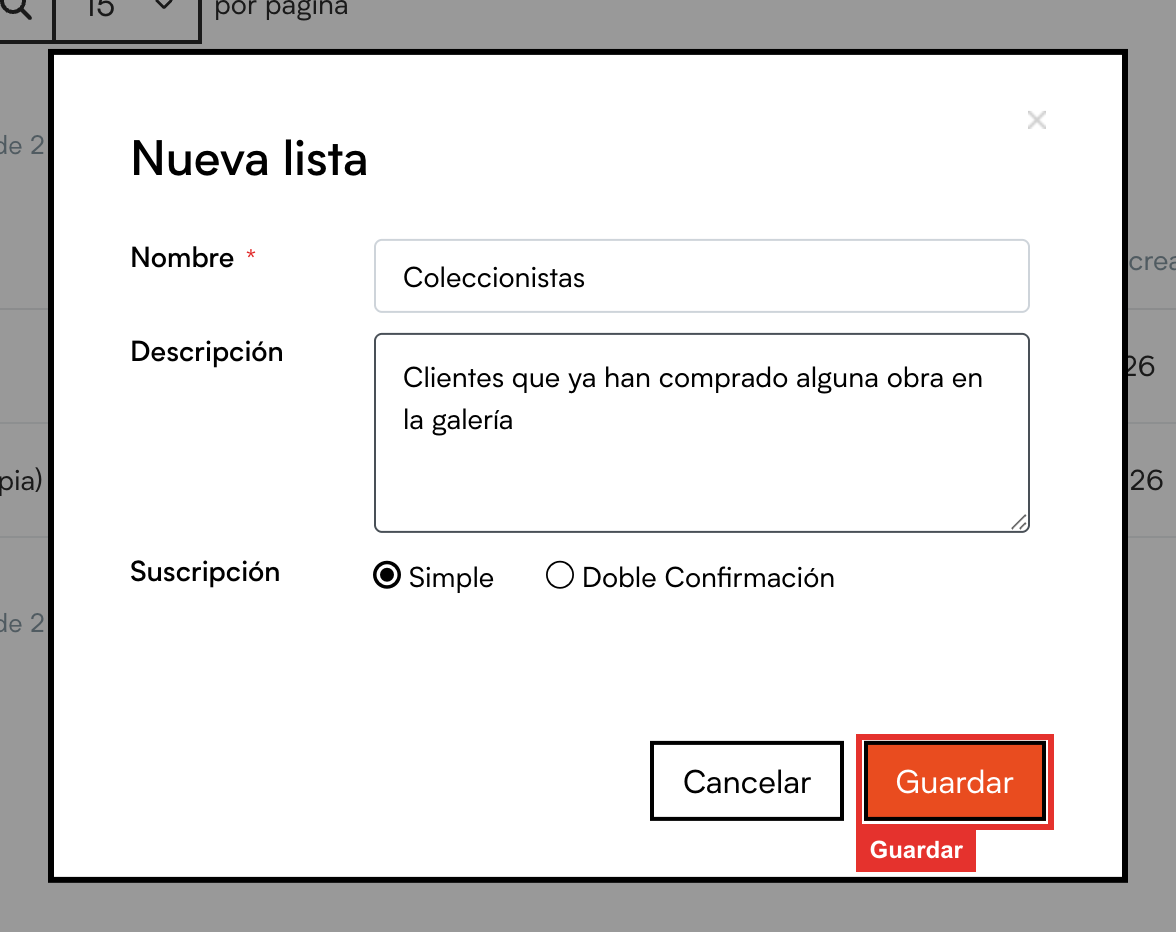
- In Mailing > Lists, click the New button.
- Type a Name that will help you recognise it later. It is required.
- If you like, add a Description. It is just for you; your subscribers never see it.
- Choose the type of Subscription: Single opt-in or Double opt-in (the difference is explained below).
- Click Save.
Single or double opt-in, which one should I choose?
- With Single opt-in, whoever signs up from your web form is on the list straight away. It is the most convenient.
- With Double opt-in, on signing up they get an email with a button to confirm they want to be on the list. They only count as a subscriber once they click that button. It is a little more work for the person signing up, but it guarantees the address exists and that they genuinely want your emails. It is the recommended option for public forms.
Tip
If you are the one adding people (importing a file or adding contacts by hand), the subscription type changes nothing: it only affects people who sign up on their own from the form. And you can always change it later from the list's settings.
Edit, copy or delete a list
In the list view, each list has three icons on the right:
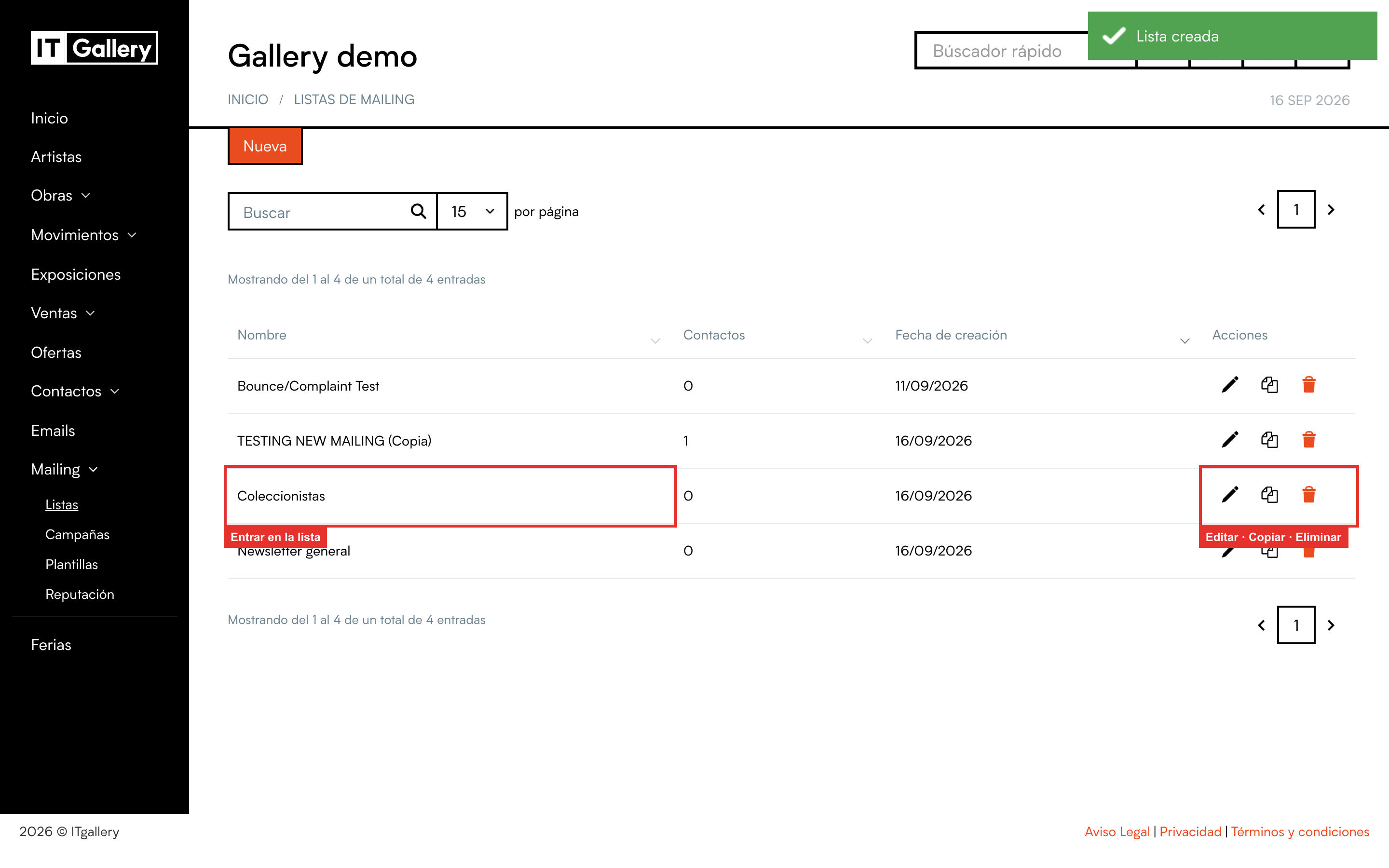
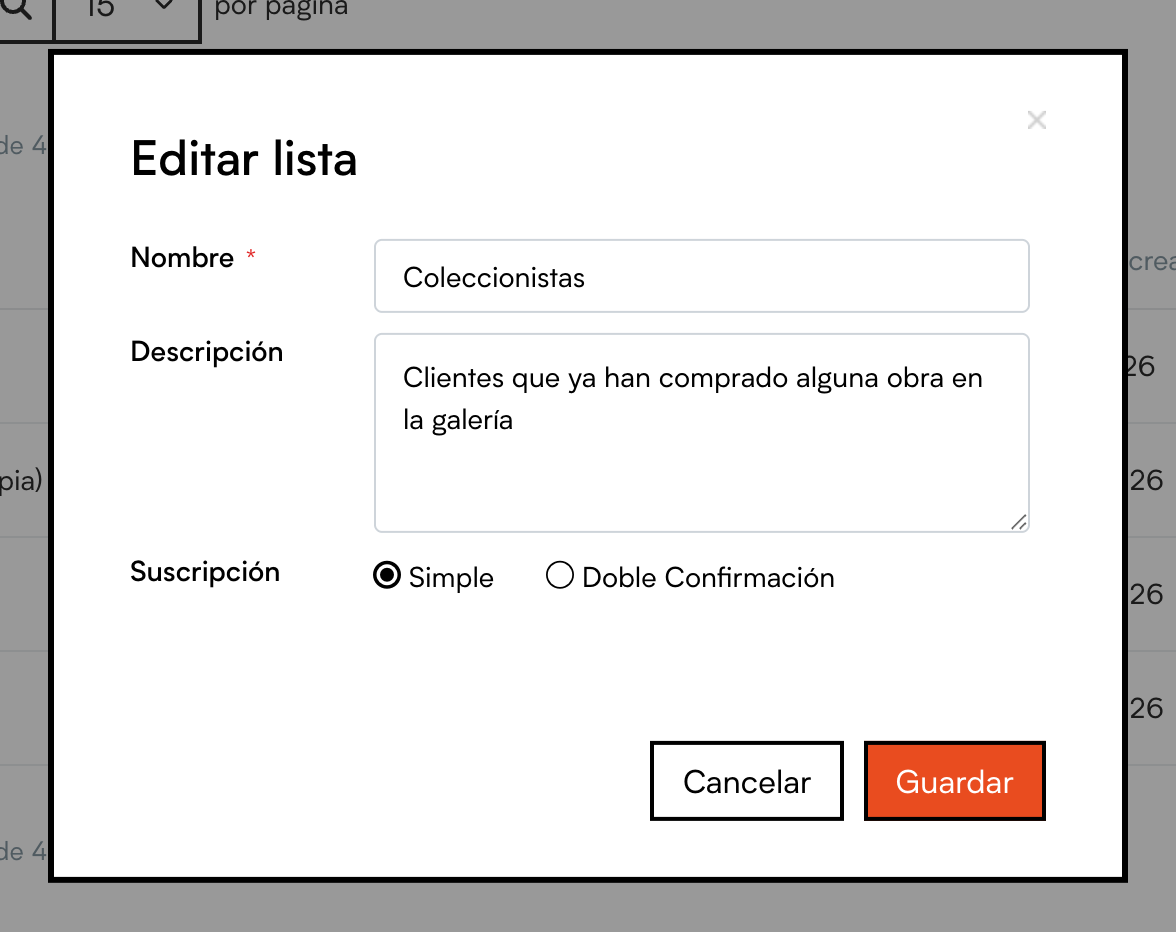
- Pencil (Edit): change the name, the description or the subscription type.
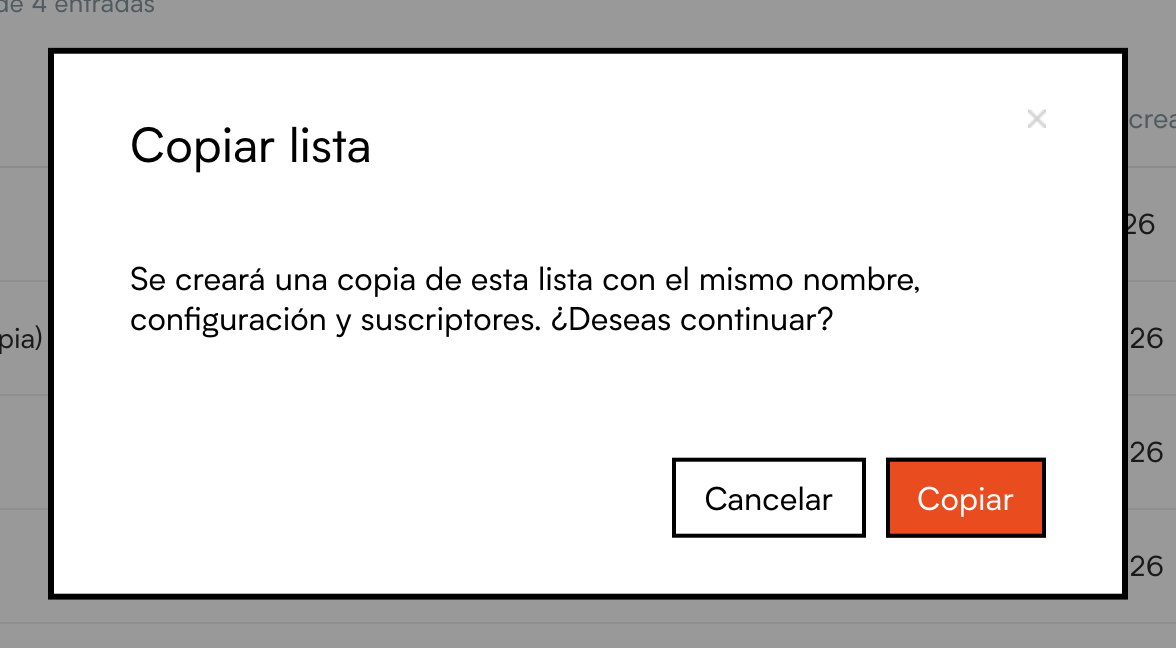
- Copy: creates an identical new list, with the same settings and the same subscribers. Handy for making a variant without touching the original.
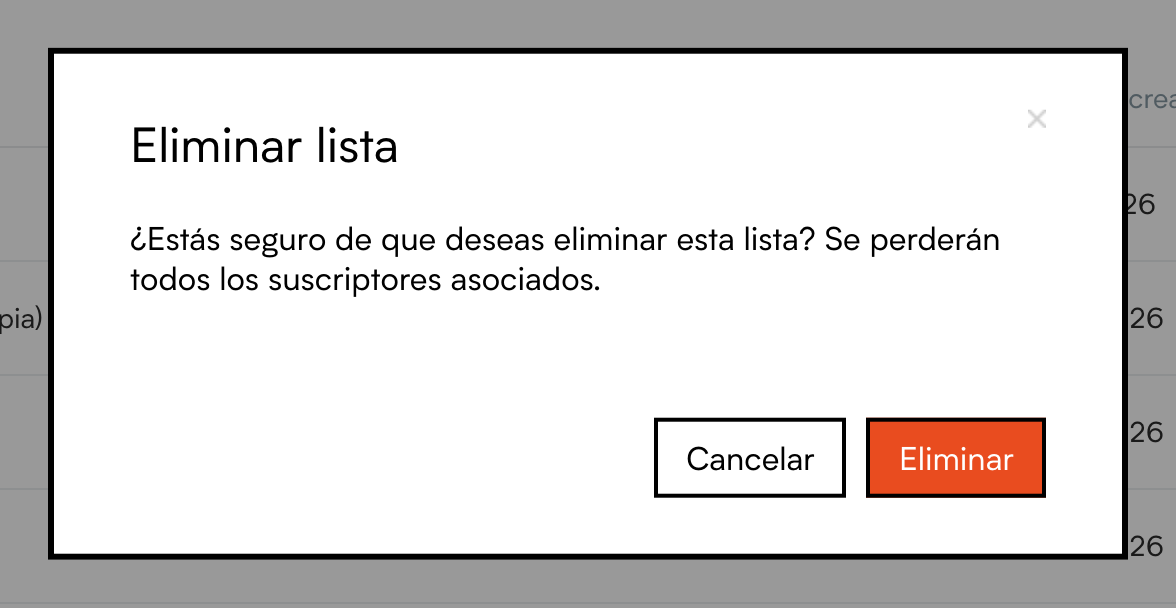
- Bin (Delete): deletes the list. It asks you to confirm first.
Heads up
When you delete a list you lose the subscribers linked to it. If one of them is also on another list, they will still exist there. If in doubt, export the subscribers first from the list's Subscribers tab.
Inside a list: the Summary tab
When you open a list you land on its Summary. At the top there are three tabs: Summary, Subscribers and Settings. On the right, the pencil to edit and the Tools menu.
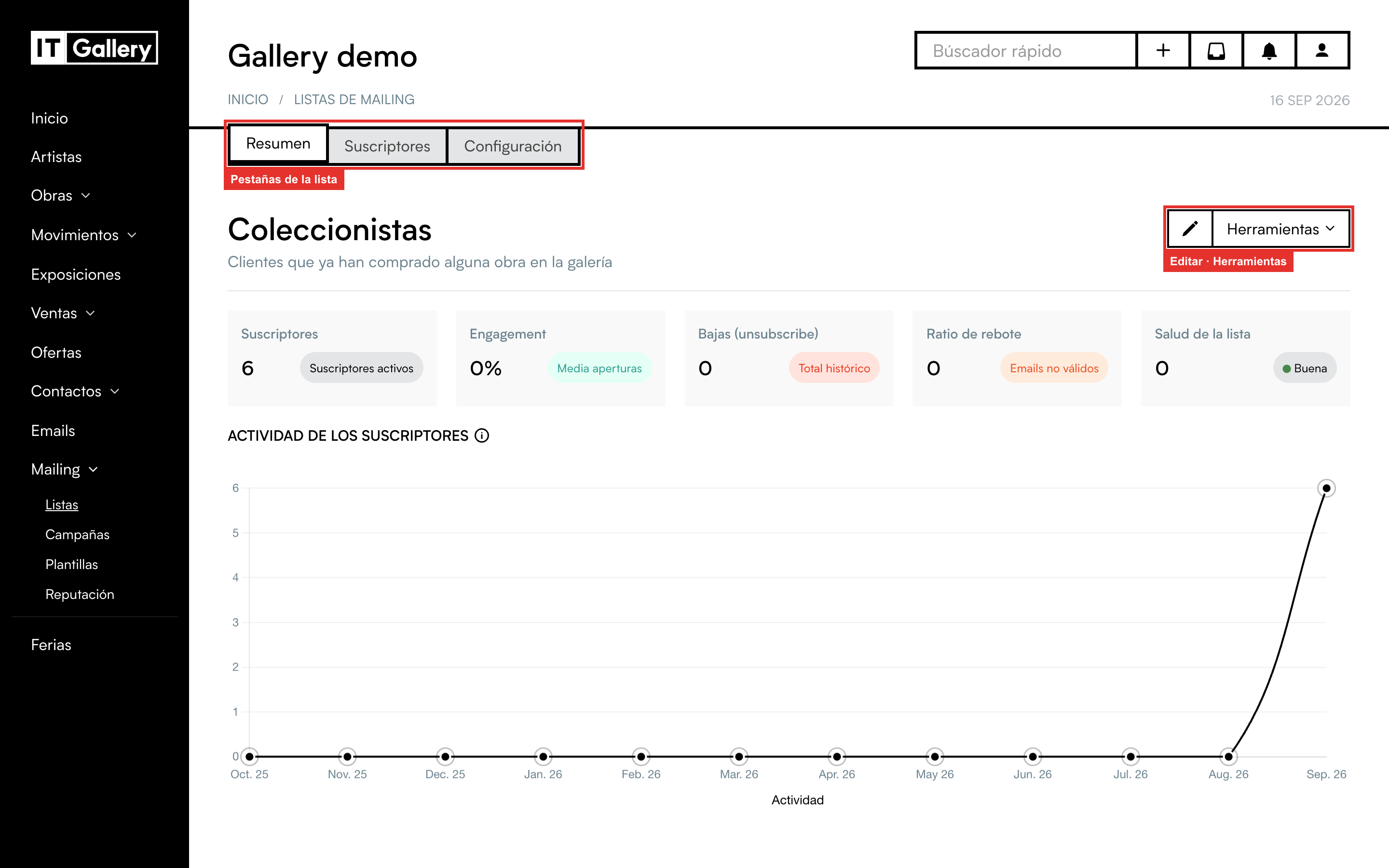
The summary cards give you a quick picture of the list's health:
- Subscribers: how many people are active, that is, will receive your campaigns.
- Engagement: the average open rate of the campaigns sent to this list. The higher, the more interest.
- Unsubscribes: how many people have unsubscribed over time.
- Bounce rate: emails that could not be delivered because the address does not exist or fails. If it goes up, it is time to clean the list.
- List health: a traffic light (Good, Warning or Critical) based on how many subscribers have gone a long time without opening anything.
Below, the Subscriber activity chart shows month by month how many people did something with your emails (opened them, clicked, signed up, unsubscribed…). The info icon next to the title explains exactly what counts as activity.
The list's Tools menu

- Export metrics: downloads the summary figures as a CSV file, in case you want to keep them or take them into a spreadsheet.
- Delete list: the same as the bin in the list view.
The tools for working with the people on the list (import, export, move, change status…) are on the Subscribers tab. We cover them in Manage the subscribers of a list.