
Check the results of a campaign
Sending is only half the job. The other half is knowing whether people open your emails, what they click on and who unsubscribes, so you can do better next time. All of that is in each campaign's details, in Mailing > Campaigns.
In this article:
A quick look from the list
The campaign list itself already gives you the essentials of each send: how many emails went out, the percentage and number of Opens and Clicks, and the date. It is handy for comparing campaigns at a glance.
The campaign details
Click the name of a sent campaign to open its details.
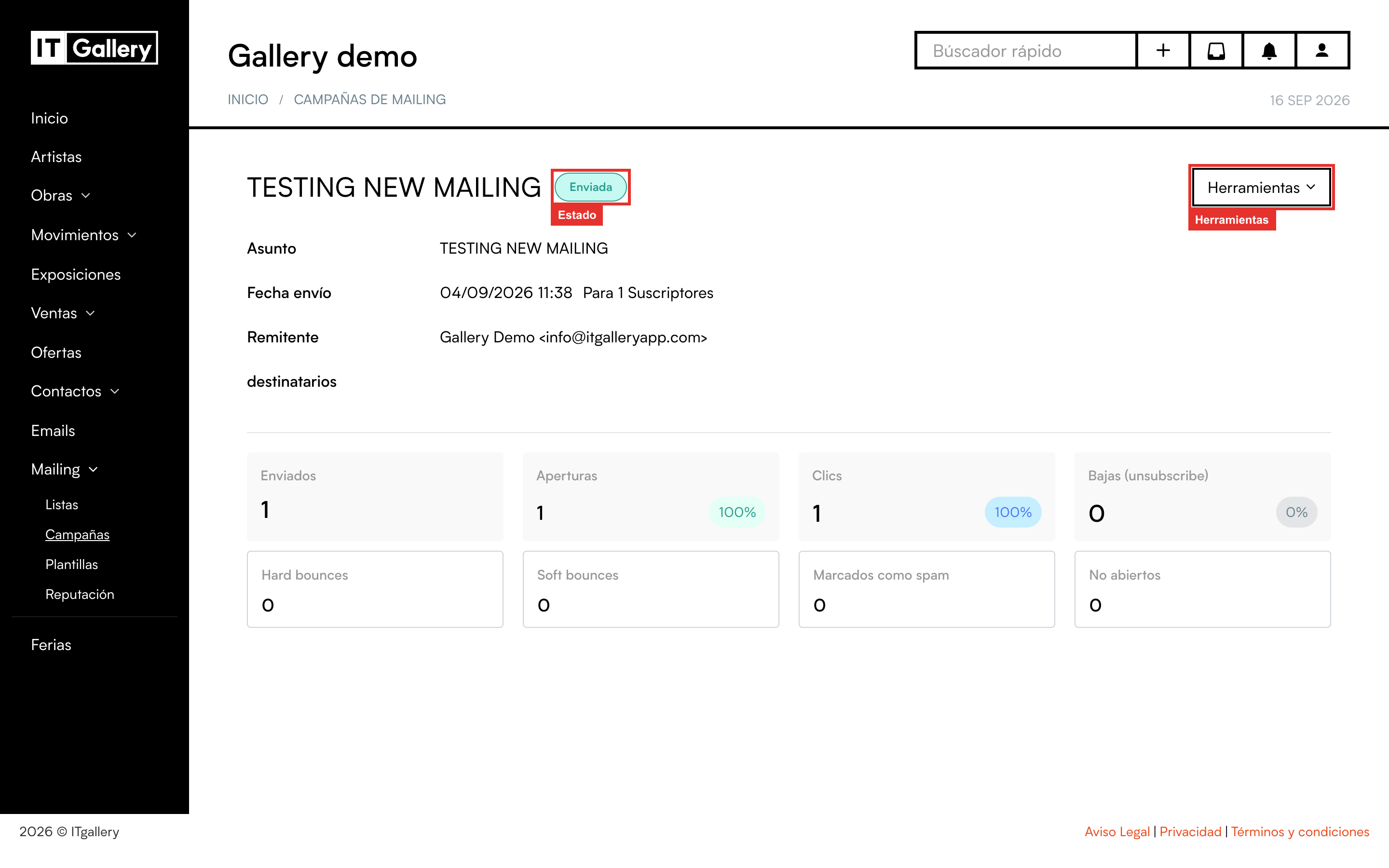
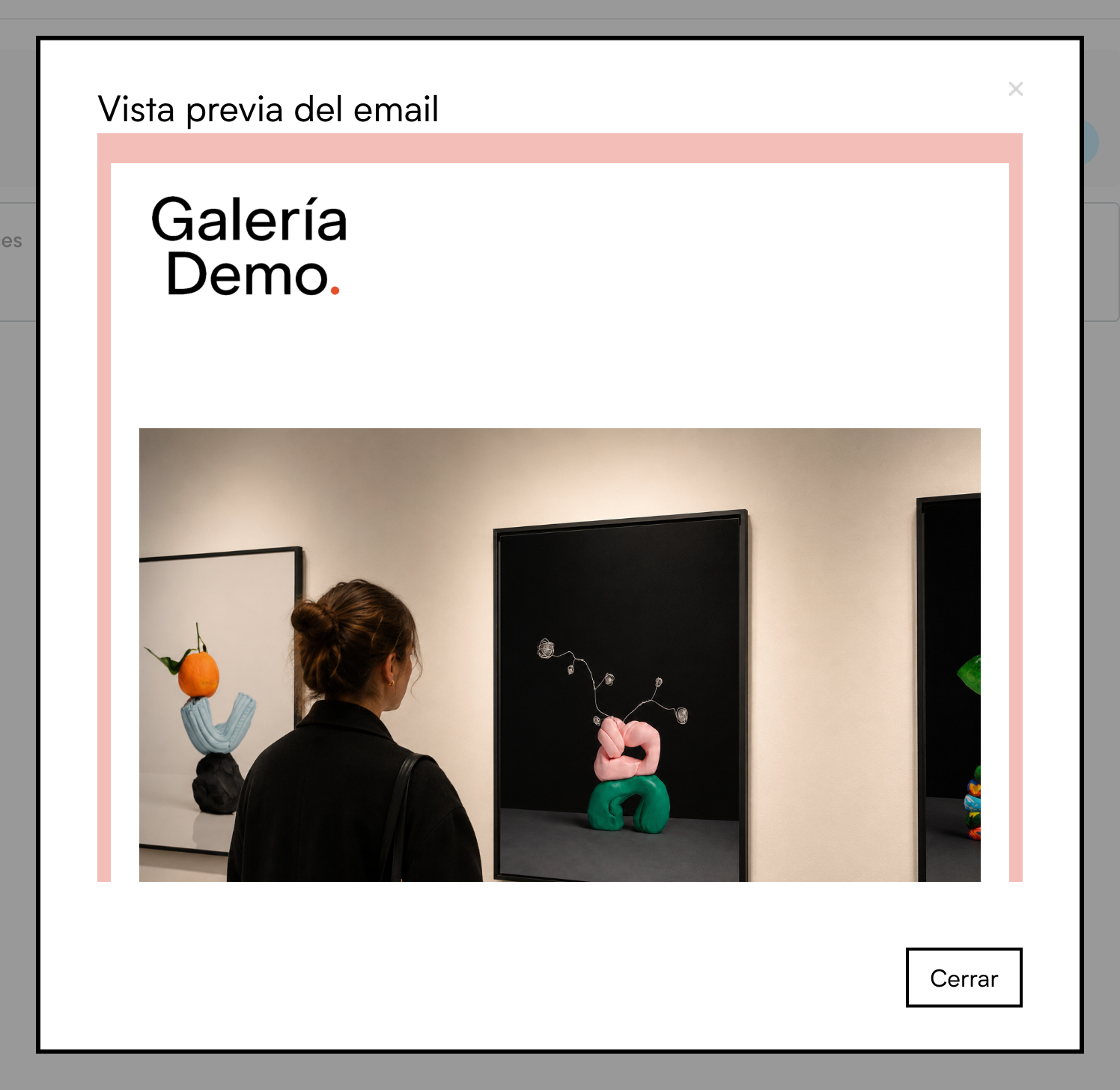
At the top you have the name with its status, and the details of the send: the Subject (with an eye icon next to it to see the email as it was sent), the Send date with the number of people, the Sender and the recipient lists.
Below, the cards with the numbers. They keep updating during the send and over the following days, as people open the email.

What each number means
- Sent: how many emails went out.
- Opens: how many different people opened the email at least once, and what percentage of the sent emails that represents. It is the most looked-at figure, with one caveat: some email programs block the open notification or trigger it on their own, so treat it as an approximation.
- Clicks: how many different people clicked a link in the email, and the percentage. It is the most reliable measure of real interest.
- Unsubscribes: who unsubscribed from this email.
- Hard bounces: emails that could not be delivered for a permanent reason: the address does not exist or the domain no longer works. Those addresses are marked as bounced and are not sent to again.
- Soft bounces: emails that were not delivered for a temporary reason: full mailbox, server down at that moment… They may well get through in the next campaign.
- Marked as spam: people who clicked “this is spam” in their email program. It is the worst possible figure for your reputation; if it grows, review who you are sending to.
- Not opened: those who received the email and have not opened it (yet).
More detail: countries, links and activity
When there is enough data, three more sections appear under the cards:
- Geolocation: which countries the email was opened from, as percentages.
- Link performance: each link in the email with its total clicks, its unique clicks (different people) and the percentage it represents of all the clicks. This is where you see which artwork, button or news item got the most interest.
- Subscriber activity: the last 10 opens, the last 10 unsubscribes or the last 10 bounces, with name, email, country and time. Pick which one to see in the drop-down.
In small or just-sent campaigns these sections may not show up yet.
The Tools menu
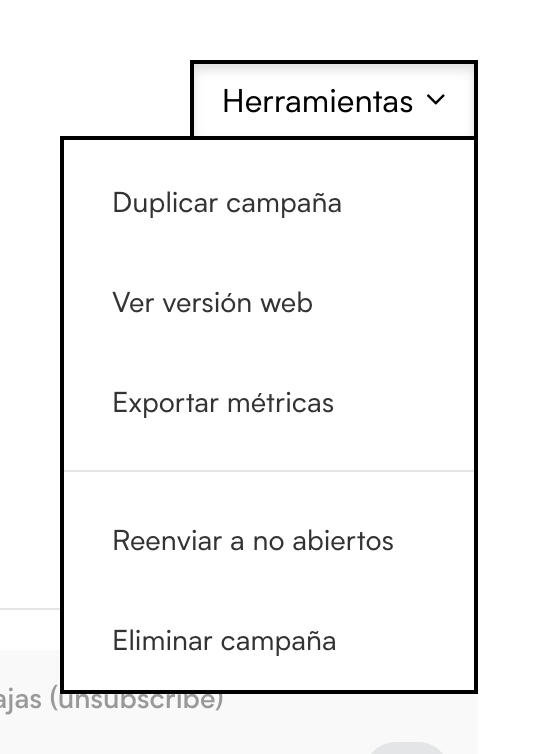
- Duplicate campaign: creates a draft with everything copied, to resend it or use it as a base. More in Schedule, cancel and duplicate campaigns.
- Export metrics: downloads the campaign's figures as a CSV file to open with Excel or keep.
- Cancel schedule: only shows up on scheduled campaigns that have not gone out yet.
- Delete campaign: deletes the campaign and its report.
View web version and Resend to unopened appear in the menu but are not available yet; we will be switching them on.
Draft and scheduled campaigns have no results: instead you will see the notice “Metrics will be available once the campaign starts sending”.
How to read the results without going mad
- Always compare with your own earlier campaigns, not with figures from the internet. Every gallery has its own audience.
- As a very general reference, in the art world an open rate of 30-40% and a click rate of 3-5% are normal figures. Below that, review the subject and the send time; above that, well done.
- If bounces go up, clean the list: see Manage the subscribers of a list.
- If spam complaints appear, stop and think about where those addresses came from. And have a look at Understand your sending reputation.