
Create and send a campaign step by step
A campaign is one specific email you send to one or more lists. You create it with a four-step wizard that asks you for what it needs and shows you a summary before sending. You can stop at any point, save the draft and carry on another day.
In this article:
What you need before you start
Step 1. Settings: the details of the send
Step 2. Audience: who you are sending it to
What you need before you start
- A verified sender. Without it, the wizard will not let you get past the first step. See Set up the sender of your campaigns.
- At least one list with active subscribers. See Add subscribers to a list.
- Optional but highly recommended: a template with the design of the email, made in Mailing > Templates. If you have none, you can design the email inside the campaign itself. Guide: Create or edit a template.
The four-step wizard
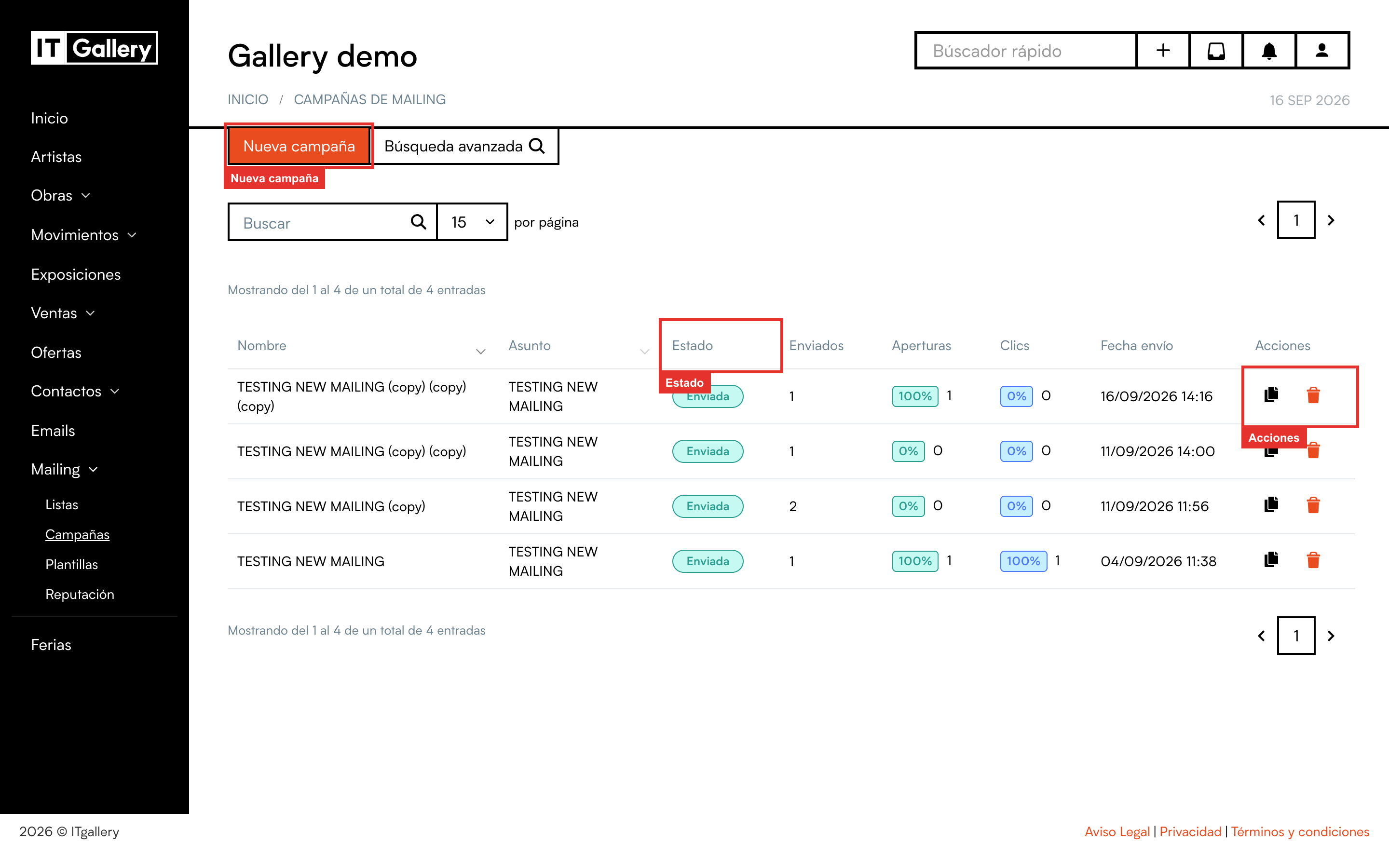
Go to Mailing > Campaigns. You will see all your campaigns with their status, how many emails were sent and the opens and clicks of each one. Click New campaign.
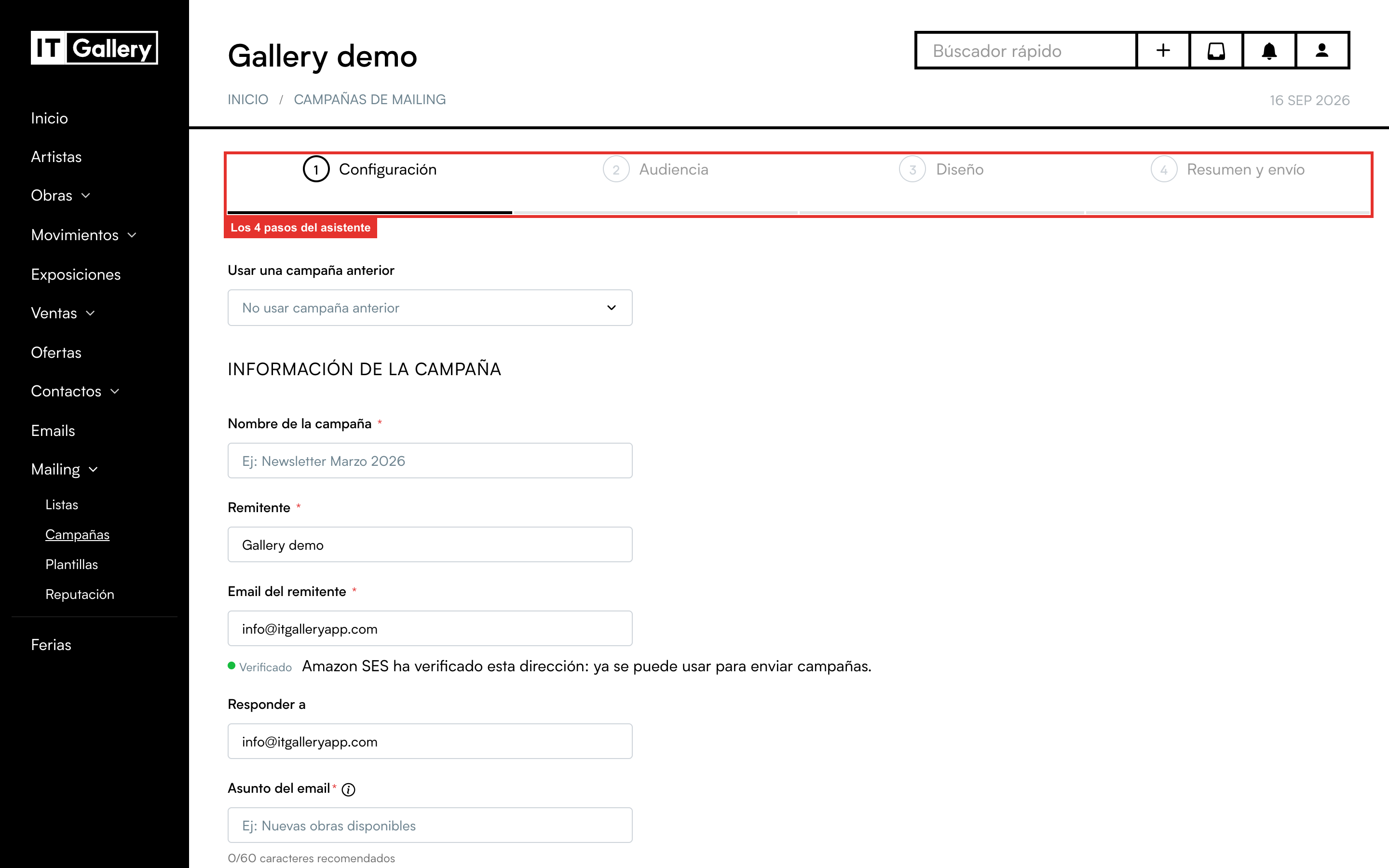
At the very top are the four steps: Settings, Audience, Design and Summary and send. You move forward with the button at the bottom, and you can go back whenever you like without losing anything.
Step 1. Settings: the details of the send
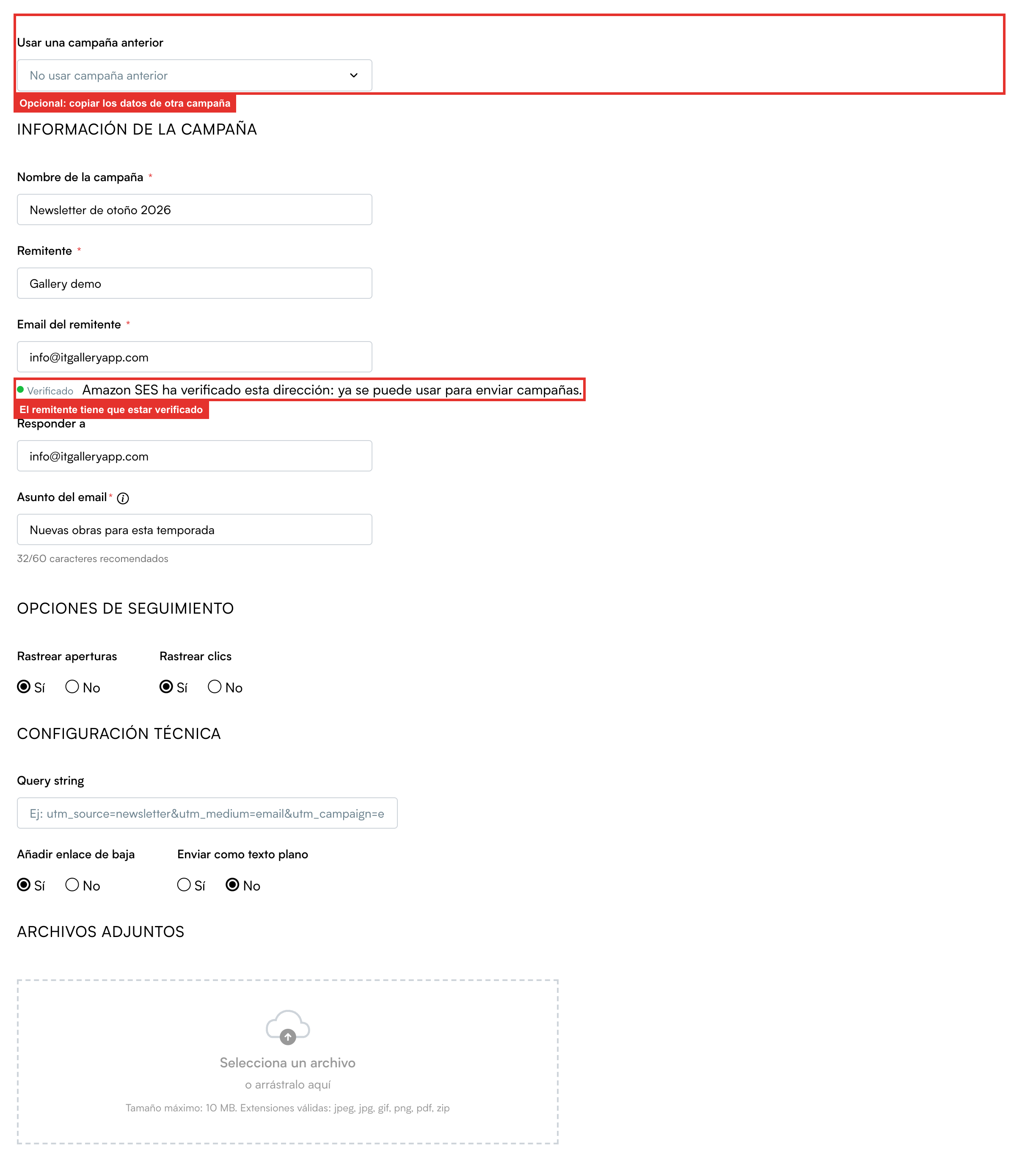
Use a previous campaign. Optional. If you pick a campaign you have already made, its name, sender, subject, options, lists and design are copied over, and you only change what is different. Very handy for the monthly newsletter.
Campaign information:
- Campaign name: for you, to recognise it in the list. Your subscribers never see it. For example, “Autumn newsletter 2026”.
- Sender name and Sender email: come pre-filled with what you set up in My Gallery. You can change them for this campaign, but remember the address has to be verified: it tells you right underneath.
- Reply to: the address replies will go to. Optional.
- Email subject: what people see in their inbox. It is the most important thing for getting the email opened. Keep it short: the counter warns you beyond 60 characters.
Tip
The subject cannot be personalised for now: write it exactly as you want it to arrive. Inside the email you can put each person's name; we cover it in step 3.
Tracking options. Track opens and Track clicks. Leave them on Yes: without them you will not know how many people open your emails or what they click on.
Technical settings and Attachments are advanced options: in practice you can leave them as they come. And a word of advice on attachments: rather than attaching a PDF or a catalogue, upload it to your website or a showroom and link to it from a button in the email. Emails with attachments are heavier and end up in spam more easily.
Step 2. Audience: who you are sending it to
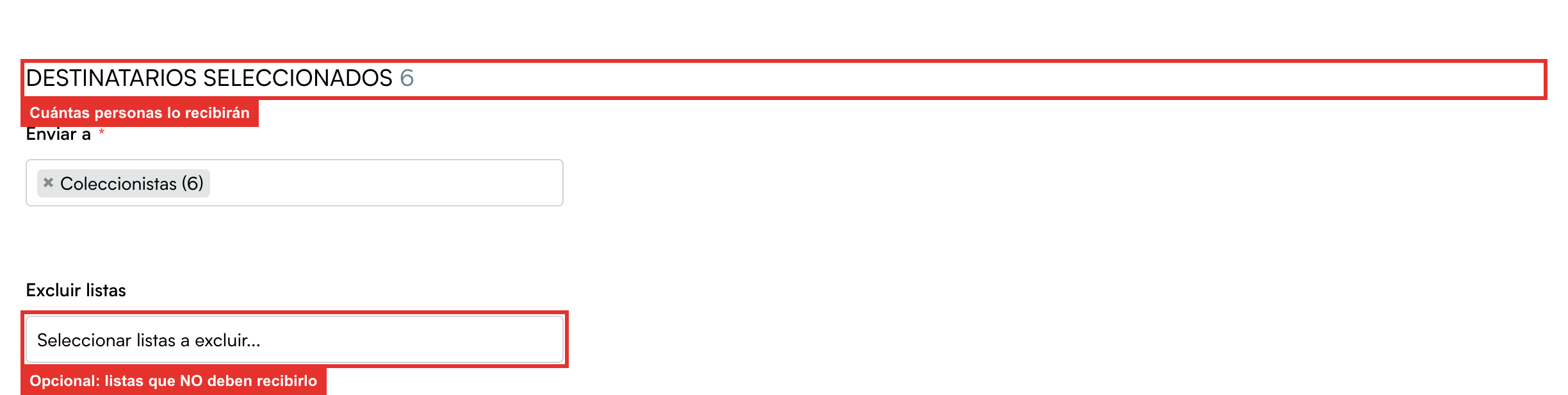
Under Send to, search for and pick one or more lists. As you type, it suggests lists with their number of subscribers:

At the top, Selected recipients keeps a running total of how many people will get it. If someone is on two of the chosen lists, do not worry: they will only get the email once (the counter may count them twice, but the send does not).
Exclude lists is optional: people on the lists you put here will not get the email even if they are also on the sending lists. For example, to send an offer to your whole general list except the people who have already bought.
Step 3. Design: what the email looks like
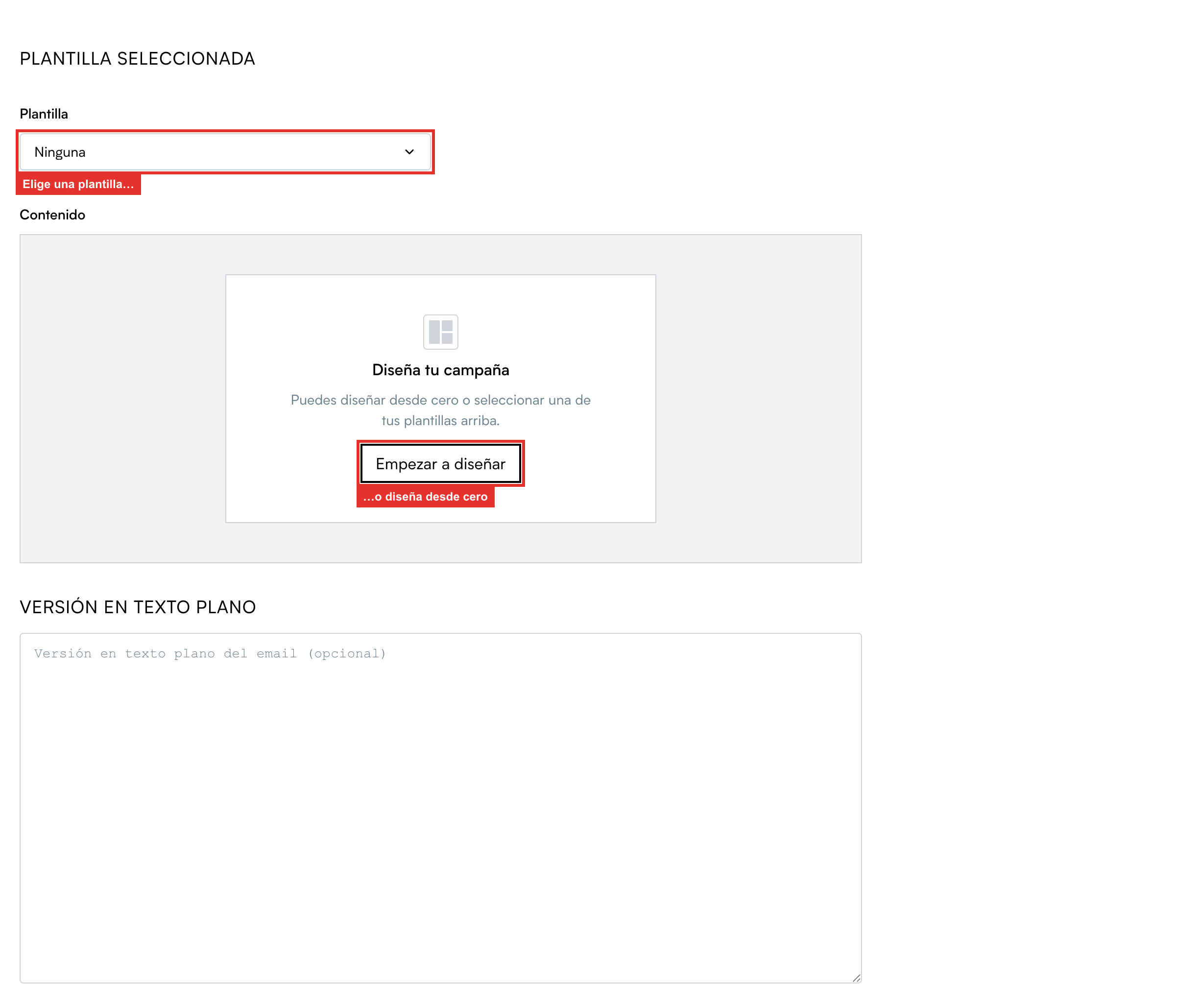
You have two routes:
- Pick a template in the Template drop-down. When you pick it, its design is copied into the campaign and you see it in the preview. If you want to tweak something just for this send, click Edit design: the editor opens and the changes stay in the campaign, without touching the original template.
- Start designing from scratch, with no template. The same editor used to build templates opens.
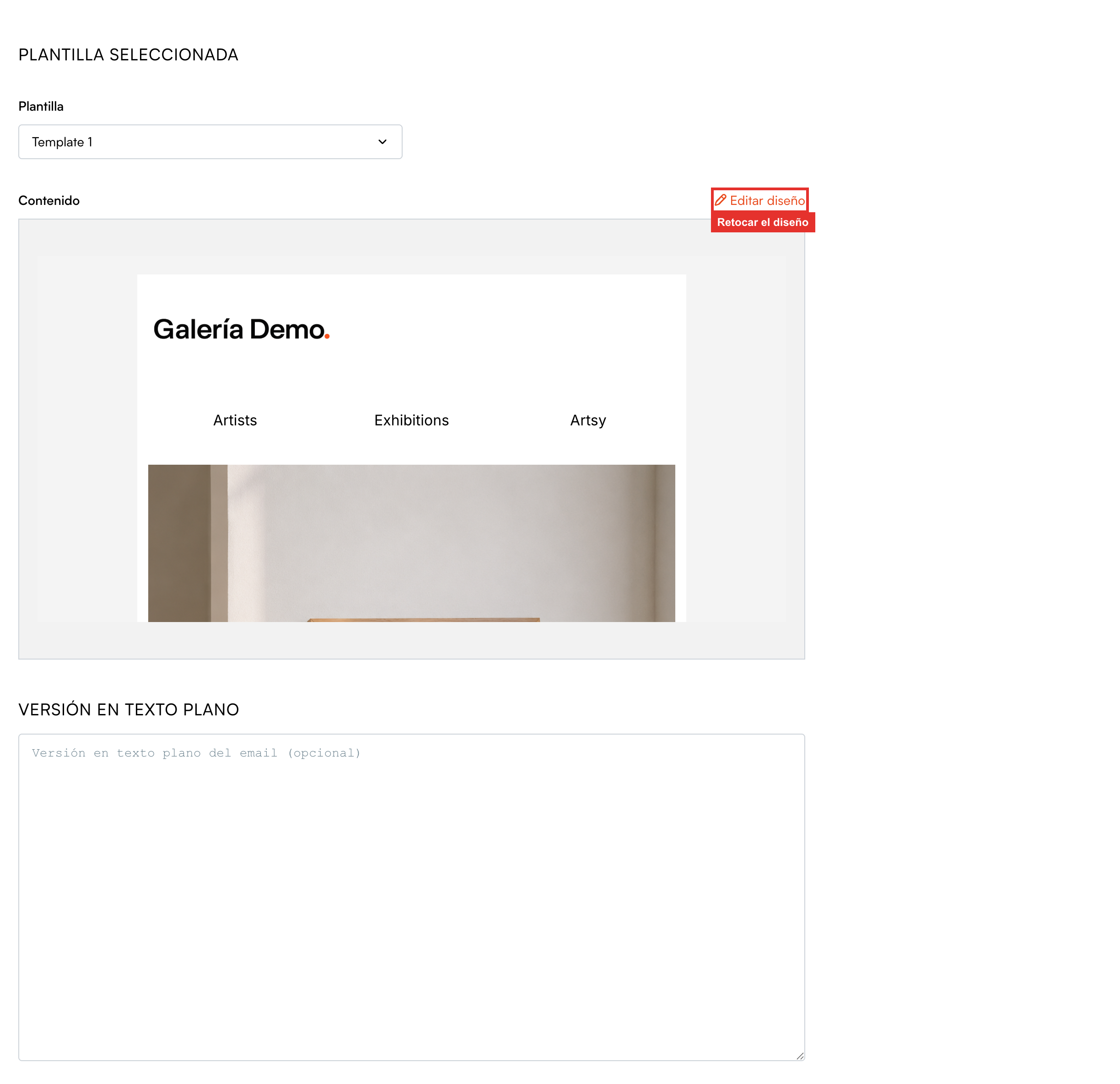
Personalise with the name. In any text of the email you can write {{subscriber.name}} and, on sending, it is replaced with each subscriber's first name: “Hi {{subscriber.name}}” reaches Ana as “Hi Ana”. There are also {{subscriber.surname}} (last name) and {{subscriber.email}}. Type them exactly like that, with the double curly brackets. In the preview in the last step you will see how it looks with a sample name.
The unsubscribe link. Any link in the email whose address is {{unsubscribe_url}} becomes, on sending, each subscriber's personal unsubscribe link. Check in the preview that the footer of your design has a working unsubscribe link; it is required and it protects your reputation. On top of that, email programs such as Gmail show their own “Unsubscribe” button on your sends, which also works.
The Plain text version is optional. You can leave it blank.
Step 4. Summary and send
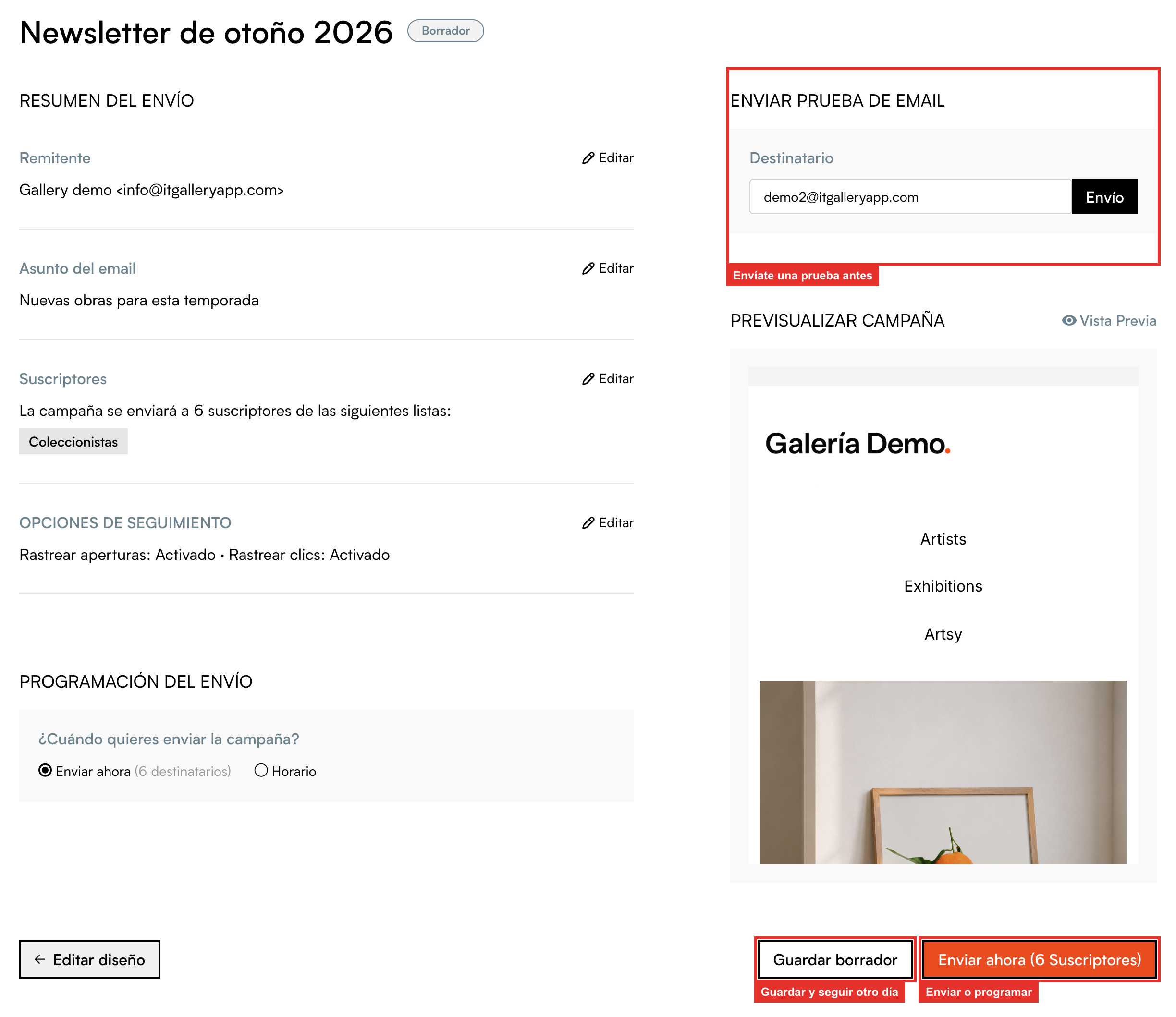
Everything you have set up, on a single screen. Each block has an Edit link that takes you to the matching step in case something needs changing.
Send test email. Type your address and click the button next to it: you get the email exactly as your subscribers will. Always do this before sending for real, and look at it on your phone and on your computer.
Preview campaign. A preview of the email inside ITGallery, without sending anything.
Send schedule. This is where you decide the moment:
- Send now: click the orange Send now button, confirm in the window that appears and the send starts within a few minutes.
- Schedule: to leave it scheduled for a day and a time. We cover it in Schedule, cancel and duplicate campaigns.
If you do not want to send yet, click Save draft. The campaign will sit in the list with the status Draft and you can carry on editing it whenever you like.
Tip
The Save draft button is in the last step, so to save you need to have at least filled in the details of step 1 and chosen a list. Also, every time you apply a design from the editor, the campaign saves itself as a draft so nothing is lost.
And after sending
After confirming, the campaign goes through the statuses Queued, Sending and, when it finishes, Sent. With large lists the send is done gradually, so it can take a while. A sent campaign can no longer be edited; if you got something wrong, you can duplicate it, fix it and send it again.
To see opens, clicks and the rest, open the campaign from the list. We explain it in Check the results of a campaign.