
Quick guide to the new ITGallery Mailing
The new Mailing is ITGallery's tool for sending newsletters and communications to your contacts without leaving the app: you build your lists of people, design the email, send it and see how it went. All from the same place.
This guide is the starting point. It tells you what each section is for and the order in which things are best done. Every step has its own article with screenshots, so if you already know what you are looking for, go straight to it.
In this article:
What you will find in the Mailing menu
Three words worth getting straight
What you will find in the Mailing menu
In the left-hand menu of ITGallery you have the Mailing section. Open it and you will see four options:
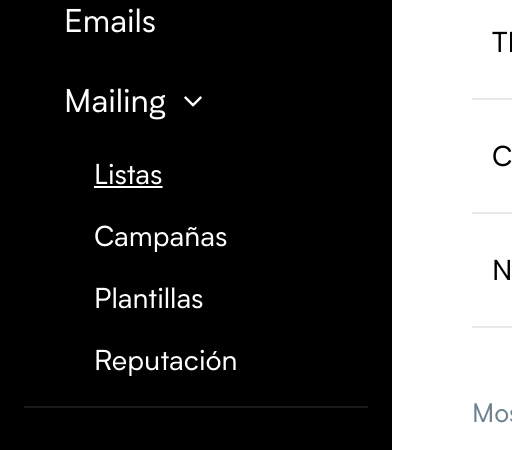
- Lists: the groups of people you send to. For example, “Collectors”, “Press” or “General newsletter”. This is where you add subscribers, import them from a file or manage them.
- Campaigns: every email you send (or have ready to send) is a campaign. From here you create them step by step, schedule them and check their results.
- Templates: the designs of your emails. You build a template once and reuse it in as many campaigns as you like.
- Reputation: a dashboard that tells you whether your emails are getting through or whether there are too many bounces or complaints. Worth a look every now and then.
Three words worth getting straight
A contact and a subscriber are not the same thing. A contact is a record in the Contacts module of ITGallery. A subscriber is a person on a mailing list. They can overlap (you can put your contacts on a list), but they do not have to: someone who signs up from the form on your website is a subscriber without being a contact. We explain it in more detail in Difference between ITGallery contacts and mailing subscribers.
A list is a group of subscribers. The same person can be on several lists at once. When you send a campaign, you choose which lists it goes to.
Template and campaign. The template is the design (colours, images, text, artworks). The campaign is the actual send: who it goes to, with what subject, on what day. You can use the same template in many campaigns. More on this in Difference between mailing and templates.
The whole journey, in five steps
If this is your first time using Mailing, this is the order we recommend:
- Set up the sender. This is the name and the address your emails go out with. The address has to be verified; otherwise you will not be able to send. See Set up the sender of your campaigns.
- Create a list and add people to it. You can add people one by one, import them from an Excel or CSV file, or let them sign up on their own from your website. See Create and manage subscriber lists and Add subscribers to a list.
- Design the template. In the Templates section you prepare the look of the email. If you already have templates, skip this step. Guide: Create or edit a template.
- Create the campaign and send it. A four-step wizard asks you for the details, the list and the design, and shows you a summary before sending. You can send straight away or leave it scheduled. See Create and send a campaign step by step.
- See how it went. Opens, clicks, unsubscribes and bounces for each campaign, plus the overall state of your reputation. See Check the results of a campaign and Understand your sending reputation.
Tip
Before your first real send, send yourself a test from the last step of the wizard. It is the quickest way to check that the subject, the sender and the design look the way you want.
All the articles in this section
- Set up the sender of your campaigns
- Create and manage subscriber lists
- Add subscribers to a list
- Manage the subscribers of a list
- Set up a list: sign-up, unsubscribe and subscription form
- Create and send a campaign step by step
- Schedule, cancel and duplicate campaigns
- Check the results of a campaign
- Understand your sending reputation
For the design of the emails, see the articles in the Mailing templates section, starting with Mailing guide for ITGallery.